
Send a contract for signing
Make a contract from a template or your own Word file, add it to Registers, then have it signed in a form or through someone's employment details.
A contract you write in Wikidoc reaches the people who sign it through Registers. You add a copy of the document to a register record, and forms and employment details pick it up from there. The copy in Registers is the version that gets sent and signed. Editing the document afterwards doesn’t change it until you add the document to Registers again.
Make the contract
Section titled “Make the contract”- In Files, click + New file, pick Contract, then click Start from a template. The library opens on Contracts. Pick a contract. See Start a document from a template.
- Fill in the highlighted terms, such as the parties, dates and pay, and delete any clause that doesn’t apply.
- Have it checked, then delete the line “Check this template against your local regulations and your own policies before you use it.”
- Click Save.
Start from your own Word contract
Section titled “Start from your own Word contract”If your contract is already a Word (.docx) file in a register record, you can edit it in Wikidoc instead of starting from a template.
- In Registers, open the record. Under the Word file, click Open as a document.
- A copy opens in the editor, and it’s saved in your Files. Edit it, then click Save.
The file in the register doesn’t change. When the document is ready, add it back to the same record (below) to replace the file.
Headings, lists, tables, links and pictures come across. Fonts, colours, text boxes, headers and footers, comments and tracked changes don’t, so check the layout before you send it. A PDF can’t be opened as a document. Viewers can’t use Open as a document.
Add it to Registers
Section titled “Add it to Registers”-
Open the document and click Add to Registers at the top. Or, in Files, click ⋯ on the document’s row, then Add to Registers.
-
Pick the Register. A Contracts register keeps each agreement with its type, other party, end date and review date. If none of your registers has a file field yet, click Create a Contracts register. If you have other registers but no Contracts one, click Create one.
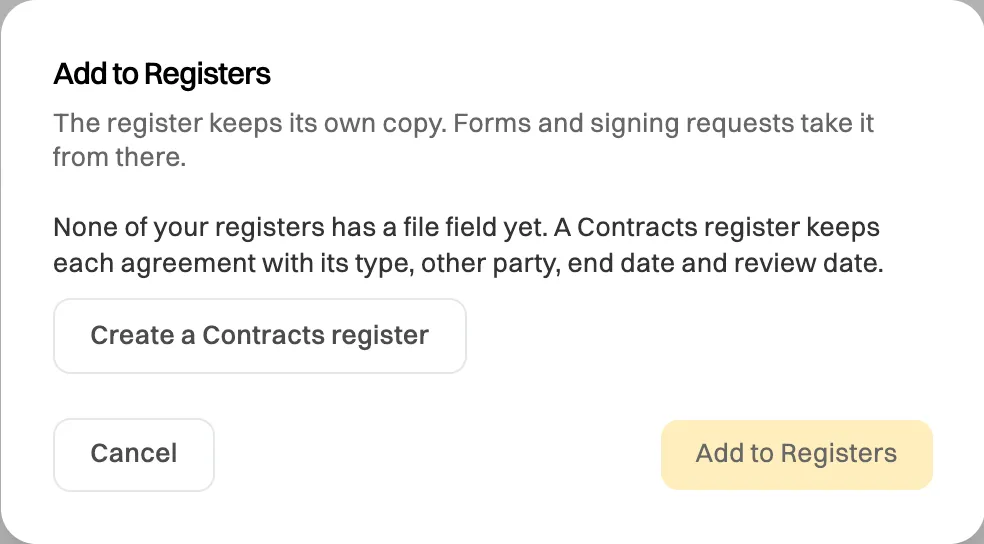
With no register to file it in, Wikidoc offers to create a Contracts register. -
Pick Record: a new record, or an existing one to replace its copy.
-
Click Add to Registers.

You can also start in Registers. When you add a record, under a file field click choose a document from Files. On a record you already have, click Choose from Files, or Replace with a document from Files.
If the contract still has the check line, or passages that are still highlighted, Wikidoc asks whether it has been checked first. Click It’s been checked, add it to go ahead anyway.
The record shows the copy as From Files, with the document’s title and the date you added it. Click Open to read the copy.
Have it signed
Section titled “Have it signed”A contract everyone signs as it is, such as a non-disclosure agreement or a code of conduct: in a form, add A file to sign, click Choose from Registers and pick the record. Each person downloads it, uploads the signed copy and types their name. See Create a form.
A contract made out to one person, with their name, pay or start date: open their profile, and under Employment details, in Documents to sign, click Choose from Registers and pick the record. Only an Admin can do this. They download it, sign it, upload the signed copy and confirm with their name. See Employment details.
A contract from Files downloads as a web page (.html). To sign it on paper, open it in a browser and print it, or save it as a PDF.
Change a contract
Section titled “Change a contract”- Edit the document in Files and click Save.
- In Registers, open the record and click Update from Files next to the copy. Or add the document to Registers again and pick the same record. The new copy replaces the old one.
- Forms that use it show that a newer version is in Registers. Click Update in the form to use it. People who already signed keep the copy they signed.
- For Add for signing, choose it from Registers again. They’re asked to sign the new version.
Deleting the document from Files doesn’t remove the copy in Registers.