
Create and edit an AI-narrated video
Make a narrated training video from your files or a screen recording, choose its style, then edit its scenes, voiceover, text and zooms.
Wikidoc can turn a document’s sources into a narrated training video. It writes a script from the same outline as the document, reads it in an AI voice, and adds captions. You don’t need to record your voice or film anything.
Video styles
Section titled “Video styles”| Style | What it looks like | Made from | Plan |
|---|---|---|---|
| Narrated slides | Designed slides, laid out like a slide deck’s, with a voiceover and a question after each section | Text sources: policies, procedures, spreadsheets, audio and talks | All plans |
| Scenario | Illustrated scenes with invented characters acting out what the policy means, each followed by a “what should happen?” question and a replay of the right way | Text sources, especially conduct policies such as harassment, safety or customer care | All plans |
| Tutorial | Your screen recording with a voiceover, captions and a zoom on each step | A screen recording | All plans |
Wikidoc suggests a style from your sources. You can choose another.
Make the video
Section titled “Make the video”-
Add your sources and click Next. See Create a document from files or a recording.
-
On the Create tab, tick Narrated video, then:
- Style: keep the suggested style or choose another. When you choose Scenario, the card shows how many AI pictures you have left this month, and warns you if there may not be enough for every scene.
- Voice (Narrator for Scenario): click it to hear the voices and choose one. Free accounts can use three voices; Pro and Team have all ten.
- Language: the language of the narration and captions. For English, choose English (UK) or English (Australia) for a British or Australian accent; English (US) reads with an American accent. When you click a voice, its sample plays in the accent you chose. These three are on every plan.
- Template (Narrated slides): the look of the slides. It matches the template on the Slides card, or your organisation’s default if you haven’t chosen one there. Click it to choose another.
- Length: keep Suggested or choose a length. The video lands near the length you pick, give or take a minute, and a short policy makes a short video. A Tutorial follows the length of the recording.
-
Click Generate.
The video appears on the Video tab. A Scenario video is checked against your sources first: if a scene says something your sources don’t support, the video waits for you. Click Review and make the video, fix or accept the marked scenes, and save.
Answer the questions
Section titled “Answer the questions”When a Narrated slides or Scenario video reaches a question, it stops once the question has been read. Click an answer to see whether it’s right and why, then click Continue to hear the answer, or Try again. Skip carries on without answering. This happens on the Video tab, in training modules and in SCORM packages. The answers aren’t scored; the quiz is the test.
If you change the video in the editor, it stops at its questions again once you’ve saved and the video is updated.
Edit the video
Section titled “Edit the video”On the Video tab, click Edit. The editor has the list of scenes (or steps, for a Tutorial) on the left, and the preview and timeline on the right. The timeline has four tracks: Scenes, Voiceover, On-screen text and Zoom.
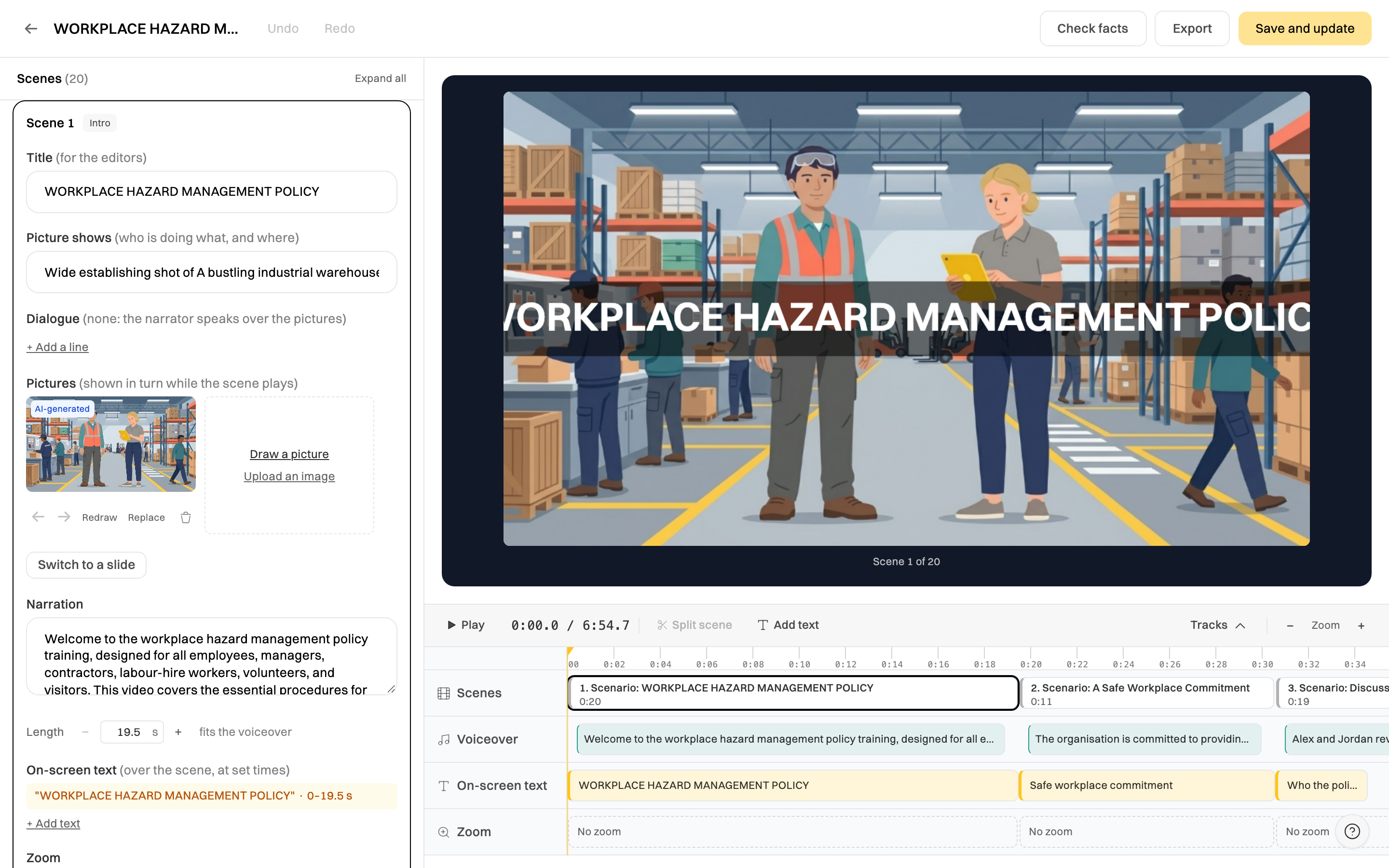
Click a scene to open it. You can:
- Change the narration. Edit the words, then click Re-narrate to hear them, or leave it: the voiceover updates when you save.
- Change the length. Use − and + under Length. A scene can’t be shorter than its voiceover.
- Add on-screen text. Click + Add text, type it, and set when it shows.
- Zoom. Choose an amount under Zoom, and pick the zoom point on the preview.
- Reorder, split or delete. Use the arrows on the scene, drag it on the Scenes track, or click Split scene at the playhead.
In a Scenario video you can also:
- Edit the characters under Characters: name, role, look and voice.
- Edit each line of dialogue, add lines and reorder them.
- Change the pictures: Redraw one, Replace it with your own image, or draw another.
To change the look of a Narrated slides video, choose another Template at the top of the scene list. The video is made again with it when you save.
Click Undo and Redo at the top to step through your changes.
Check facts
Section titled “Check facts”Click Check facts to compare the script with your sources. Scenes that say something your sources don’t support are marked: obligation for a rule or answer that isn’t in your sources, and detail for smaller points. Fix the scene, or mark it as fine if your sources do cover it.
Click Save and update. Wikidoc makes the finished video in your browser, which takes about a minute for a short video and several minutes for a long one. Keep the tab open until it’s done.
Saving takes a new version of the video and clears any approval, so it’s reviewed again.
Download the video
Section titled “Download the video”-
Click Export at the top of the workspace or the editor.
-
Choose Video (MP4) and a size: 480p, 720p, 1080p or 4K.
-
Click Download.
On the Free plan you can export at 480p or 720p. 1080p and 4K need Pro or Team. Exports don’t use your video minutes.
A downloaded MP4 plays like any other video: it doesn’t stop at its questions. Each question is followed by a short pause and then the spoken answer.
Video minutes and AI pictures
Section titled “Video minutes and AI pictures”| Free | Pro | Team | |
|---|---|---|---|
| Videos | 3 | Within monthly minutes | Within monthly minutes |
| Length of each video | Up to 3 minutes | Up to 10 minutes | Up to 10 minutes |
| Video minutes a month | — | 60 | 300, plus 60 per member after 5 |
| AI pictures a month (Scenario only) | 15 | 60 | 300, plus 60 per member after 5 |
A video’s minutes count when it’s made or saved. Tutorial videos count too. On Team, the whole organisation shares one monthly allowance. Allowances start again on the first of each month (UTC).
Every AI picture counts, including a redraw. A 3-minute Scenario video uses about 6 to 9. When they run out, you can upload your own pictures for the remaining scenes.
Videos made before October 2026
Section titled “Videos made before October 2026”Videos made before the scenes editor came in open in the older video editor, with Video, Narration and Zoom tracks. They play, edit and export as before.
Related
Section titled “Related”- Create a document from files or a recording
- Build a training module, which can include the video
- Plans compared