
Build a checklist template
Create a recurring checklist: its tasks and how they're answered, how often it's due, who fills it in and who signs it off.
A checklist template is the list your team works from: the tasks, how often they’re due, who fills them in and who signs them off. Each time it’s due, each assignee gets their own copy to tick off, and every copy is kept, so you have a record of who did what and when.
Create a template
Section titled “Create a template”-
Click Checklist in the sidebar, then + New checklist.
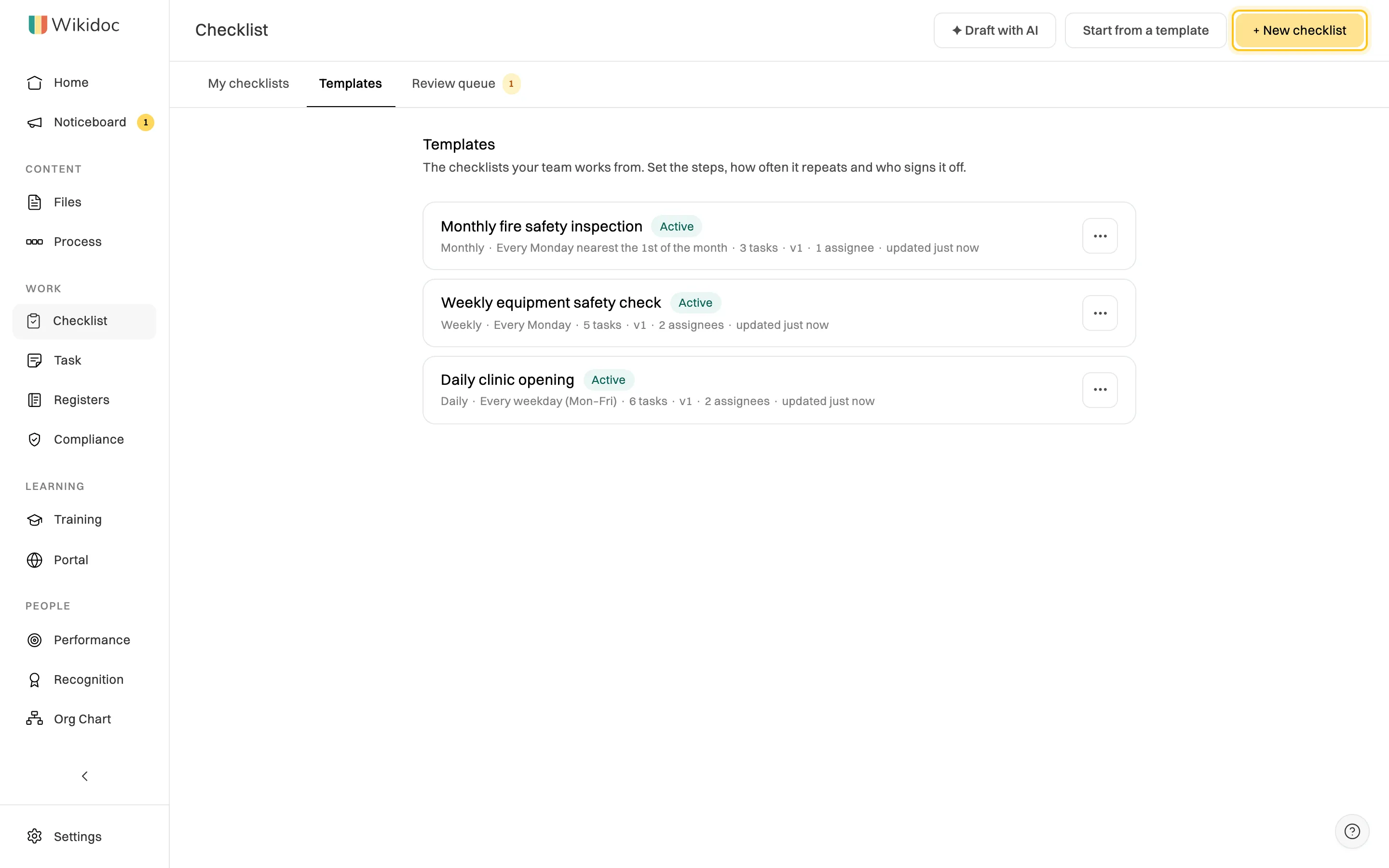
The Templates tab lists every checklist your organisation runs. -
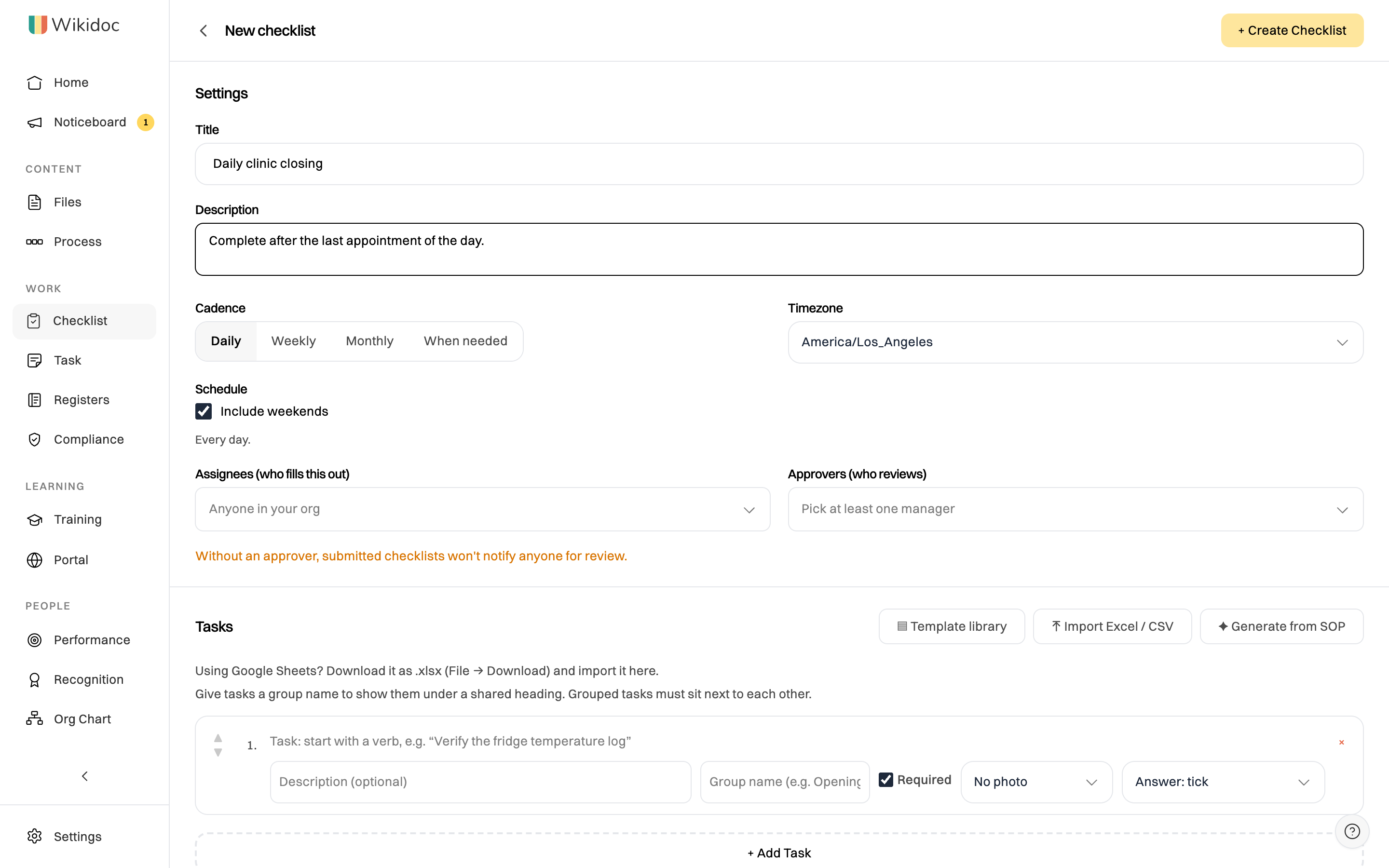
Give it a Title, and a Description that says when to complete it.
-
Choose a Cadence, then set the Schedule:
- Daily: every day. Clear Include weekends for weekdays only.
- Weekly: pick any date in the calendar, and it’s due on that weekday every week. Leave it unpicked and it’s due by the end of each week.
- Monthly: pick a date, and it’s due on that weekday nearest that day each month, for example Every Monday nearest the 1st of the month. Leave it unpicked and it’s due by the end of each month.
- When needed: no schedule. Someone starts a run for each job, new hire or inspection, and each task can have a due day counted from the run’s start. See Run a checklist once per job or new hire.
-
Check the Timezone. Days start and end in this timezone, so a daily checklist resets at midnight there.
-
Choose the Assignees, the people who fill it in. Leave it empty and anyone in your organisation can fill it in. Viewers can be assignees.
-
Choose the Approvers, the people who review and sign it off, usually a manager. Without one, nobody is told when a checklist is submitted.
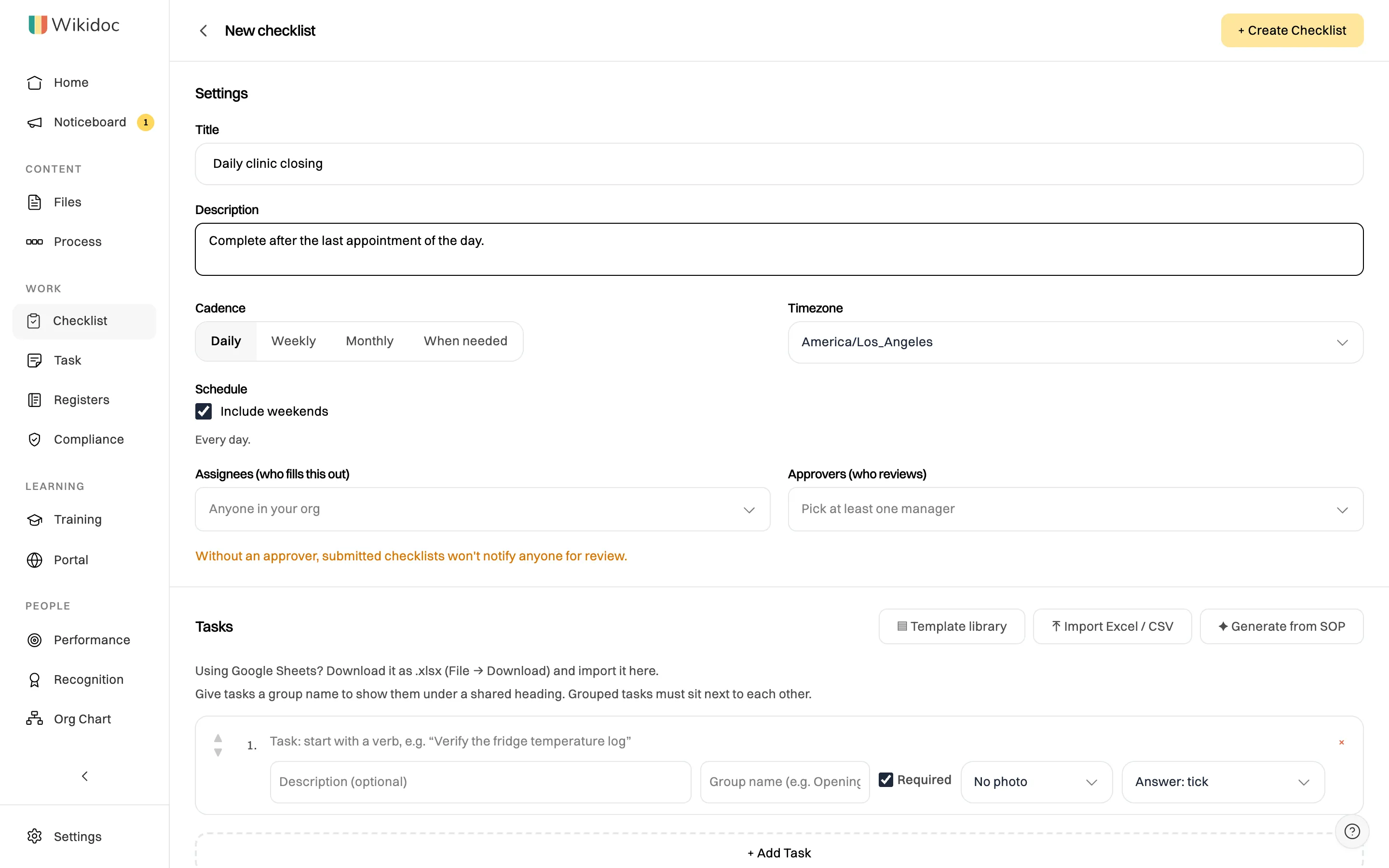
Settings decide when the checklist is due and who's involved. -
Under Tasks, type the first task. Start with a verb: “Record the fridge temperature”. Click + Add Task for each one after that.
For each task you can add:
- a Description with the detail someone needs to do it;
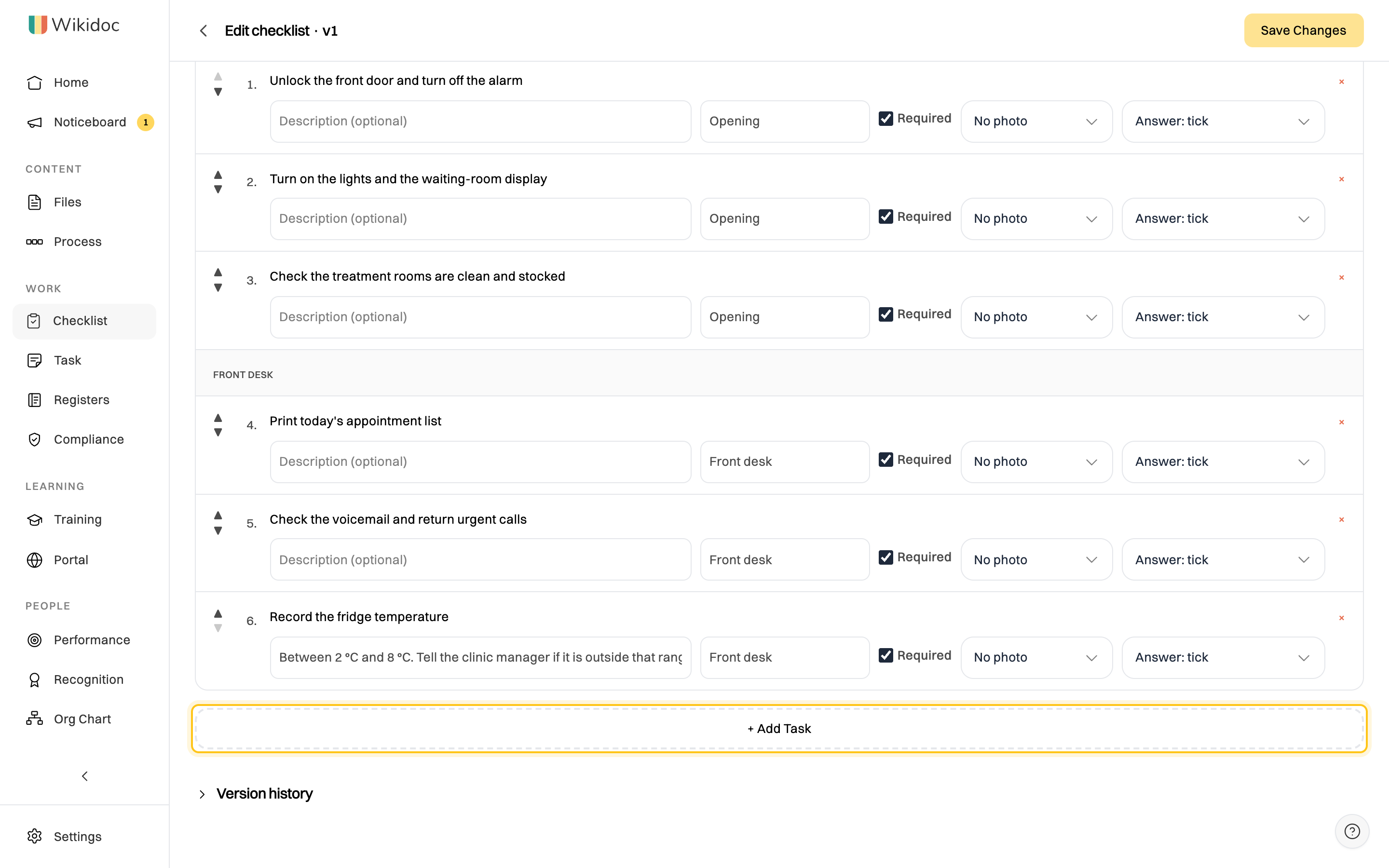
- a Group name, to show tasks under a shared heading such as “Opening”. Keep grouped tasks next to each other;
- Required, ticked unless the task is optional;
- No photo, Photo: optional or Photo: required, to ask for a photo as proof, such as a clean fryer or a closed fire door. A checklist can’t be submitted until each required photo is added;
- how it’s answered, under Answer. See Checks and readings.
Use the arrows to reorder tasks, and × to remove one.
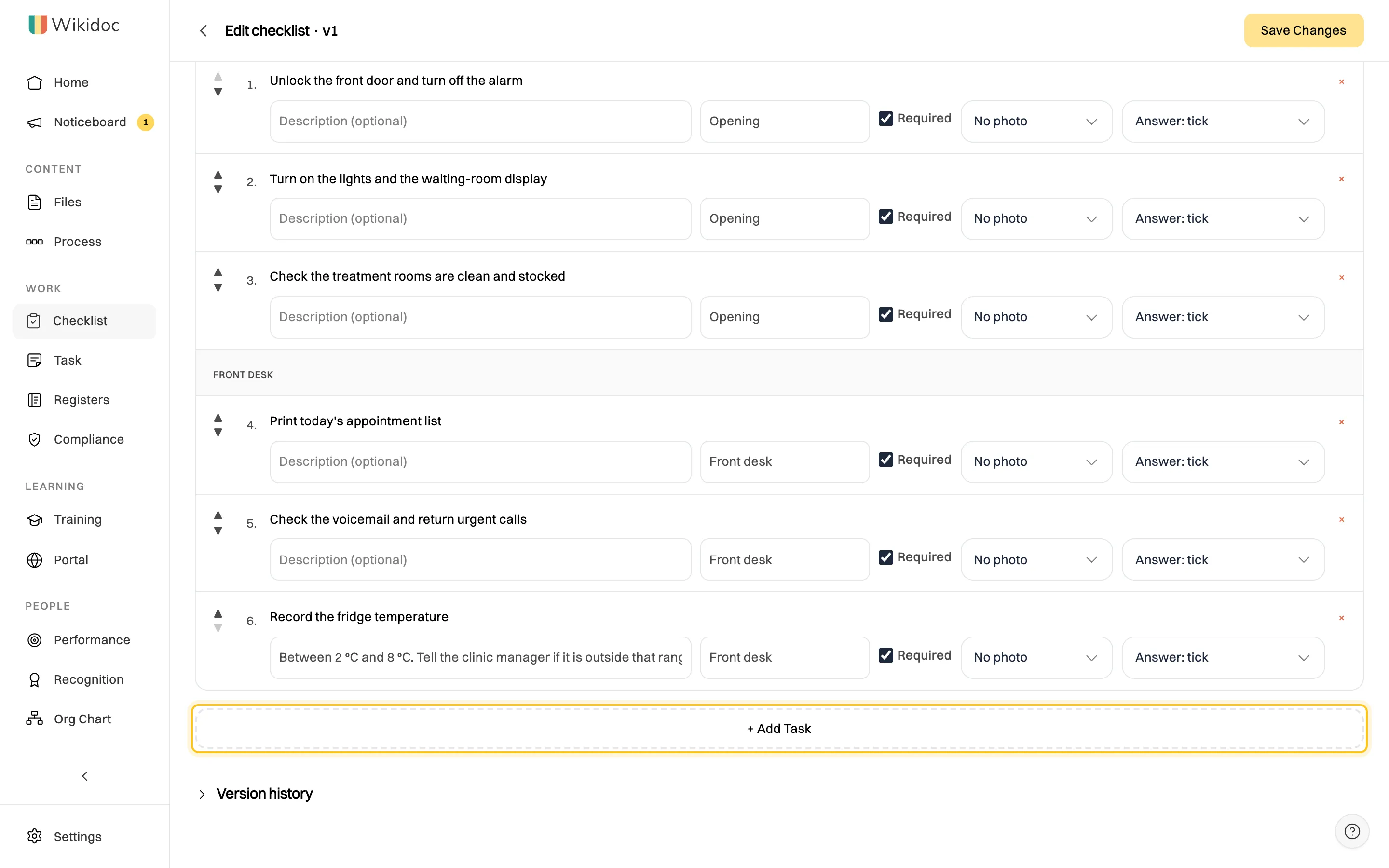
Group names become headings on the checklist your team fills in. -
Click + Create Checklist.
Checks and readings
Section titled “Checks and readings”A task is ticked when it’s done. A check or test has a result, and a measurement has a number, so a task can be answered three ways. Choose one under Answer, next to the task:
- Answer: tick, for something that’s done or not done, such as “Print today’s appointment list”. This is how every task starts.
- Answer: pass, fail, N/A, for a check or test, such as “Inspect resistance bands for tears”. Whoever fills it in clicks Pass, Fail or N/A.
- Answer: reading, for a measured value, such as a fridge or water temperature. Add its Unit, such as °F, and the acceptable range, Min to Max. Leave either end empty if there’s no limit that way, such as a minimum temperature with no maximum.
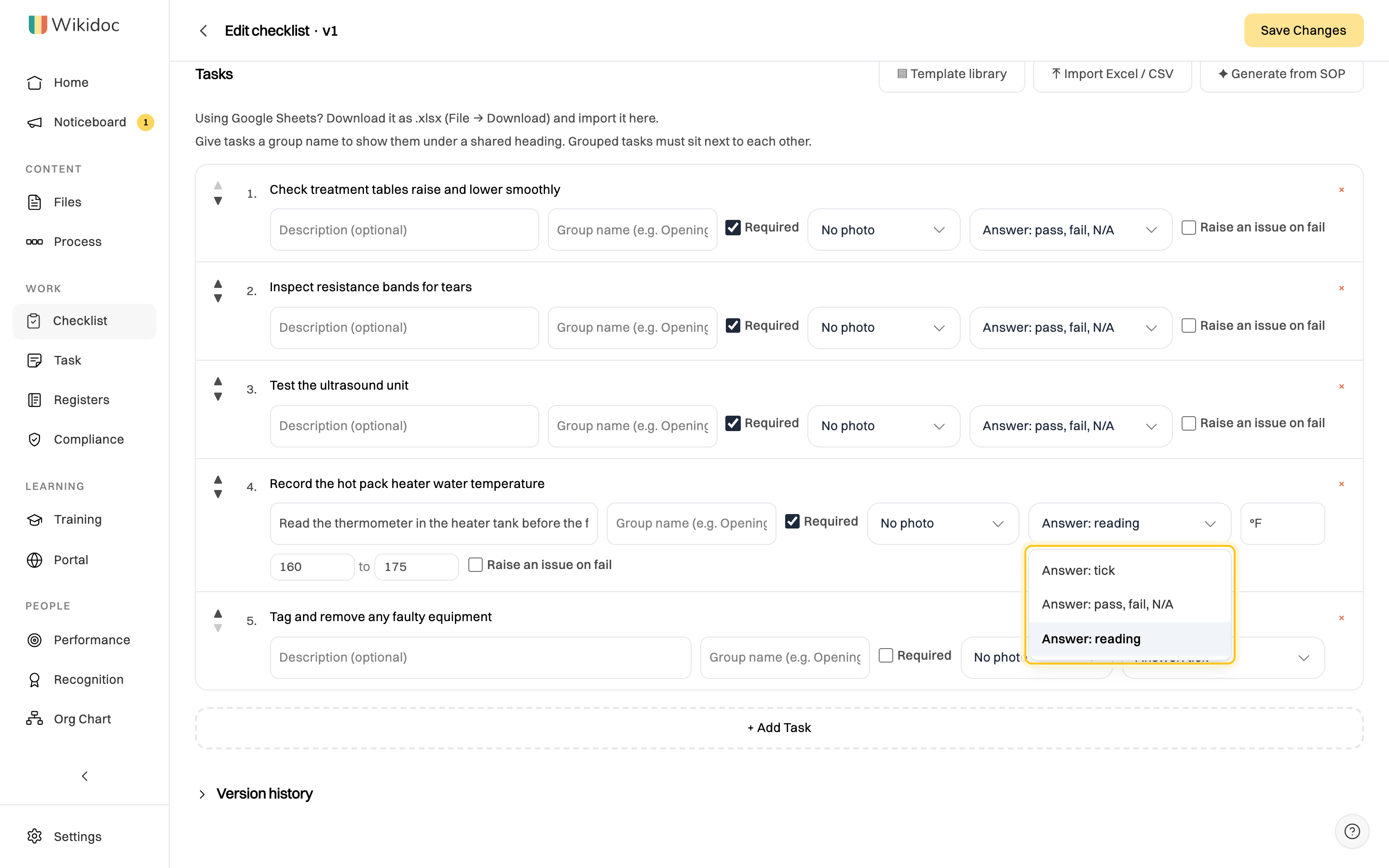
A Fail, or a reading outside its range, fails the task. Whoever fills it in must say what they did about it before they can submit. A failed task doesn’t stop the checklist being submitted: the run is a true record of what was found, and the approver sees it.
On the Team plan, a task answered pass, fail, N/A or with a reading can also be set to Raise an issue on fail. When a run is submitted with that task failed, Wikidoc reports it as an issue in Compliance, with what was recorded and the note, and tells your Admins and Managers. It’s reported once per run, even if the run is sent back and submitted again.
Start from a template, a spreadsheet or a document
Section titled “Start from a template, a spreadsheet or a document”Template library
Section titled “Template library”The template library has ready-made checklists for different industries: recurring ones, such as a gym’s opening and closing checklists or a kitchen’s cleaning rounds, lists for one-off work such as an inspection or a new hire, and logs.
-
In Checklists, click Start from a template at the top.

Start from a template sits between Draft with AI and + New checklist. -
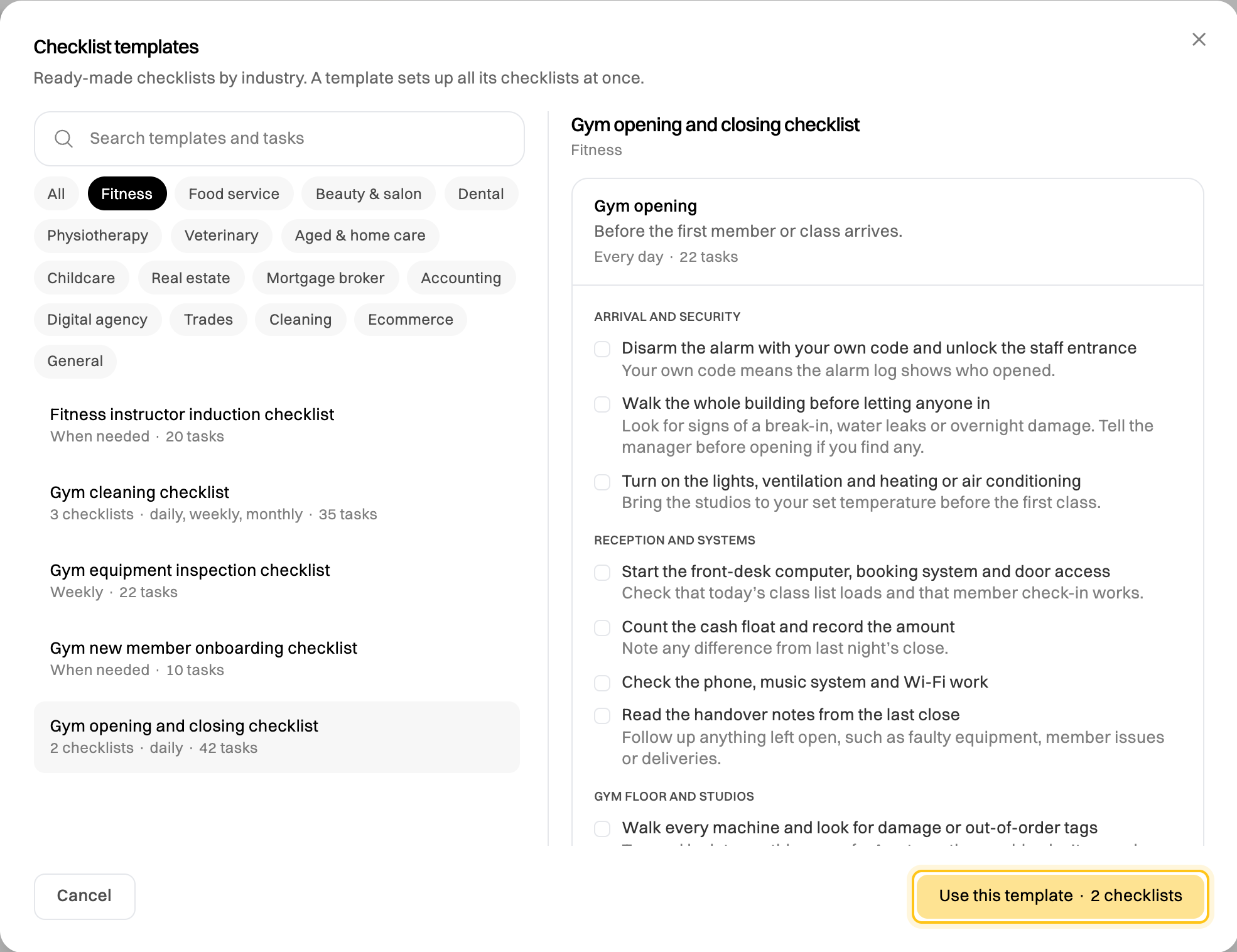
Pick an industry, then a template. The preview shows every checklist in it, with its tasks.
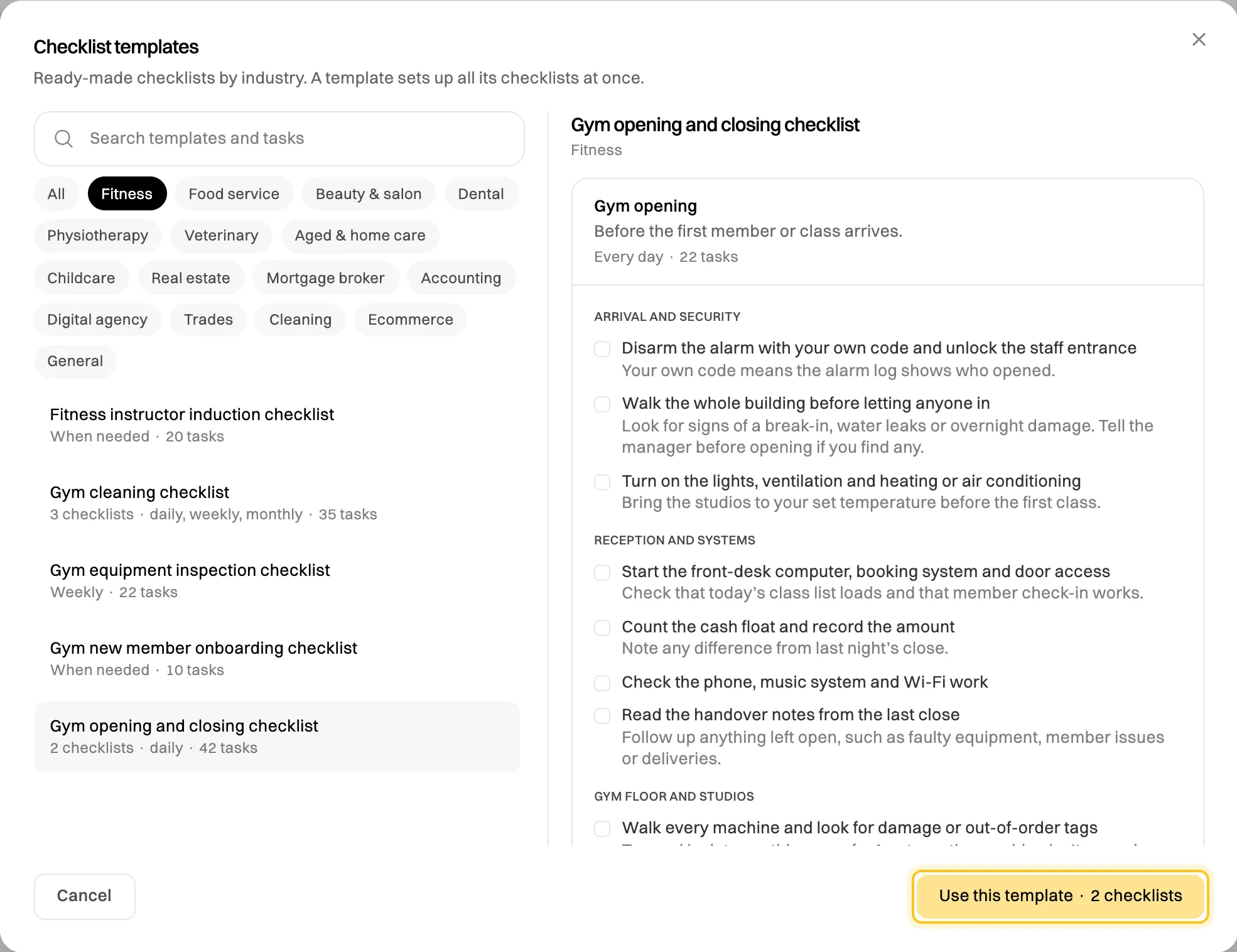
A template can hold more than one checklist, such as opening and closing. -
Click Use this template.
-
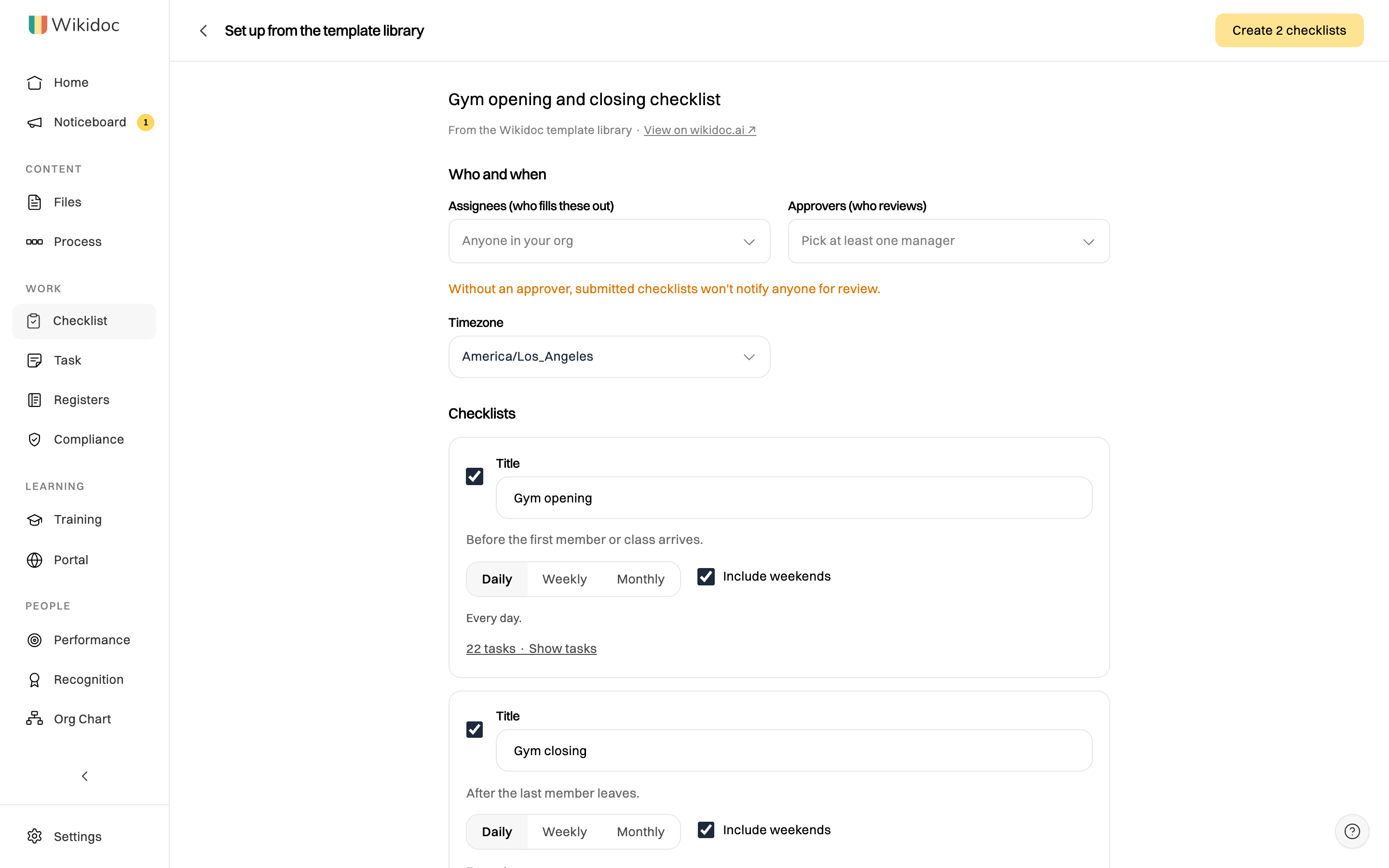
Choose the Assignees, Approvers and Timezone once, for all its checklists. Untick any checklist you don’t need, and change a checklist’s title or how often it repeats.
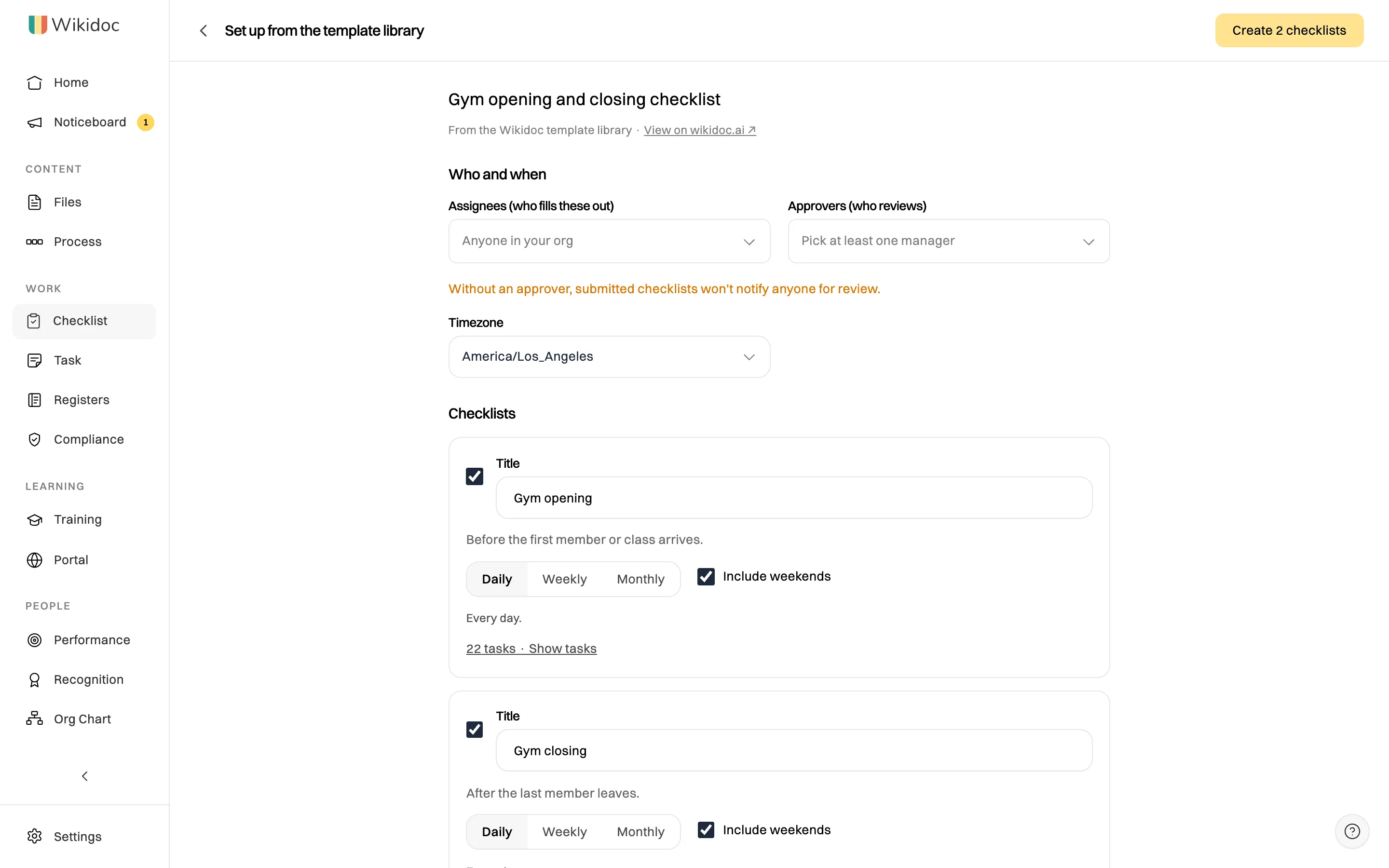
One setup creates every checklist you leave ticked. -
Click Create 2 checklists (the number is how many you left ticked). The checklists are live straight away. To change one’s tasks, click ⋯ next to it, then Edit.

A template for one-off work, such as onboarding or a job completion check, is set up to be Started when needed: it has no schedule, and you start a run for each job or person. See Run a checklist once per job or new hire.
Logs come in two kinds:
- A few, such as the food temperature log and the dental steriliser and waterline logs, record their checks and readings in Wikidoc, as checks and readings. Their readings come without a range, because your limits come from your own plan or the rules where you work: once the checklist is created, edit it and add each reading’s Min and Max.
- The rest keep their readings on paper. In Wikidoc the log becomes a checklist with one task, Readings recorded and signed, which needs a photo of the filled-in page.
Either way, the setup page has a Print the log (PDF) link for the paper sheet, and a missed day shows as overdue, like any checklist.
Templates for regulated work, such as childcare, aged care or food safety, are a starting point: check them against the rules where you work.
For the same industry’s procedures and documents, see Start a document from a template.
You can also add one template’s tasks to a checklist you’re building: in the editor, click Template library above the task list and pick a checklist.
You can browse the library on every plan. If you’ve already created your 3 checklists on Free, you can still browse it and upgrade from there.
Draft with AI
Section titled “Draft with AI”No template fits, and nothing written down yet? Describe your business, and AI drafts the checklists for you to review and change before anything is created.
-
In Checklists, click ✦ Draft with AI at the top.

Draft with AI sits next to Start from a template. -
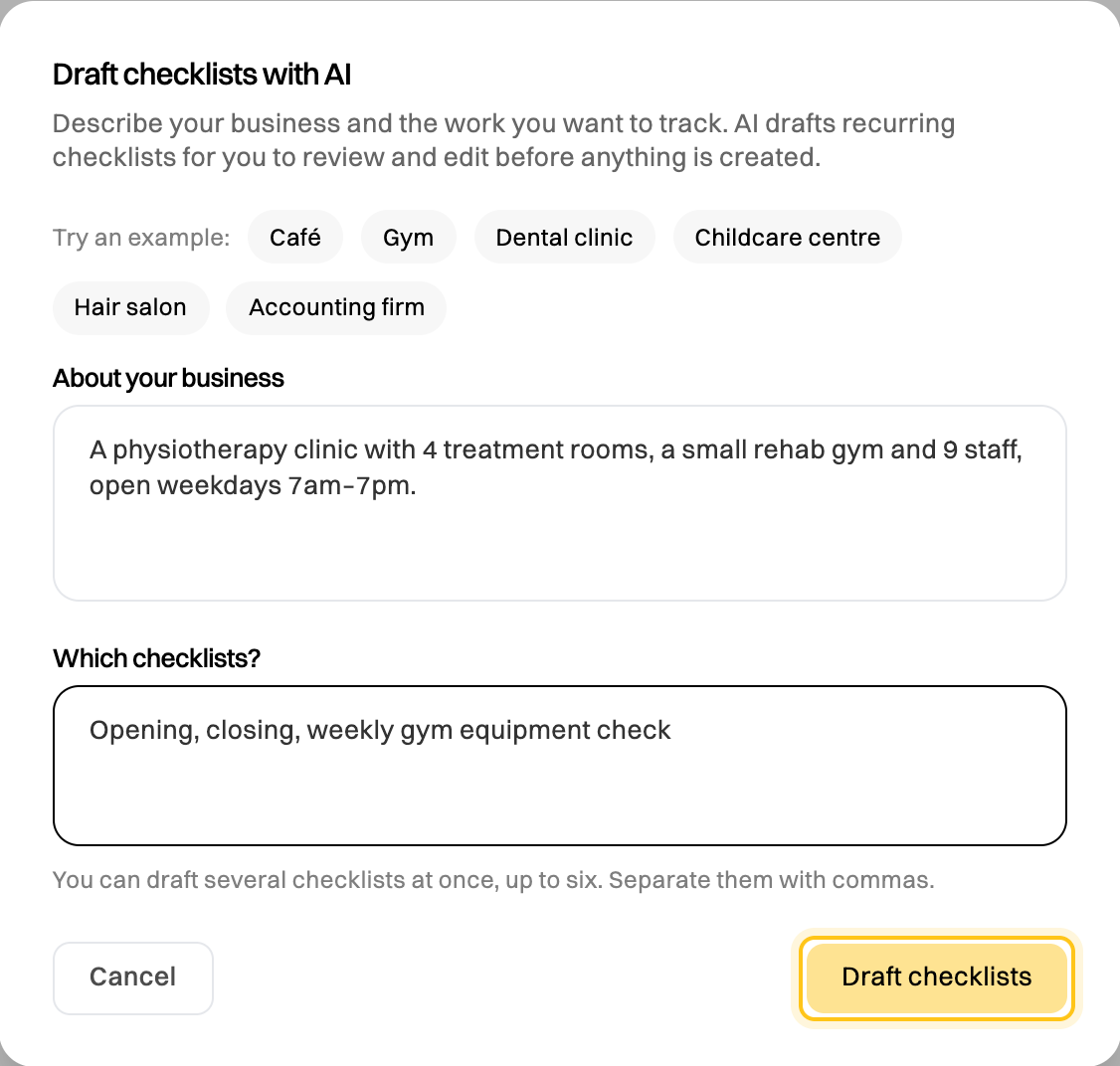
Under About your business, say what the business is, its size, and when it’s open. For example: “A physiotherapy clinic with 4 treatment rooms, a small rehab gym and 9 staff, open weekdays 7am–7pm.”
-
Under Which checklists?, list the checklists you want, separated by commas, such as “Opening, closing, weekly gym equipment check”. You can draft up to six at once. Not sure what you need? Try one of the examples at the top of the dialog.
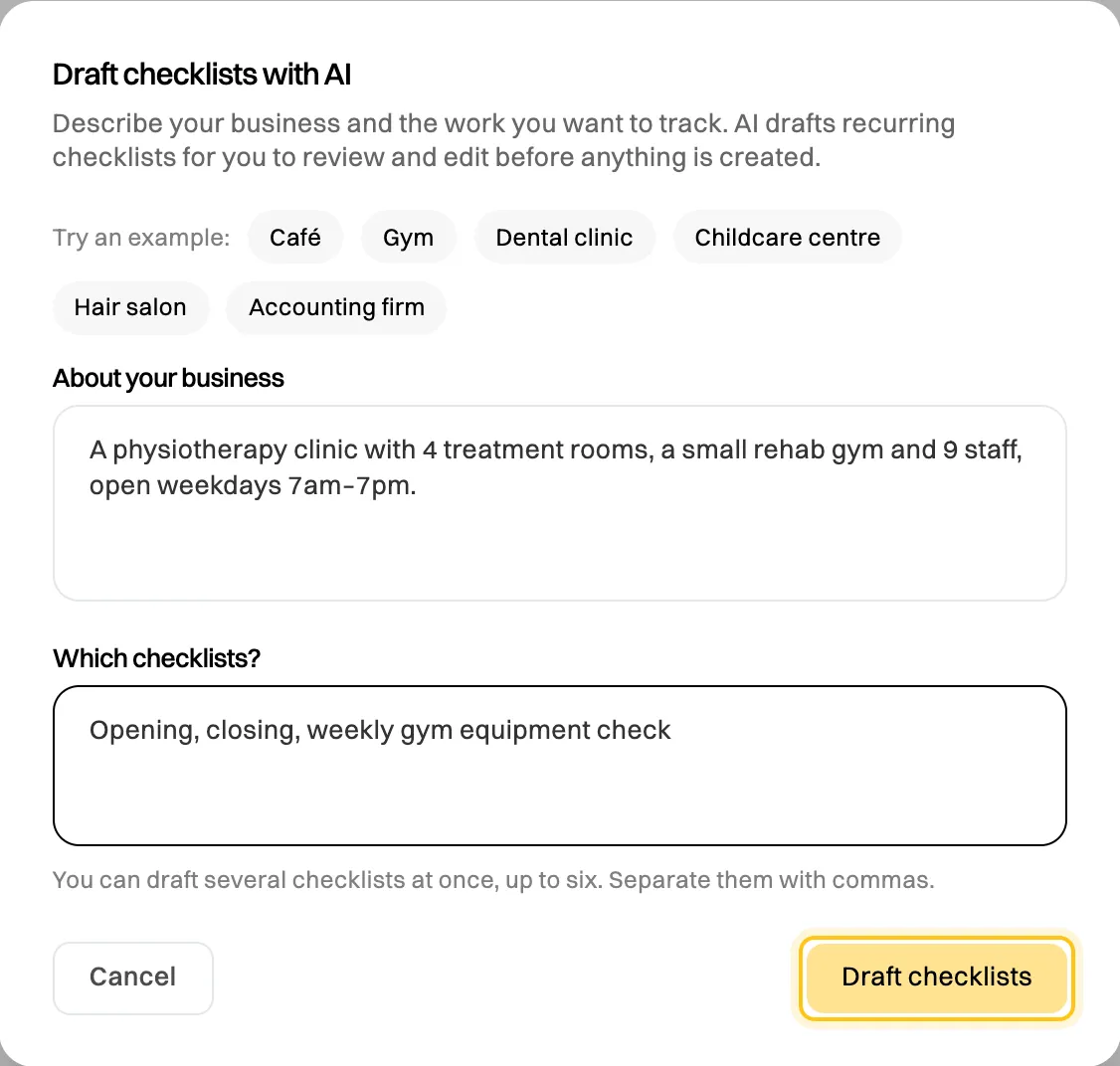
The more you say about the business, the more specific the tasks. -
Click Draft checklists. It takes about 15 seconds.
-
Review the drafts. Choose the Assignees, Approvers and Timezone once, for all of them. For each checklist you can change the title, the description and how often it repeats, untick it if you don’t need it, and change, add, reorder or remove its tasks. If you already have a checklist with the same title, the draft says so.
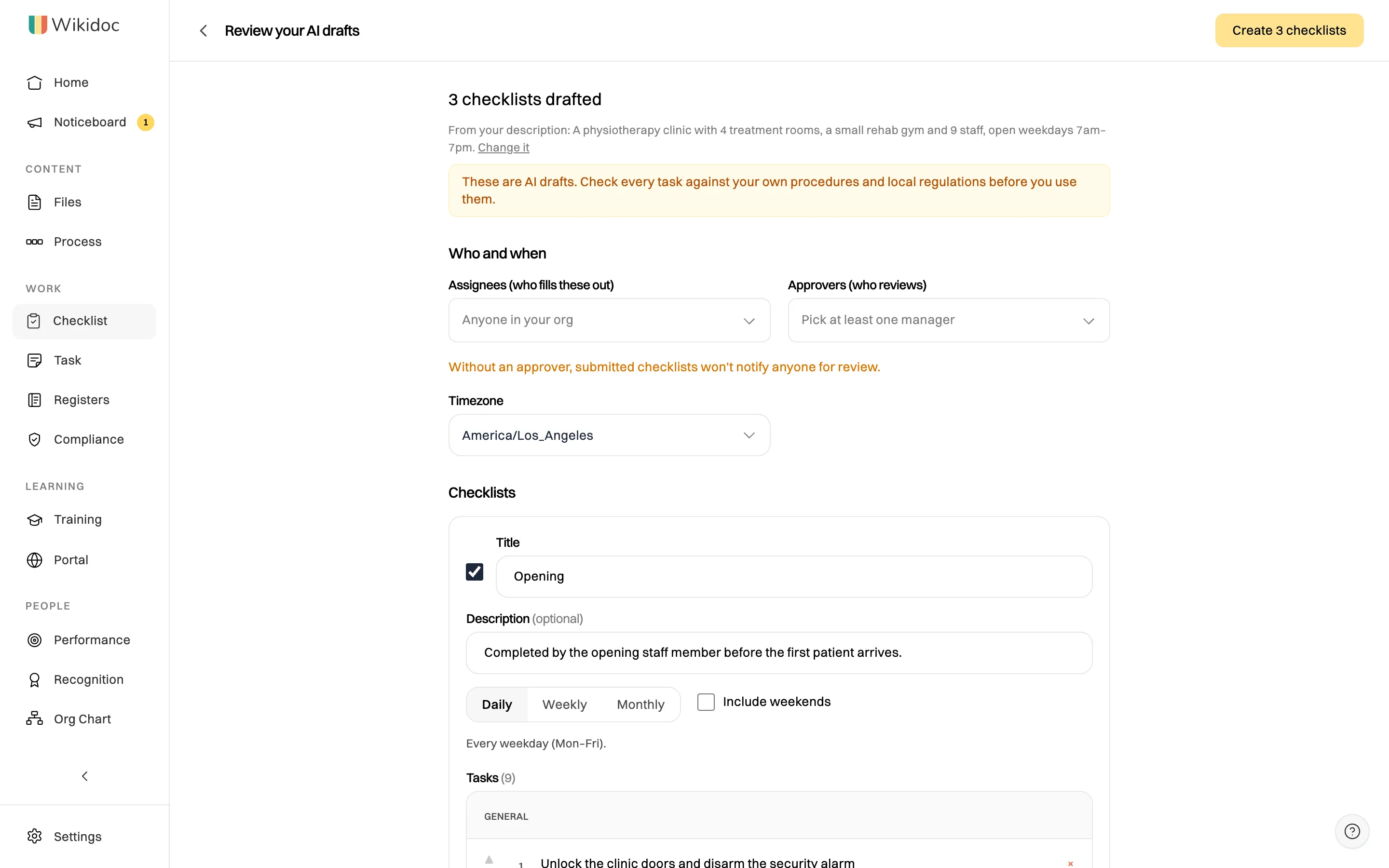
Nothing is created until you click Create. -
Click Create 3 checklists (the number is how many you left ticked). The checklists are live straight away.

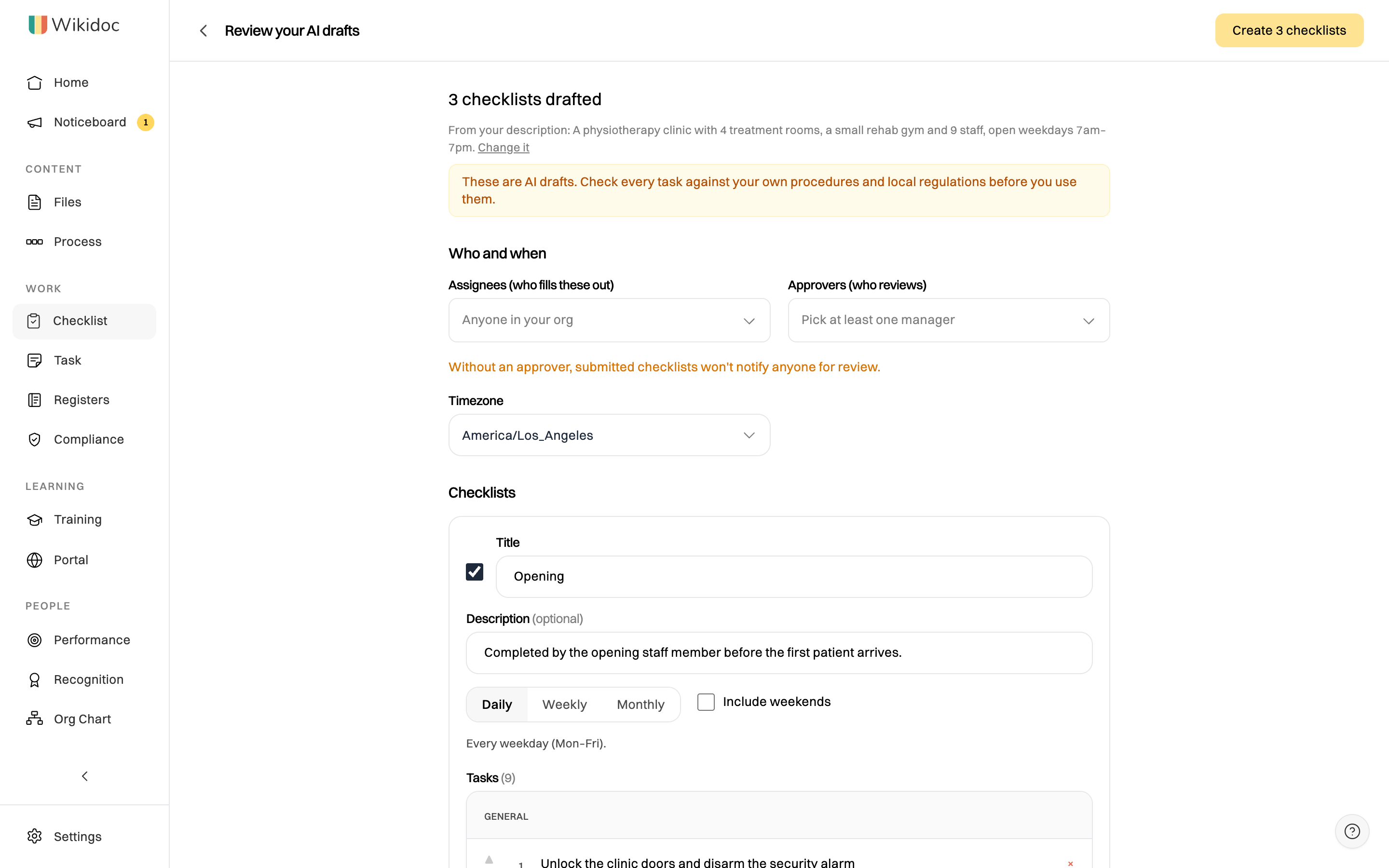
AI drafts are a starting point. Check every task against your own procedures and the rules where you work. A draft can make a task a check or a reading, but never gives a reading its range: add your own limits before you use it. To change your description, click Change it or the back arrow; your description is kept, but changes to the drafts aren’t.
From a spreadsheet or a document
Section titled “From a spreadsheet or a document”Instead of typing each task, above the task list:
- Import Excel / CSV: choose an .xlsx, .xls or .csv file, and choose which columns hold the Task text, Description and Section (the group name). You can also choose a Required column (Yes or No), a Photo column (Required, Optional or No), and an Answer column (Tick, Pass, fail, N/A, or Reading) with Unit, Min and Max columns for readings. Without them, every task is required, with no photo, and ticked. You can review the tasks before you save. Using Google Sheets? Download it as .xlsx first (File → Download).
- Generate from SOP: pick one of your documents. Wikidoc finds the recurring tasks in it and adds them as draft tasks for you to review. A reading gets a range only when your document states one.
Want to change a template in a spreadsheet first? Each checklist on www.wikidoc.ai/templates also comes as a CSV with the Task, Description and Section columns the import asks for. Otherwise, the template library is quicker. To edit one of your own checklists in a spreadsheet, export its tasks: see Export a checklist or its history.
What happens next
Section titled “What happens next”Each assignee sees the checklist under My checklists when it’s due, with overdue ones marked. They tick off the tasks and submit it. Approvers find submitted checklists in the Review queue, and click Approve or Reject. A rejected checklist goes back to the assignee to finish.
Change a template
Section titled “Change a template”On the Templates tab, click ⋯ next to the template, then Edit. Make your changes and click Save Changes. Each save is a new version, shown next to its name (v2, v3…), and earlier versions are listed under Version history. Checklists already started keep the tasks they started with.
Only the person who created a template, its owners, and Admins can edit, archive or delete it.
To stop a checklist being due without losing its history, click ⋯, then Archive.
If something goes wrong
Section titled “If something goes wrong”“Give the checklist a title.” / “Add at least one task.” Fill in the title, and at least one task.
I don’t see + New checklist. Viewers can fill in checklists but can’t create them. Ask an Admin for the Editor role.
“Too many AI requests in a short time.” Wait a few minutes, then click Draft checklists again.
“Wikidoc couldn’t draft checklists from that.” Say more about the business and the work, such as what it does, its rooms or equipment, and when it’s open.
I see an Upgrade prompt. You’ve created the 3 checklists Free includes. Archived checklists count towards the 3; deleting one permanently frees a slot. Upgrade for unlimited checklists. If you work in a private space, with no organisation, the prompt offers Pro, or you can ask to join your organisation. See Plans compared.