
Customise the sidebar
Show your company's logo and choose the order of the sidebar groups for everyone in your organisation.
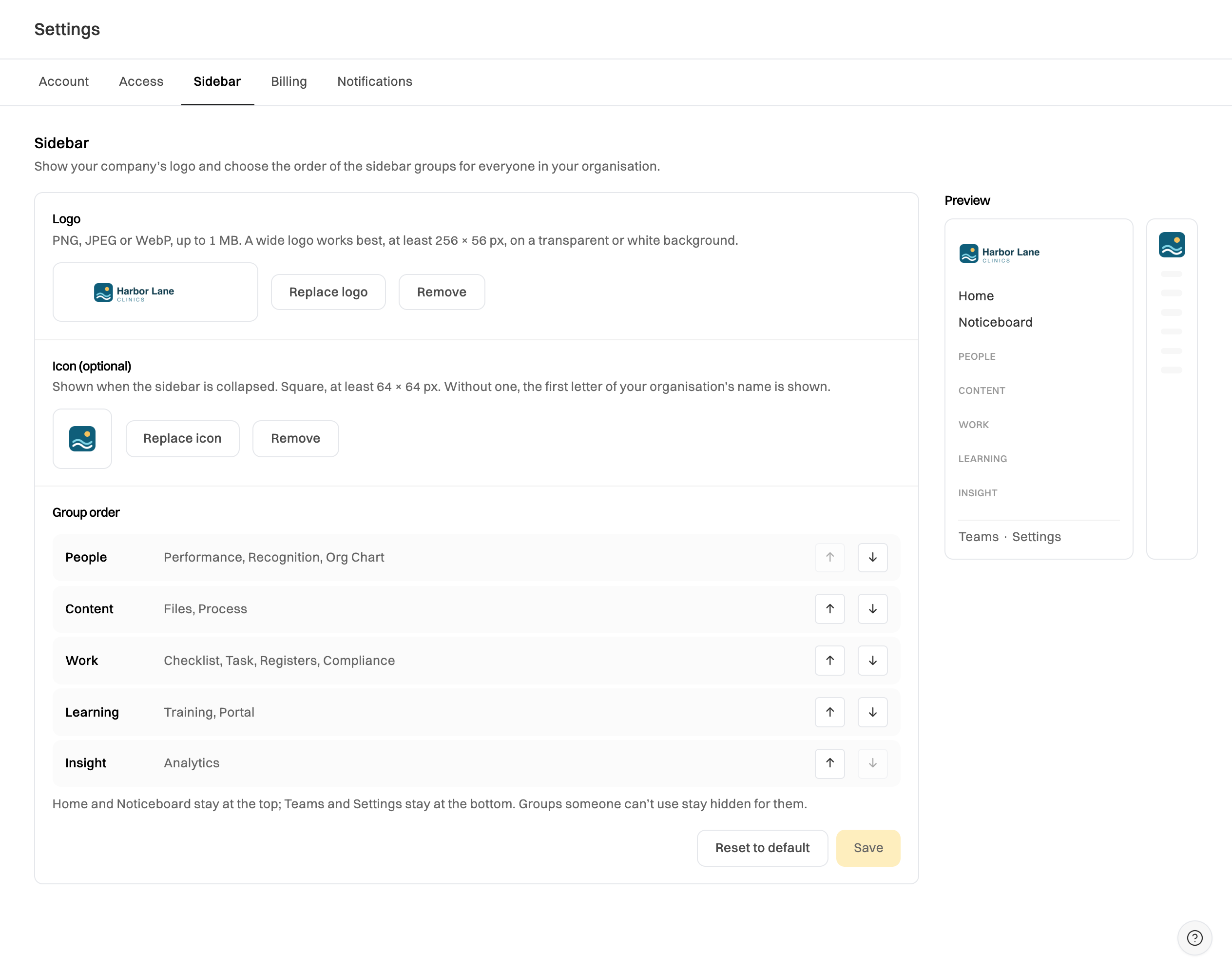
You can customise (or customize) the sidebar so it looks like your company’s workspace: your logo at the top instead of Wikidoc’s, and the groups in the order your team uses most. Everyone in your organisation sees the same sidebar.
Add your logo
Section titled “Add your logo”-
Go to Settings›Sidebar.
-
Under Logo, click Upload logo and choose the file.
- PNG, JPEG or WebP, up to 1 MB. SVG isn’t supported yet.
- A wide logo works best: at least 256 × 56 px.
- Use a transparent or white background. The sidebar is white, so a white logo on a transparent background won’t show. Check the Preview before you move on.
-
The logo saves as soon as it’s uploaded. To change it, click Replace logo.
If your logo is square or nearly square, it would look small across the top of the sidebar. Wikidoc asks whether to Upload as icon instead, or use it as the logo anyway.
Add an icon for the collapsed sidebar
Section titled “Add an icon for the collapsed sidebar”When the sidebar is collapsed, there’s only room for a square. Under Icon (optional), click Upload icon and choose a square image, at least 64 × 64 px.
Without an icon, the collapsed sidebar shows the first letter of your organisation’s name.


Change the order of the groups
Section titled “Change the order of the groups”-
In Settings›Sidebar, under Group order, use the up and down arrows to move Content, Work, Learning, People and Insight. Each row lists what’s in the group.
-
Check the Preview, then click Save.
Some things don’t move: Home and Noticeboard stay at the top, and Teams and Settings stay at the bottom. Items inside a group keep their order. People still see only what their role and plan allow, so a group someone can’t use stays hidden for them.
If you leave the tab without saving, Wikidoc asks whether to discard your changes. Discard changes puts the order back to the last one you saved.
Go back to Wikidoc’s logo or order
Section titled “Go back to Wikidoc’s logo or order”- Logo or icon: click Remove next to it. The sidebar shows Wikidoc’s logo, or the letter tile for the icon, again.
- Order: click Reset to default. The groups go back to Content, Work, Learning, People and Insight.
When people see the change
Section titled “When people see the change”You see the change straight away. Everyone else sees it the next time they open or reload Wikidoc.
If your plan changes
Section titled “If your plan changes”If your organisation moves from Team to Pro or Free, the sidebar goes back to Wikidoc’s logo and order for everyone. Your logo, icon and order are kept, and come back if you return to Team. Admins can still remove them on any plan.