Track your obligations
List the requirements your business keeps up with, link the work that meets each one, and see at a glance which are up to date, due or overdue.
An obligation is a requirement your business has to keep up with, such as a licence renewal, an annual equipment test or a policy staff must read. You decide what your obligations are. Wikidoc keeps track of whether the work that meets each one is being done, using the checklists, documents, training and registers you already keep in Wikidoc.
Set up Compliance
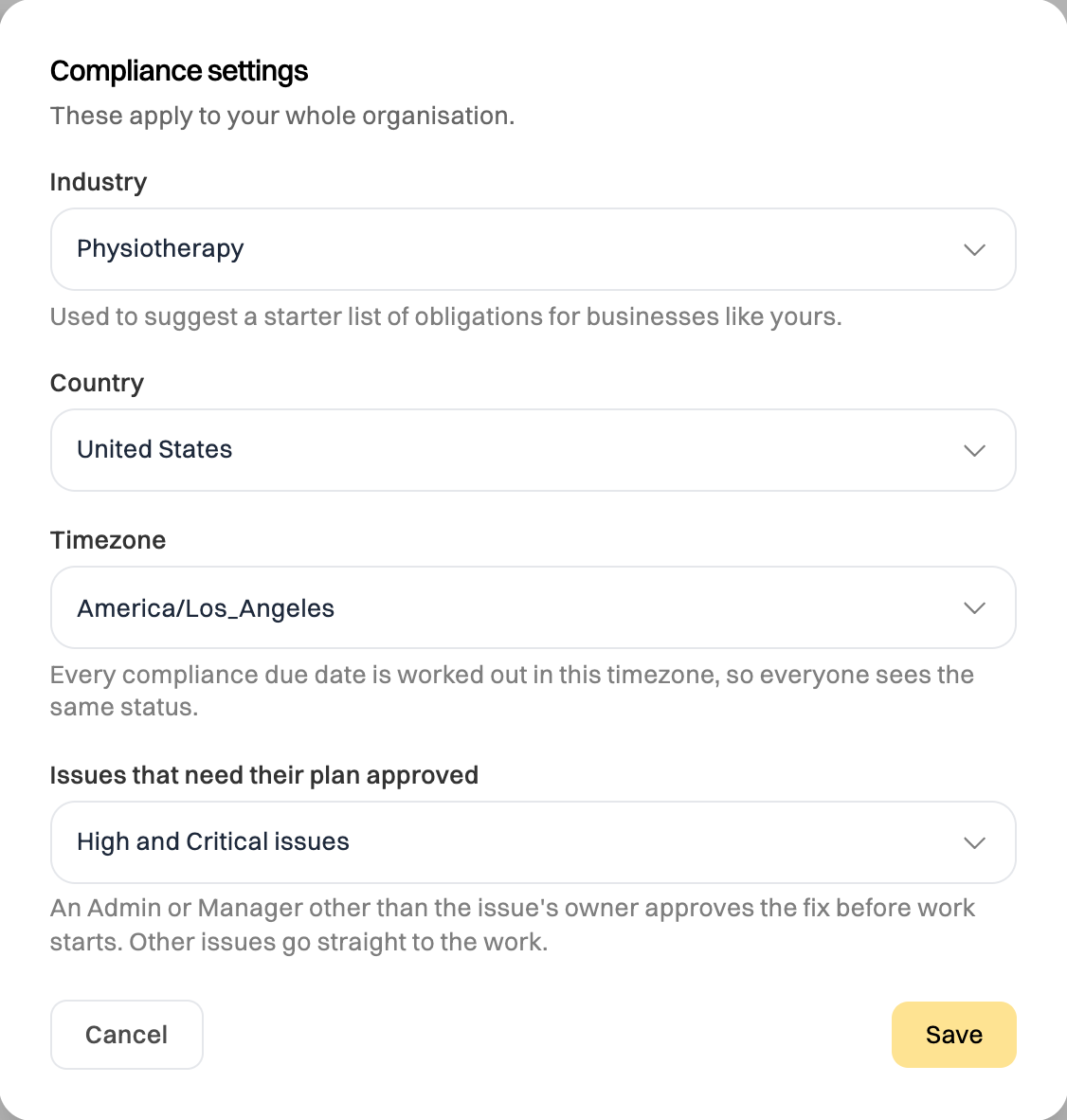
Section titled “Set up Compliance”The first time anyone adds an obligation, an Admin confirms three settings: your industry, the country you operate in, and your timezone. Every Compliance date, such as when something is due, is worked out in that timezone, whoever is looking.
Add your obligations
Section titled “Add your obligations”-
Click Compliance in the sidebar, under Work.
-
Click From a starter list. It opens on the general workplace list every business needs. Use Industry list to add the obligations businesses in your industry commonly have, or another industry’s, for a business that spans two.
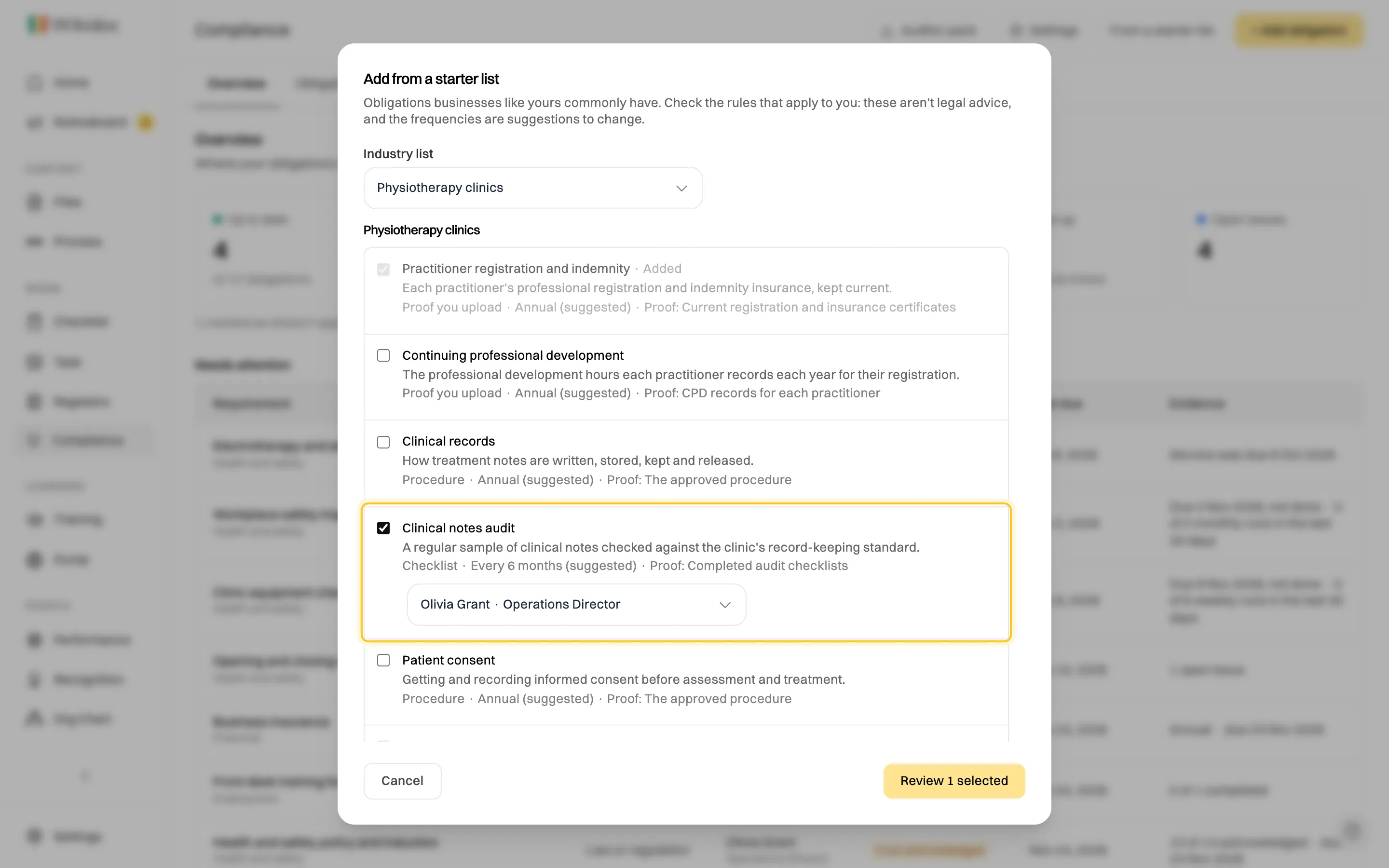
Tick what applies to you. Items you've already added are greyed out. -
Tick each obligation that applies to you, and choose its owner. Click Review N selected to see only what you ticked, with what each one will need, then Add N obligations.
-
To add one the lists don’t have, click + Add obligation. Give it a name and say what it covers, its Source (a law, a licence condition, a contract, a standard, your insurer or your own rule), the reference, a Category, its owners and, if you review it on a cycle, its Review cycle.
Link the work that meets each one
Section titled “Link the work that meets each one”An obligation is only as good as the work behind it. Each one is met by one or more controls: things you already do in Wikidoc, or proof you upload.
-
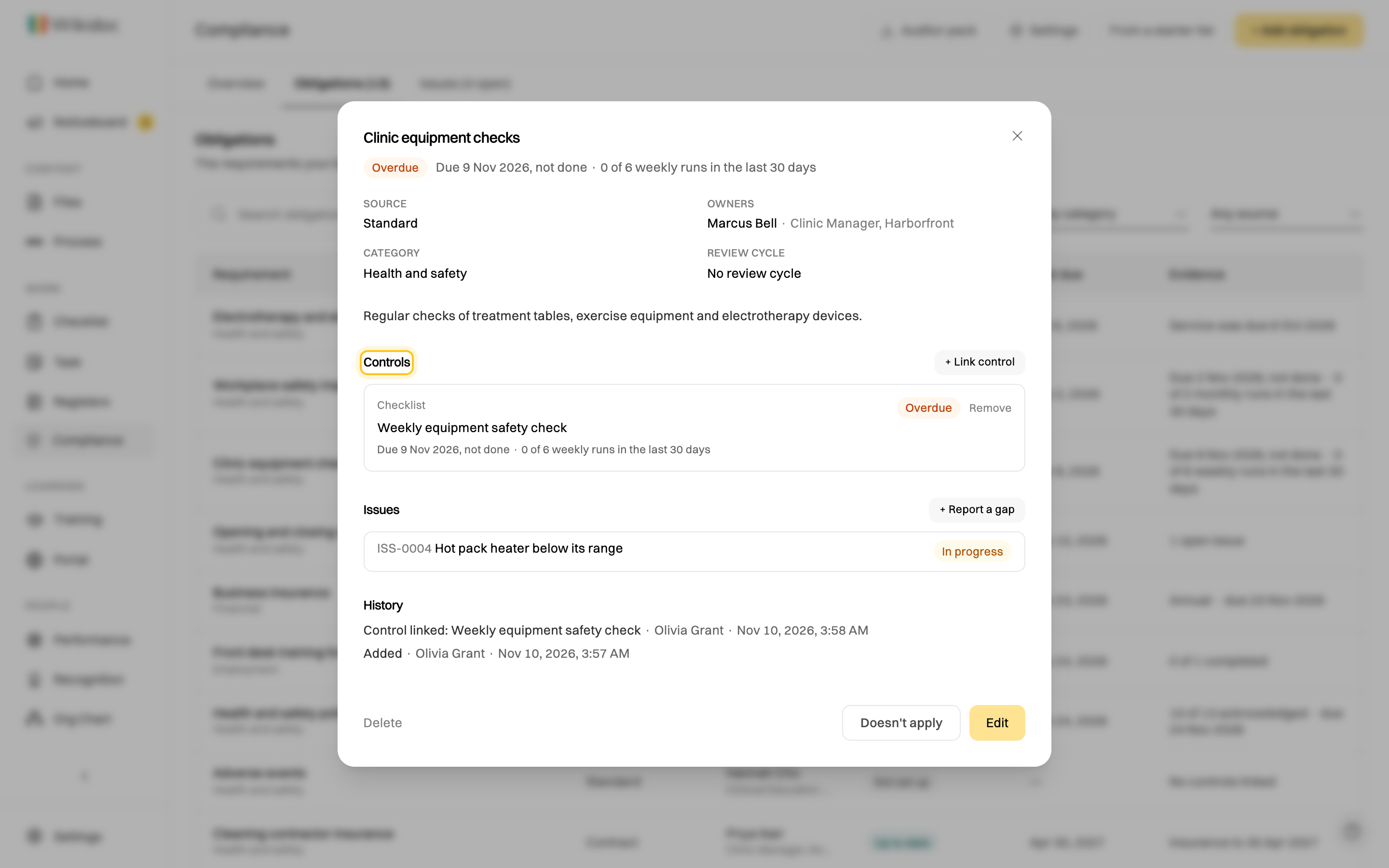
Click an obligation to open it. Under Controls, click + Link control.
-
Choose a Type and pick what meets it:
- Checklist: up to date while every expected run is submitted or approved.
- Document: up to date while it’s approved. A document no one has approved is Not in place.
- Training program: up to date while everyone enrolled has finished it by their due date.
- Policy, Asset and Provider: read from Registers: a policy’s review date, an asset’s next service, a provider’s contract and insurance dates.
- Register record: a record in one of your own registers.
- Something we do: for anything Wikidoc doesn’t keep, such as a licence check. Say how often it’s due and what counts as evidence, and upload the proof each time.
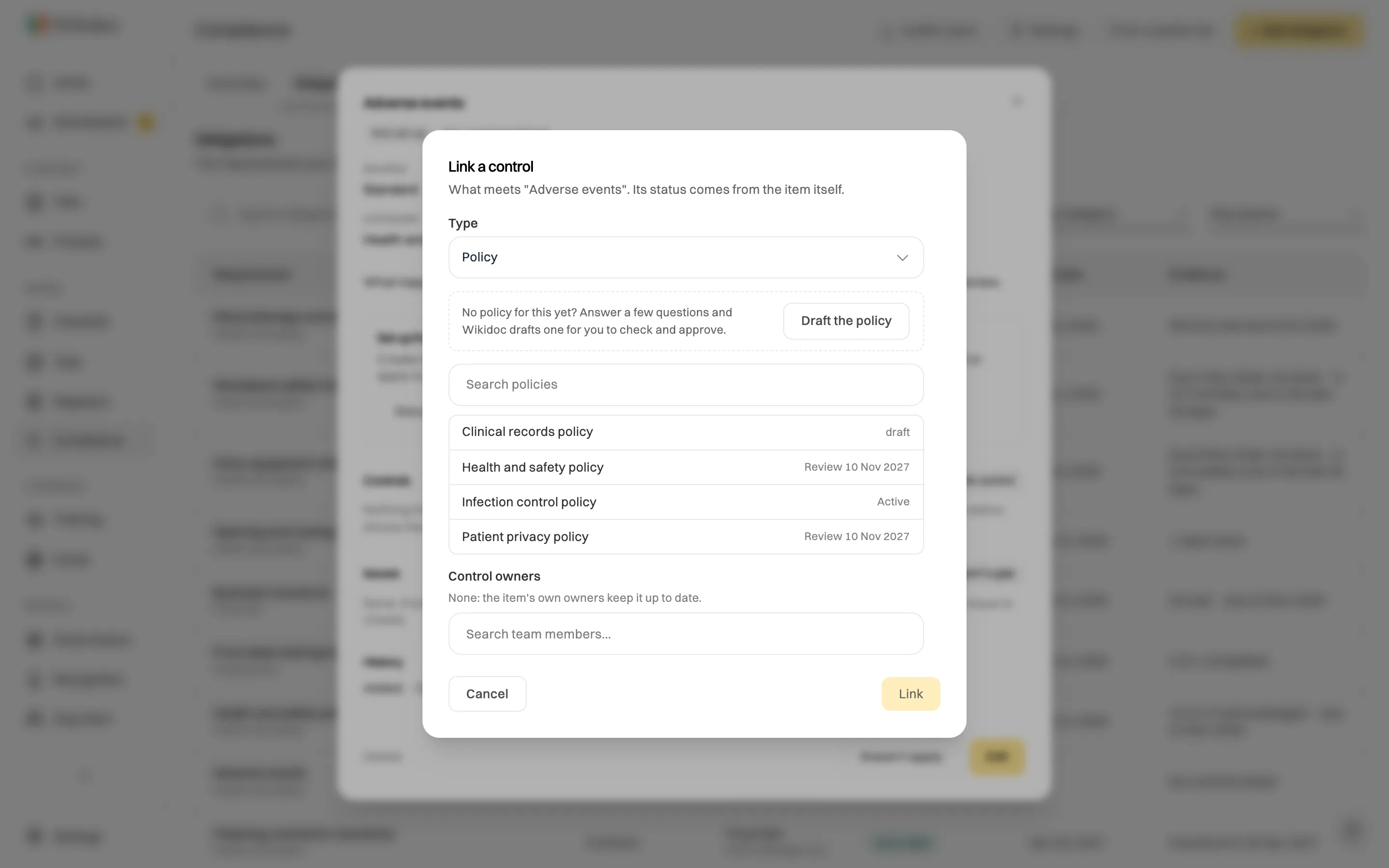
Link what already meets the obligation, or record something you do outside Wikidoc. -
An obligation added from a starter list offers Set up from a template: one click creates the checklist or document the item names from the template library and links it. Check the template against the rules that apply to you before you use it.
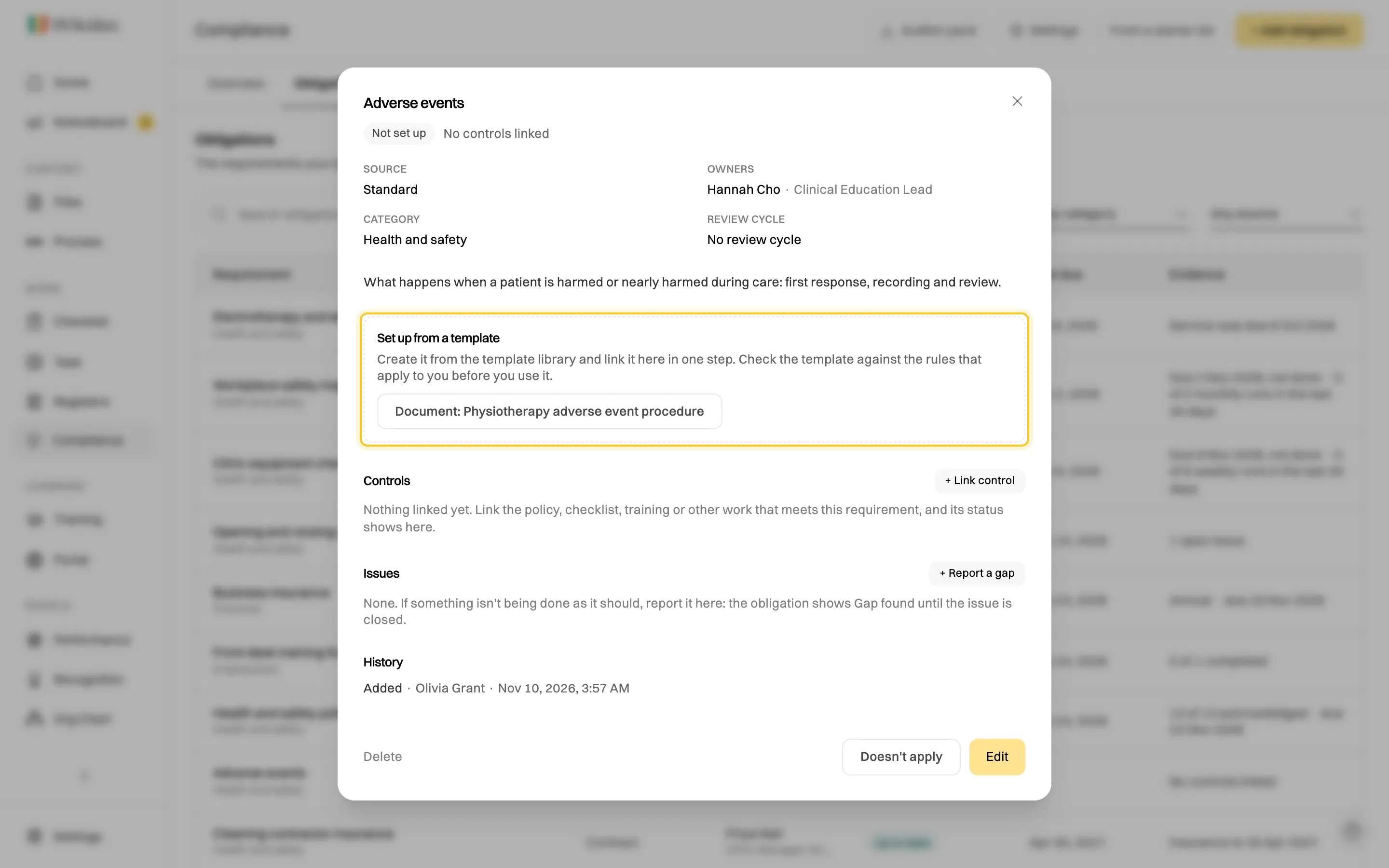
Create it from the template library and link it in one step.
Upload proof for something you do
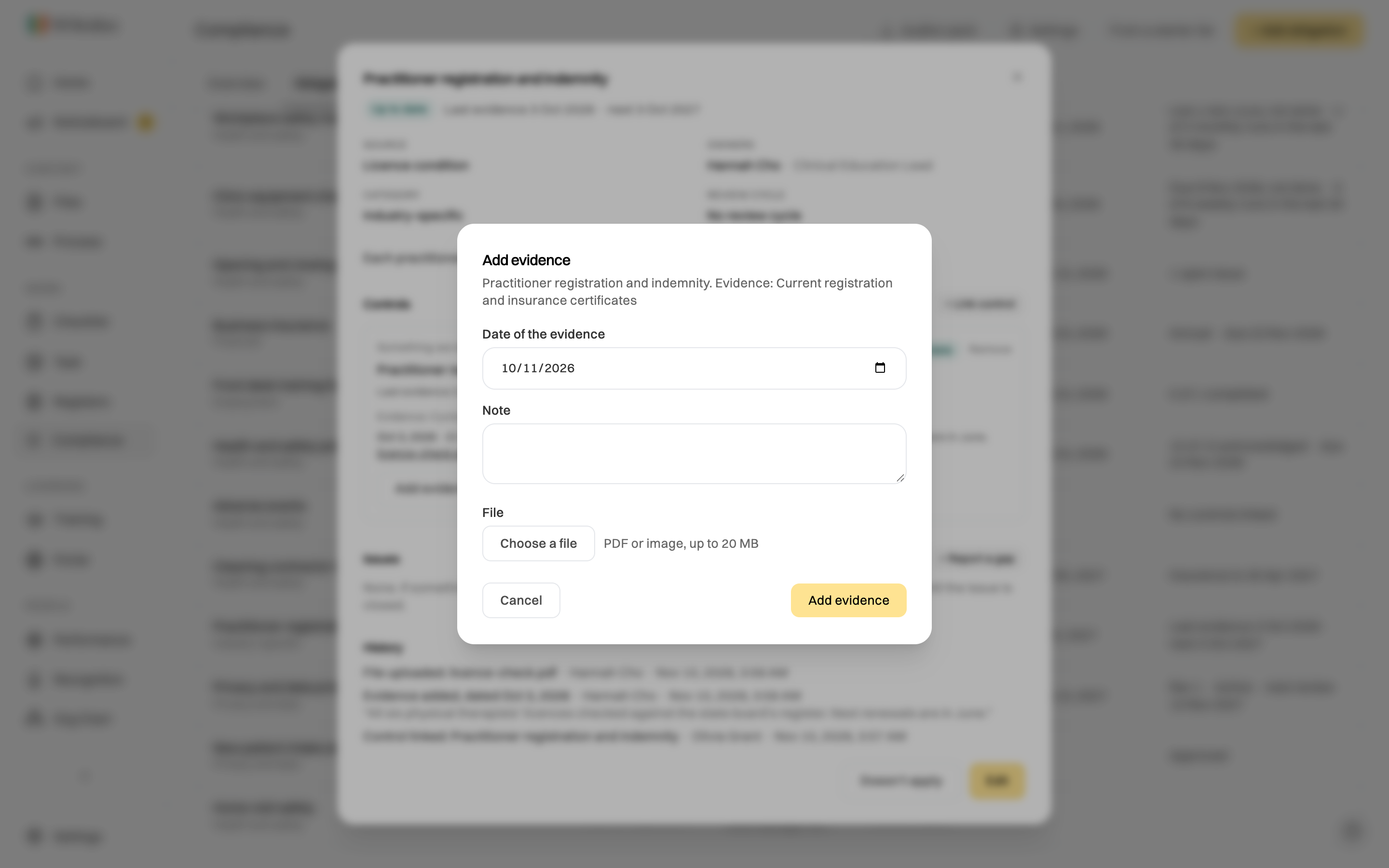
Section titled “Upload proof for something you do”For a Something we do control, the obligation’s owners, Admins and Managers click Add evidence, give the date the evidence is from and a note, and attach a PDF or image of up to 20 MB. The control is up to date until its next due date, worked out from that date.
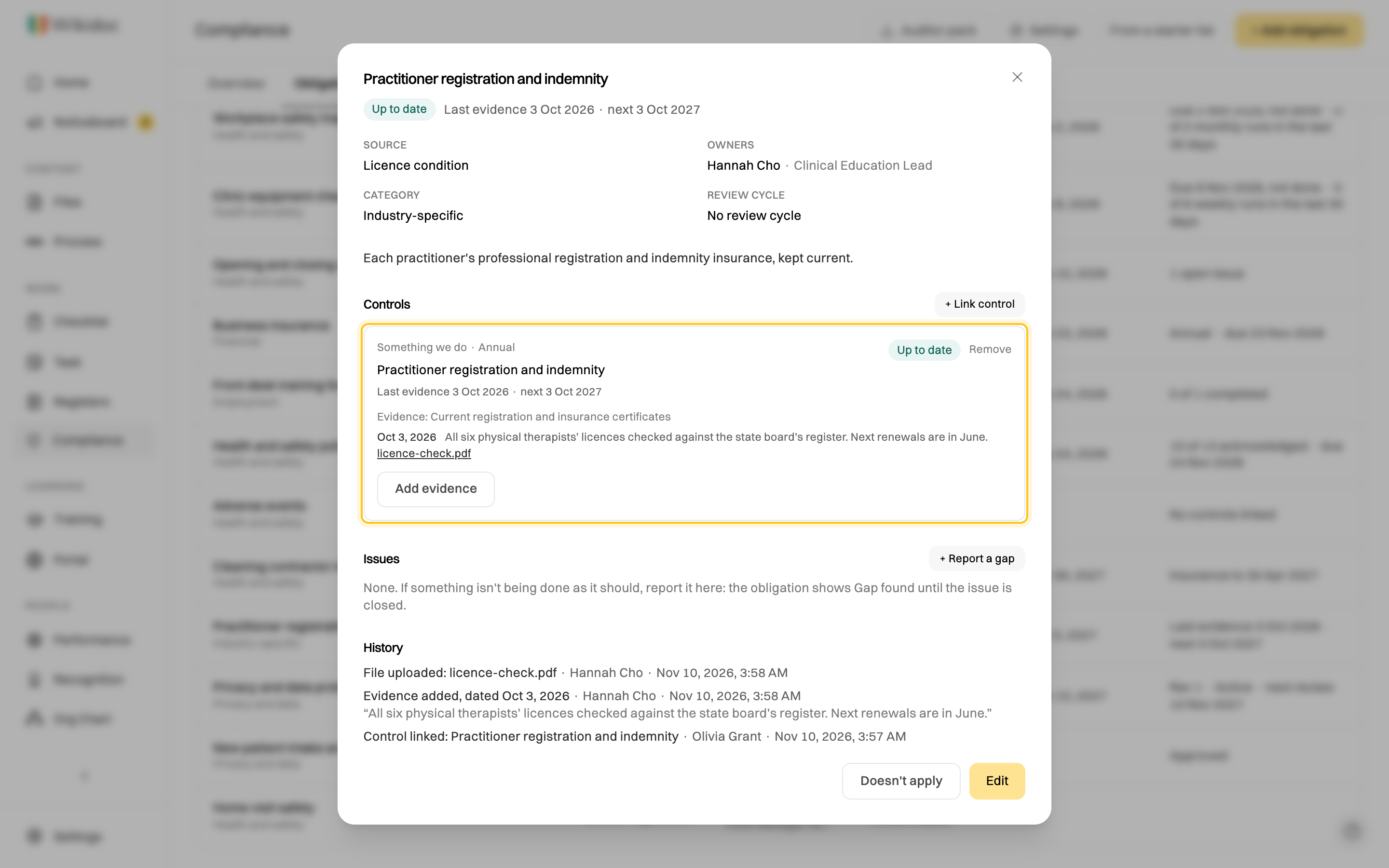
Evidence is kept once it’s added, along with who added it, and opens from the obligation’s panel.
Read the statuses
Section titled “Read the statuses”The Overview tab counts your obligations by status. Click a count to open the Obligations tab filtered to it. Needs attention lists the ones that are overdue, due, have a gap, or aren’t set up.
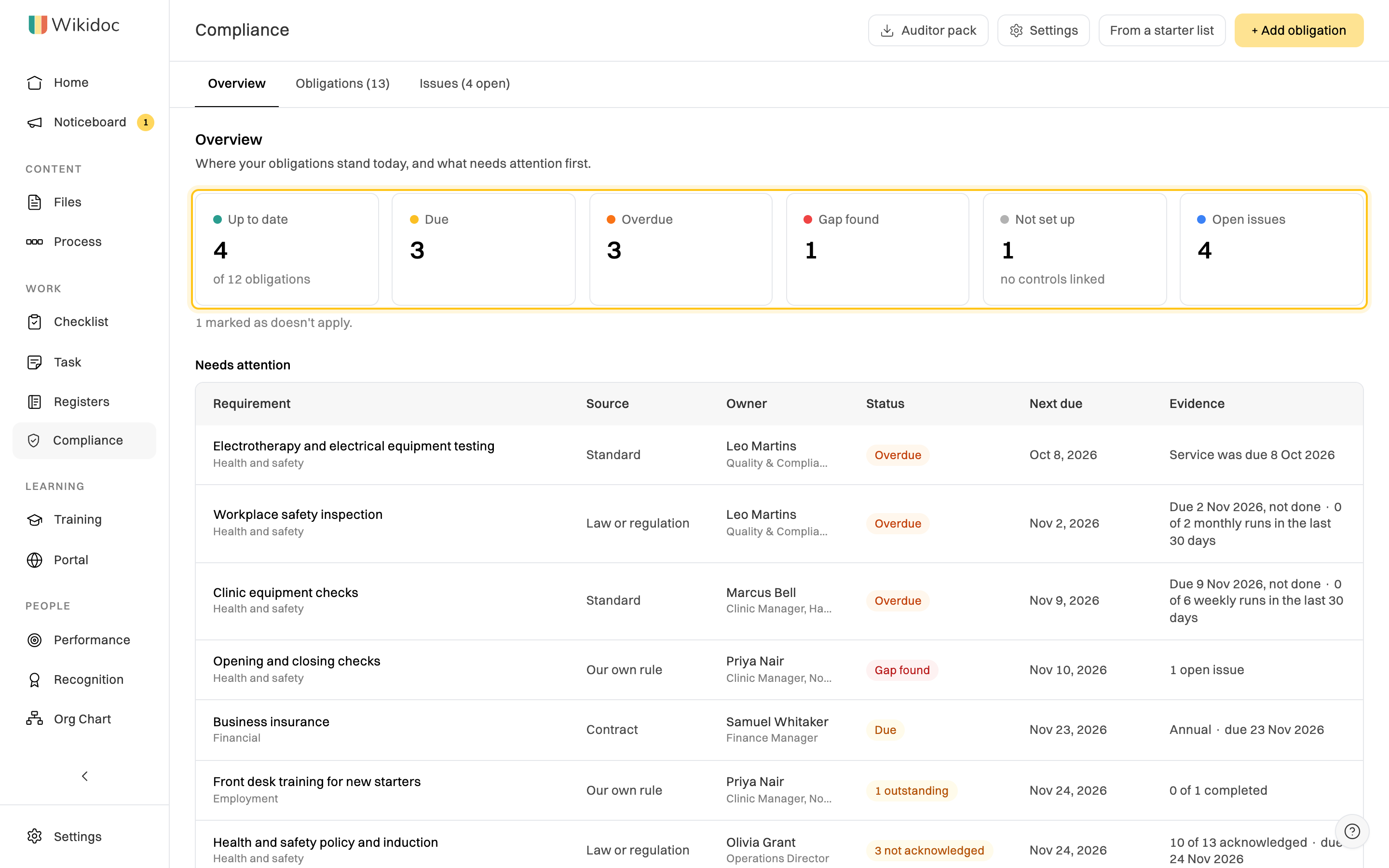
An obligation’s status is its worst control’s:
| Status | What it means |
|---|---|
| Up to date | Every control’s work was done on time. |
| Due | Something is due soon, or due today and not done yet. |
| Overdue | Something wasn’t done by its date, or a control isn’t in place (for example a document no one has approved). |
| Gap found | Someone reported an issue against it that’s still open. See Report an issue. |
| Not set up | Nothing is linked yet. |
| Doesn’t apply | Marked as not applying to you, with the reason. |
| Link broken | The checklist, document or register item it was linked to was deleted. Link it again, or remove it. |
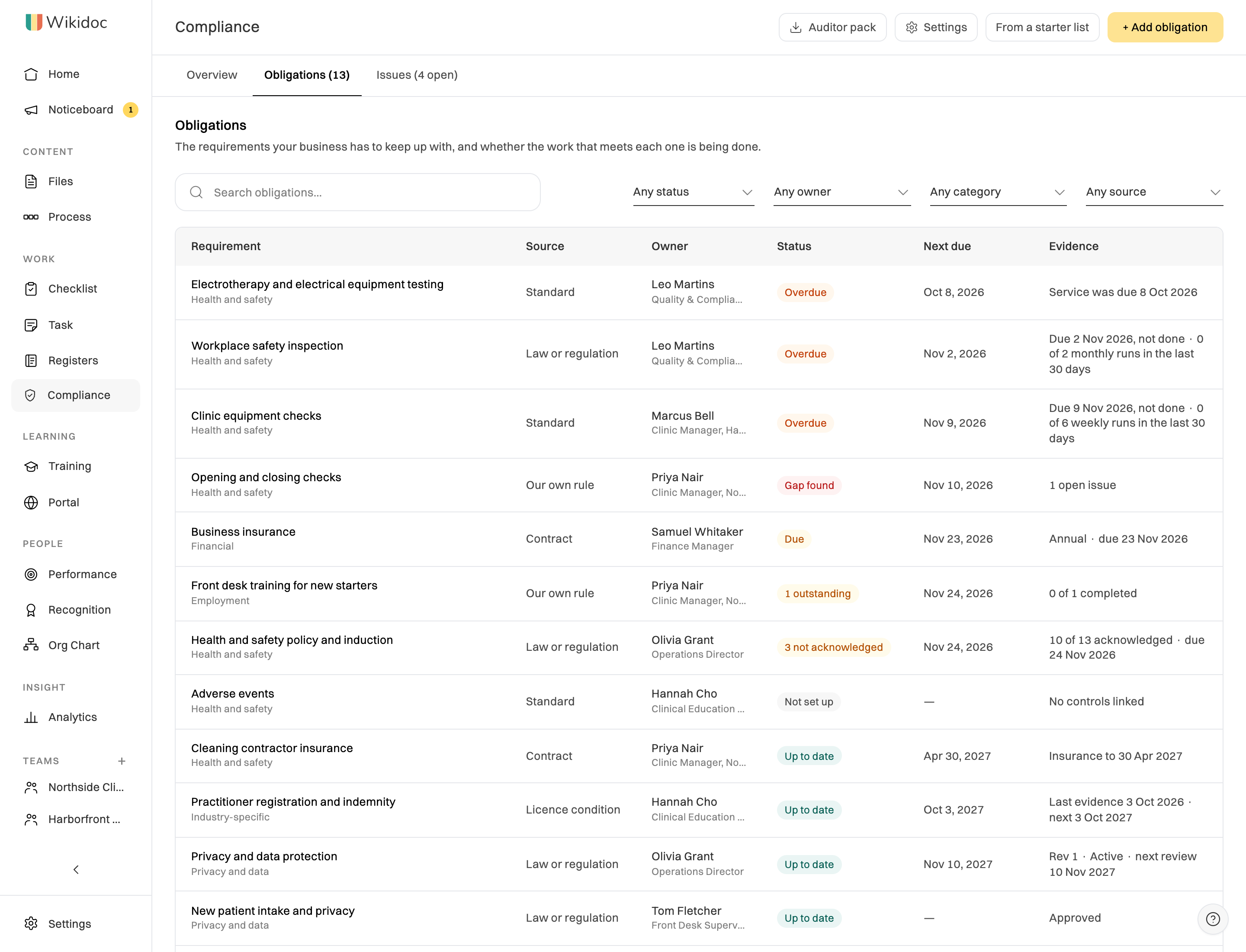
To find one, type in Search obligations. It matches the obligation’s name, its category and its owners, and works with the filters. If nothing matches, click Clear filters.
Reviews, “Doesn’t apply” and owners
Section titled “Reviews, “Doesn’t apply” and owners”- Review: an obligation with a review cycle shows when it’s next due for review. Its owner clicks Mark reviewed and adds a note.
- Doesn’t apply: click Doesn’t apply and say why. It drops out of the counts, keeps its history, and can be turned back on with It applies again. This is the usual way to stop tracking one; only an Admin can delete an obligation.
- When an owner leaves, their obligations show Owner left and count as Not set up until someone else takes them on.
Where you’ll see it
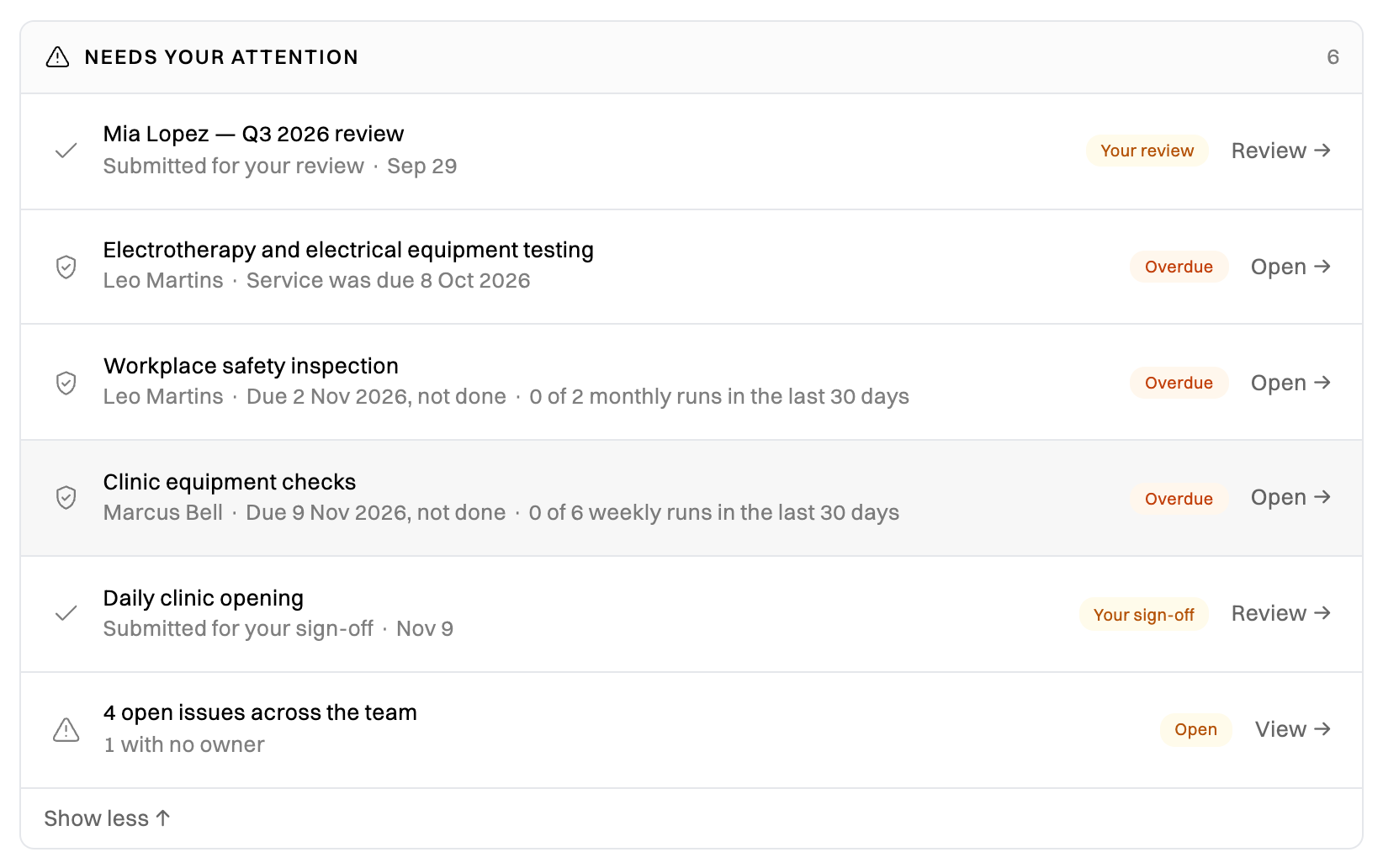
Section titled “Where you’ll see it”On Home, Needs your attention lists each thing of yours that’s due. Admins and Managers also see the team’s obligations that need attention, whoever owns them, plus the open issues and any obligations whose owner left. Owners also get a daily Compliance email when something of theirs needs attention. Turn the email off in Email preferences.