
See a form's results
See every response to a form in one table, find a person's response, and export everything to CSV.
Each live form has a Results tab that brings its submissions together: every response in one table, and a CSV export.
Open Results
Section titled “Open Results”Go to People›Form, open a form and click the Results tab.
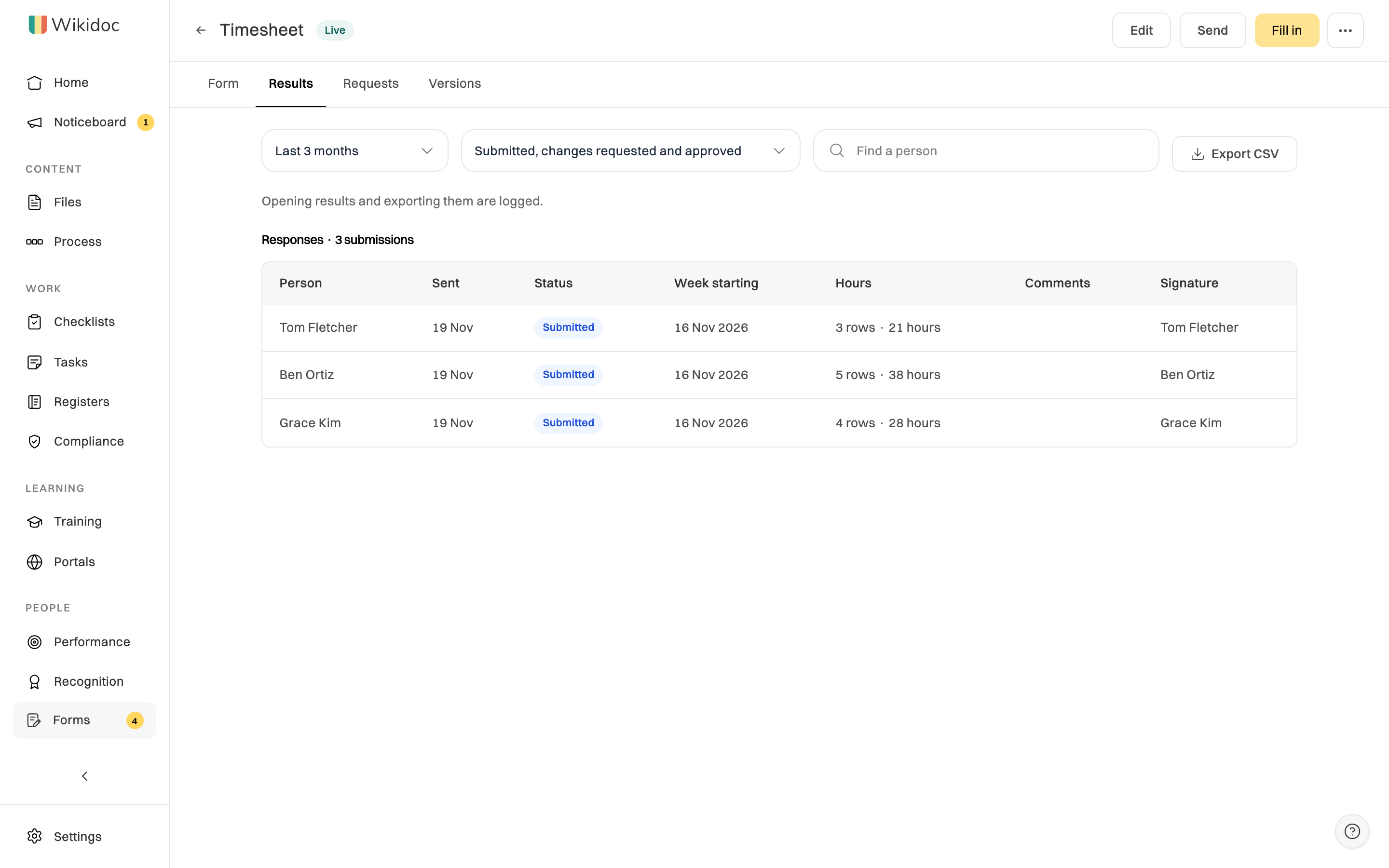
Choose a period (This month, Last 3 months or Last 12 months) and which submissions to include:
- Submitted, changes requested and approved (the default),
- Approved only, or
- Everything sent, rejected included.
Responses
Section titled “Responses”The Responses table lists each submission: the person, when they sent it, its status and their answers. A table answer shows its number of rows and totals, such as 4 rows · 28 hours; open the submission to see every row. Use Find a person to search. Click a row to open the submission.
The table shows the latest 2,000 submissions. Export CSV for all of them, or choose a shorter period.
Read confirmations
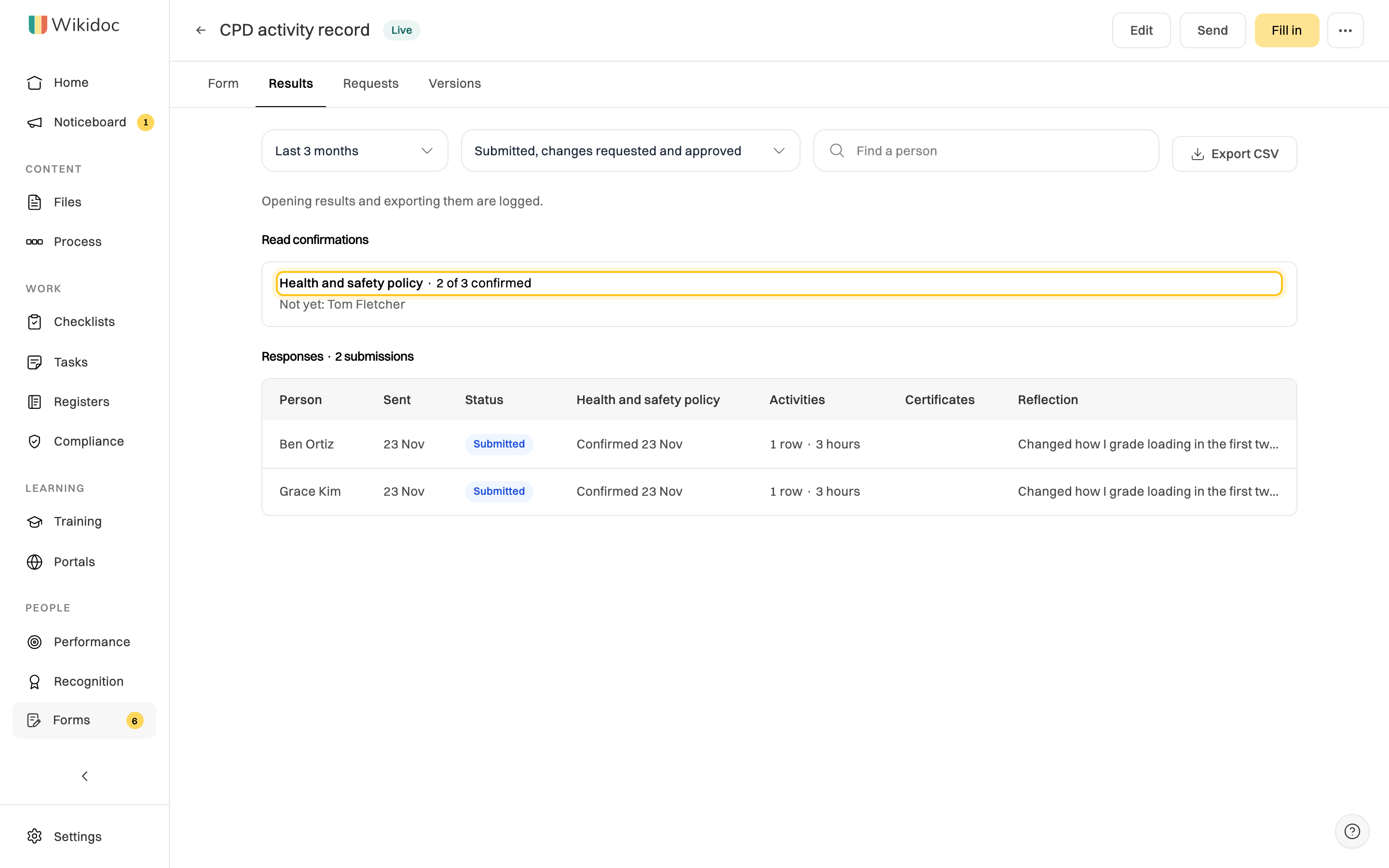
Section titled “Read confirmations”If the form has an Attachment with Ask them to confirm they’ve read it on, Results shows how many people confirmed it, such as Health and safety policy · 8 of 10 confirmed. It counts everyone the form was sent to, plus anyone who confirmed without being sent it. Someone whose form hid the attachment with a condition isn’t counted.
Export to CSV
Section titled “Export to CSV”Click Export CSV. You get one row per submission, with a column for each question. If the form has one table, such as a timesheet’s hours, each table row becomes a CSV row, so the file opens ready to total in a spreadsheet.
Who can see Results
Section titled “Who can see Results”Only the form’s owner and Admins. Reviewers see only the submissions sent to them. Each time someone opens Results or exports it, Wikidoc records who did and when.