
Add detail to a step
Give a step its owner, how long it takes, written instructions, a picture or the app it's done in, and comment on it.
A step’s label says what happens, in a few words. Everything else about the step goes on the step itself: who does it, how long it takes, how to do it, a picture of it, and the app it’s done in. Whoever reads the map sees it all without leaving it.
Open the Step panel
Section titled “Open the Step panel”Double-click a step, or click it and then Details (ⓘ) in the toolbar above the canvas. The Step panel opens on the right. It shows the step’s picture, owner, duration and app, whichever it has, then its details and its comments.
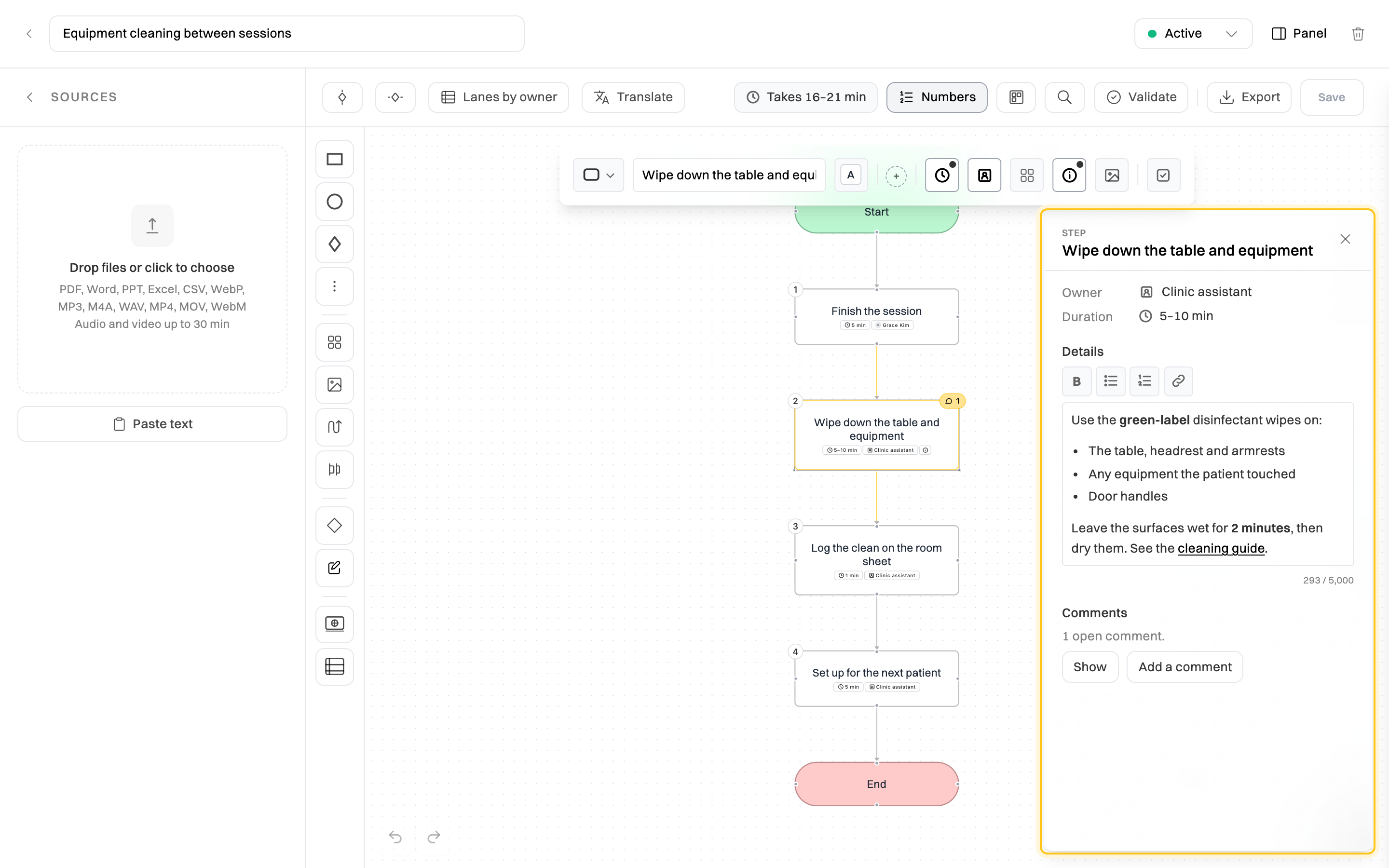
Click another step and the panel follows it. Drag the panel by its header to move it. Press Esc, or click an empty part of the canvas, to close it.
Write the step’s details
Section titled “Write the step’s details”Type in the Details box: what to do, what to check, exceptions, tips. Use the buttons above it for Bold (⌘B), a bulleted or numbered list, and a Link (⌘K). A web address you type or paste becomes a link by itself. Details can be up to 5,000 characters.
A step with details shows ⓘ under its label. Hover over it to read the first two lines without opening the panel.
Click Save to keep your changes, as with any other change to the map.
Say who does it
Section titled “Say who does it”- Click the step, then Owner in the toolbar.
- Search for a person, a department or a role, and click it. To use a role nobody has yet, type it and click Use “…” as a role.
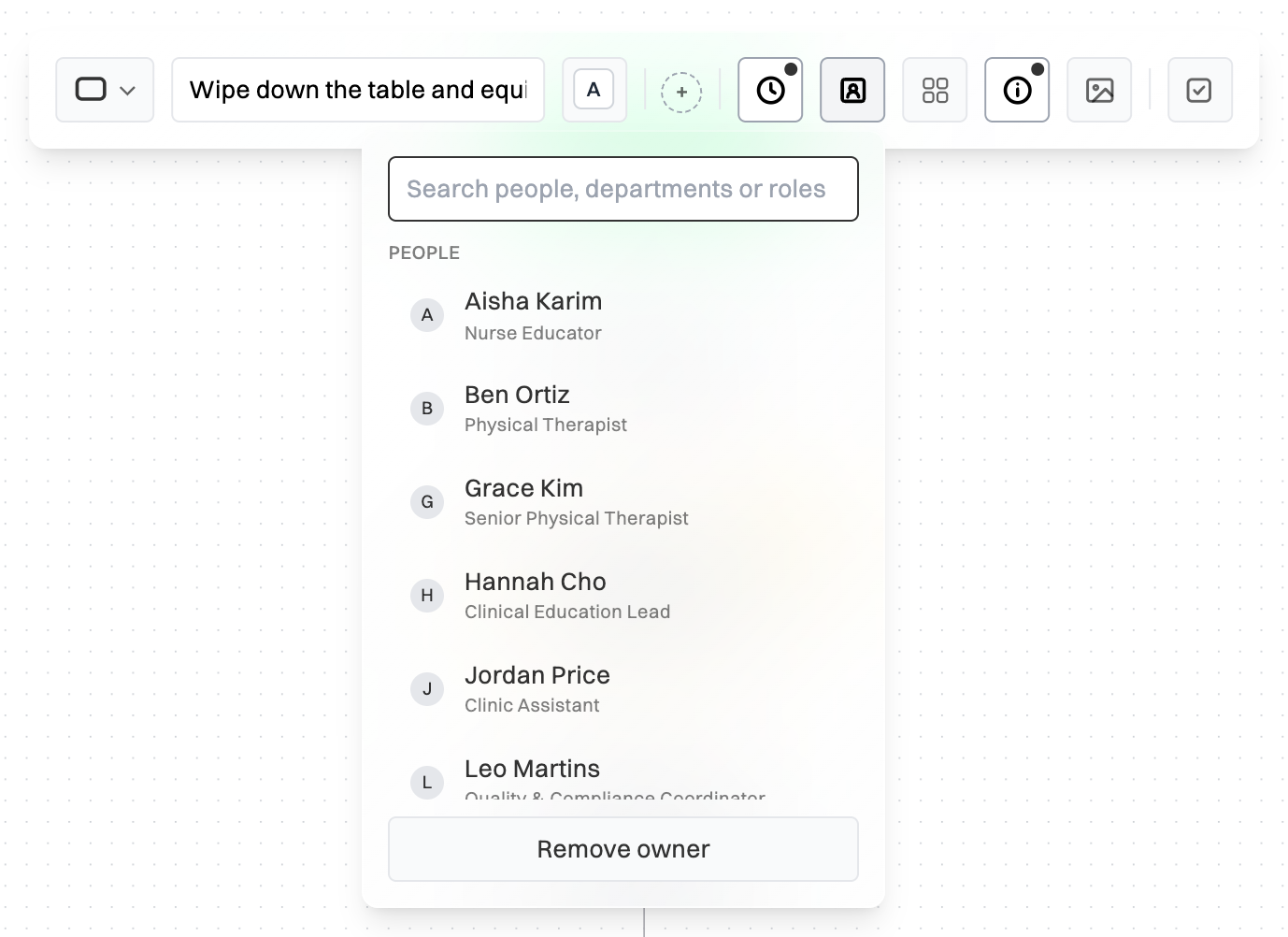
The owner shows under the step’s label: a person’s initials, a building for a department, or a badge for a role, then the name. If someone changes their name, or a department is renamed, the map shows the new name without being edited. If the step is in a swimlane, the menu suggests the lane’s owner first, under From its lane.
If a person leaves your organisation or a department is deleted, their steps get an amber edge, and Validate lists them with Reassign →.
Lanes by owner, at the top of the canvas, appears once any step has an owner. It gives each owner a lane of their own and moves their steps into it. Steps without an owner go in a No owner lane at the end. Undo puts the map back. A map can have up to 6 owners for this, in one swimlane, with no steps inside a group.
To find the maps where you own steps, choose Where I own steps in the filter on the Process Maps page. A person’s profile on the org chart lists them under Owns steps in.
Say how long it takes
Section titled “Say how long it takes”- Click the step, then Duration in the toolbar.
- Type how long it takes, such as 15 min, 1.5 hours or 2-3 days. Or type a number and pick Min, Hours, Days or Weeks.
- Under Time spent, choose Hands-on for work, or Waiting for time spent waiting on someone or something, such as a delivery. A waiting time has an hourglass and a dashed edge.
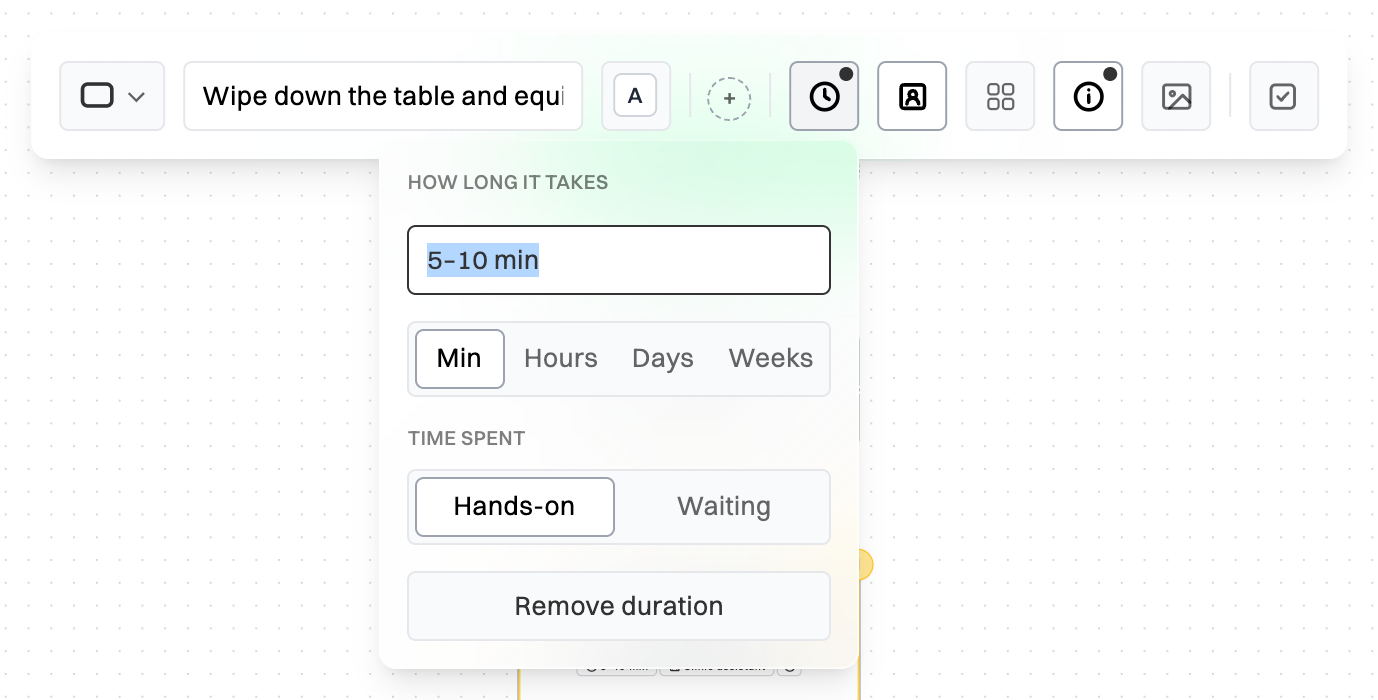
Once steps have durations, the top of the canvas shows how long the whole process takes, such as Takes 16–21 min: from its quickest path to its slowest, start to end. Hover over it to see how it’s worked out, and how many steps have no duration yet. A subprocess without a duration of its own counts what its map adds up to. The same total is in the map’s Overview tab, as Takes.
Add a picture
Section titled “Add a picture”Click a rectangle or rounded step, then Image in the toolbar, and choose a picture. Under Show as, pick Above label for a small picture over the step’s text, or Cover for one that fills the step. Add Alt text to describe it for people who can’t see it. You can also drop a picture file straight onto a step.
For a picture on its own, such as a screenshot or a diagram, click Image in the toolbar on the left of the canvas. You can also paste or drop a picture on an empty part of the canvas.
Pictures can be PNG, JPEG, WebP, GIF or iPhone (HEIC) photos. Wikidoc makes large ones smaller before uploading them. A GIF is kept as a still picture.
Show the app it’s done in
Section titled “Show the app it’s done in”Click Apps in the toolbar on the left of the canvas, search for the app, and drag it onto the canvas, or click it to add it in the middle. You get an app step with the app’s logo. Click it to say what’s done there, such as Post in #ops, or to change the app.
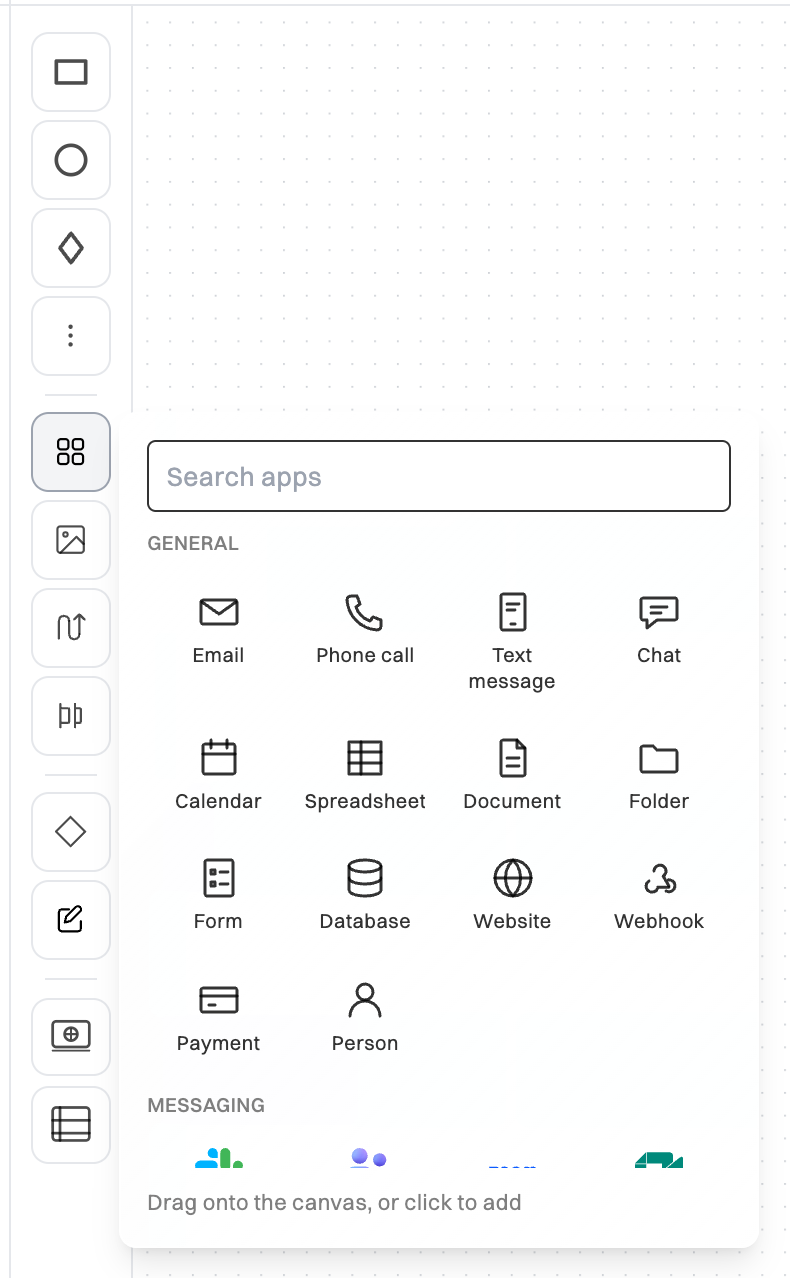
To put an app’s logo in front of an ordinary step’s label instead, click the step, then App in the toolbar. Remove app takes it off.
Step numbers
Section titled “Step numbers”Wikidoc numbers the steps in the order the process runs: 1, 2, 3. After a decision, each branch takes the next number with a letter, such as 3a and 3b, and where the branches meet again, counting carries on. Decisions, Start and End don’t get numbers, and a line back to an earlier step doesn’t change them.
The numbers move when you change the map, so they’re always in order. To hide them, click Numbers at the top of the canvas. Your browser remembers the choice, and exports from the editor follow it. People who open the map read-only always see the numbers.
Comment on a step
Section titled “Comment on a step”On the Team plan, a comment can be about one step. In the Step panel, click Add a comment, or open the Comments tab (click Panel) and choose the step under About.
A step with open comments shows a bubble with how many. Click it to see only that step’s comments, and Show all to see them all again. A comment about a step shows which one above its text; click that to move the map to the step.
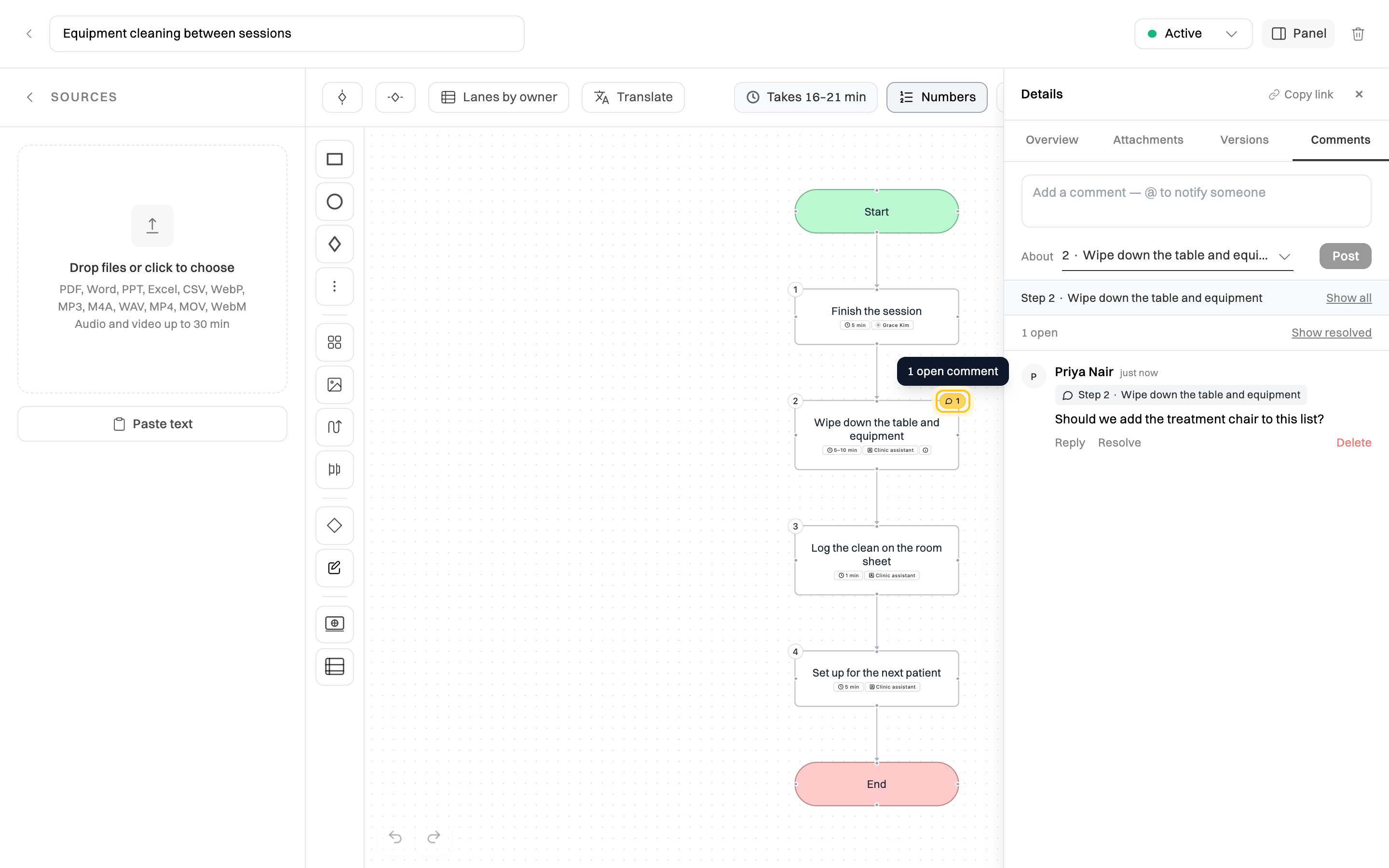
If the step is deleted, its comments stay, marked Removed step with the step’s name. Email notifications about a comment say which step it’s about.
What everyone else sees
Section titled “What everyone else sees”- In Wikidoc: people who can’t edit the map can click a step to open its panel and read its details. They can comment on steps too, on the Team plan.
- In a portal and in training: owners, durations, details, pictures and numbers appear as they do in Wikidoc. A person who owns a step shows by name, never by email address. Comments don’t appear.
- In an export: PNG, SVG and PDF show pictures, numbers, owners, durations, app logos and the ⓘ marker, but not the details themselves. To include the details, tick Include step details when you export a PDF. See Export a process map.
Wikidoc doesn’t add owners, durations, details, pictures or apps when it draws a map; you add them. Re-generate replaces them along with the rest of the map, after saving a copy. See Create a process map.