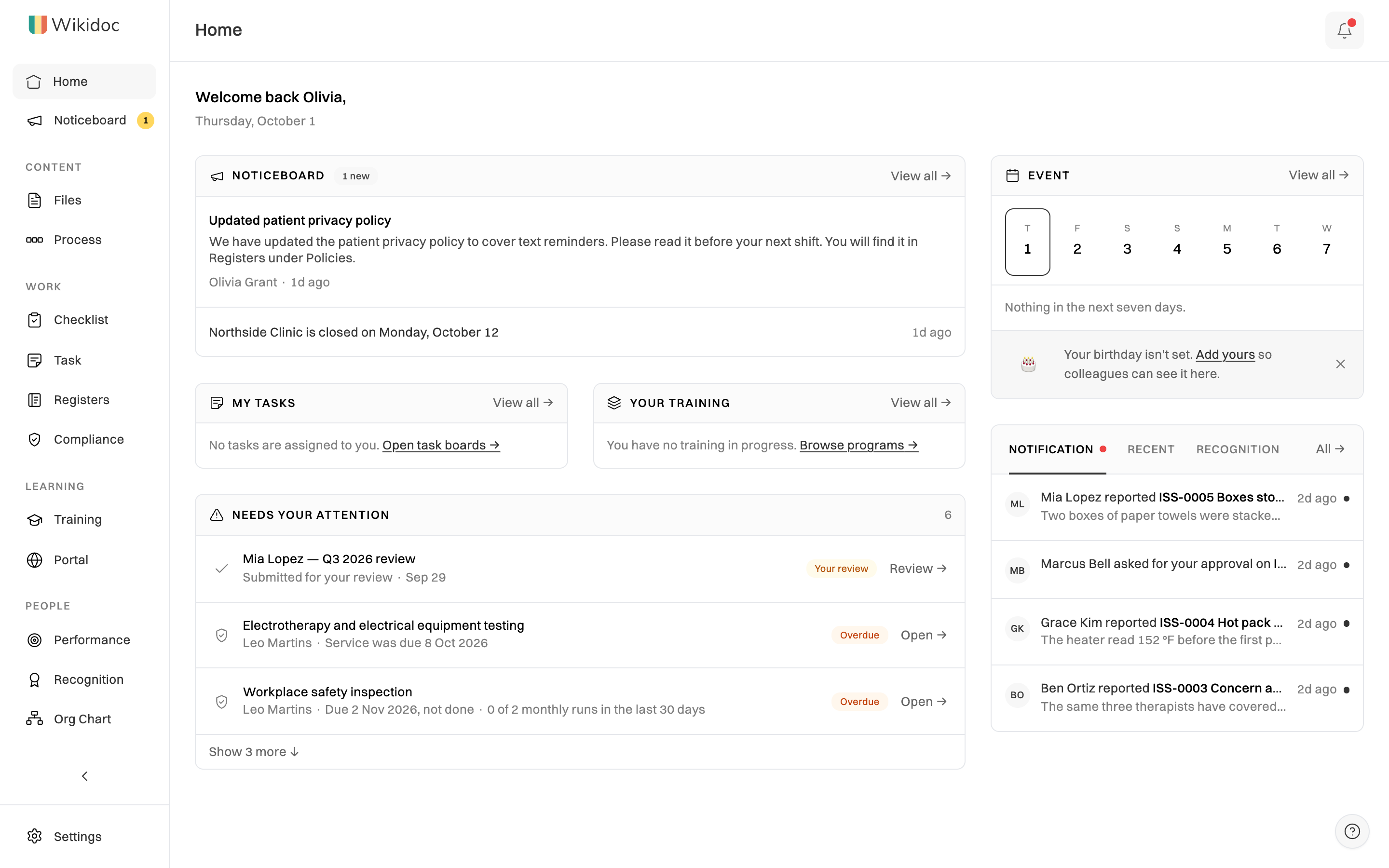
A tour of the sidebar
Where everything lives in Wikidoc, and why some items may be missing from yours.
The sidebar on the left of every screen groups Wikidoc by what you’re doing: what your organisation knows (Content), what it does each week (Work), how it trains people (Learning), how its people are doing (People), and how it’s all going (Insight). Your organisation may show its own logo and put the groups in a different order.

At the top
Section titled “At the top”- Home: your starting point. On Free and Pro it shows what you can make. On Team it’s a dashboard: announcements, your tasks and training, what needs your attention, upcoming events and recent activity.
- Noticeboard: announcements and events for your organisation. A number shows how many you haven’t read. See Noticeboard. (Team)
Content
Section titled “Content”- Files: your documents: step-by-step guides made from a recording, with their videos, slides and quizzes. Organise them in folders. See Organise files: folders and team workspaces.
- Process: process maps, which show a whole process as a flowchart. See Create a process map.
- Checklist: recurring checklists your team ticks off, and the ones waiting for your review. See Build a checklist template.
- Task: task boards. A number shows how many cards have changed since you last looked. See Task boards. (Team)
- Registers: the tools, policies, assets and providers your organisation uses, with service and renewal dates, plus any registers you create. See Keep registers of tools, policies, assets and providers. (Team)
- Compliance: the obligations your business keeps up with and whether the work that meets them is being done, issues to fix, and the policy builder. See Track your obligations. (Team)
Learning
Section titled “Learning”- Training: training modules and programs, on two tabs. A module is a single lesson. A program groups several modules into a course you assign. (Programs: Team) Viewers land on My training, the training assigned to them. See Browse and use the training library.
- Portal: client portals, which share chosen content with people outside your organisation. (Team; not shown to Viewers)
People
Section titled “People”- Performance: goals, KPIs and performance reviews. See Performance reviews. (Team)
- Recognition: thank a colleague publicly. See Recognition, points and awards. (Team)
- Org Chart: who reports to whom. See Build your org chart. (Team)
Insight
Section titled “Insight”- Analytics: training completion, task flow, performance, portal visits and more. See What Analytics shows. (Team; Managers and Admins only)
At the bottom
Section titled “At the bottom”- Teams: your team workspaces, each with its own files. Managers and Admins see + New team here. See Teams and team workspaces.
- Upgrade: shown on the Free plan. See Plans compared.
- Settings: your account, your organisation’s members, notifications and billing, and, for Admins, the sidebar.
Features marked (Team) stay in the sidebar on Free and Pro, and open an upgrade prompt.
Why is something missing?
Section titled “Why is something missing?”Three things decide what your sidebar shows:
- Your role. Viewers don’t see Portal. Analytics is for Managers and Admins. See Roles and permissions.
- Your teams. The Teams section shows only the teams you belong to, and only if you belong to one or can create one.
- Your organisation’s settings. On Team, an Admin can change the logo and the order of the groups. See Customise the sidebar.
Make the sidebar smaller
Section titled “Make the sidebar smaller”Click the arrow at the bottom of the sidebar to shrink it to icons. Hover over an icon to see its name. Click the arrow again to expand it. Wikidoc remembers your choice on this device.
Home on the Team plan
Section titled “Home on the Team plan”