
Write and publish a policy
Answer a few questions and Wikidoc drafts a policy for you to check, approve and ask staff to acknowledge, with every revision kept.
The policy builder turns a few answers about your business into a draft policy in Wikidoc, in the sections of the policy template. You check it, settle anything only you can decide, and get it approved. From then on Wikidoc keeps each approved revision, reminds you when it’s due for review, and records which staff have read it.
Draft a policy
Section titled “Draft a policy”-
Click Registers in the sidebar, open the Policies tab and click + New policy. From an obligation, click + Link control and then Draft the policy: the new policy is linked to it as soon as it’s drafted.
-
What it covers: give it a title, say what it must cover, and choose its owner and how often it’s reviewed.
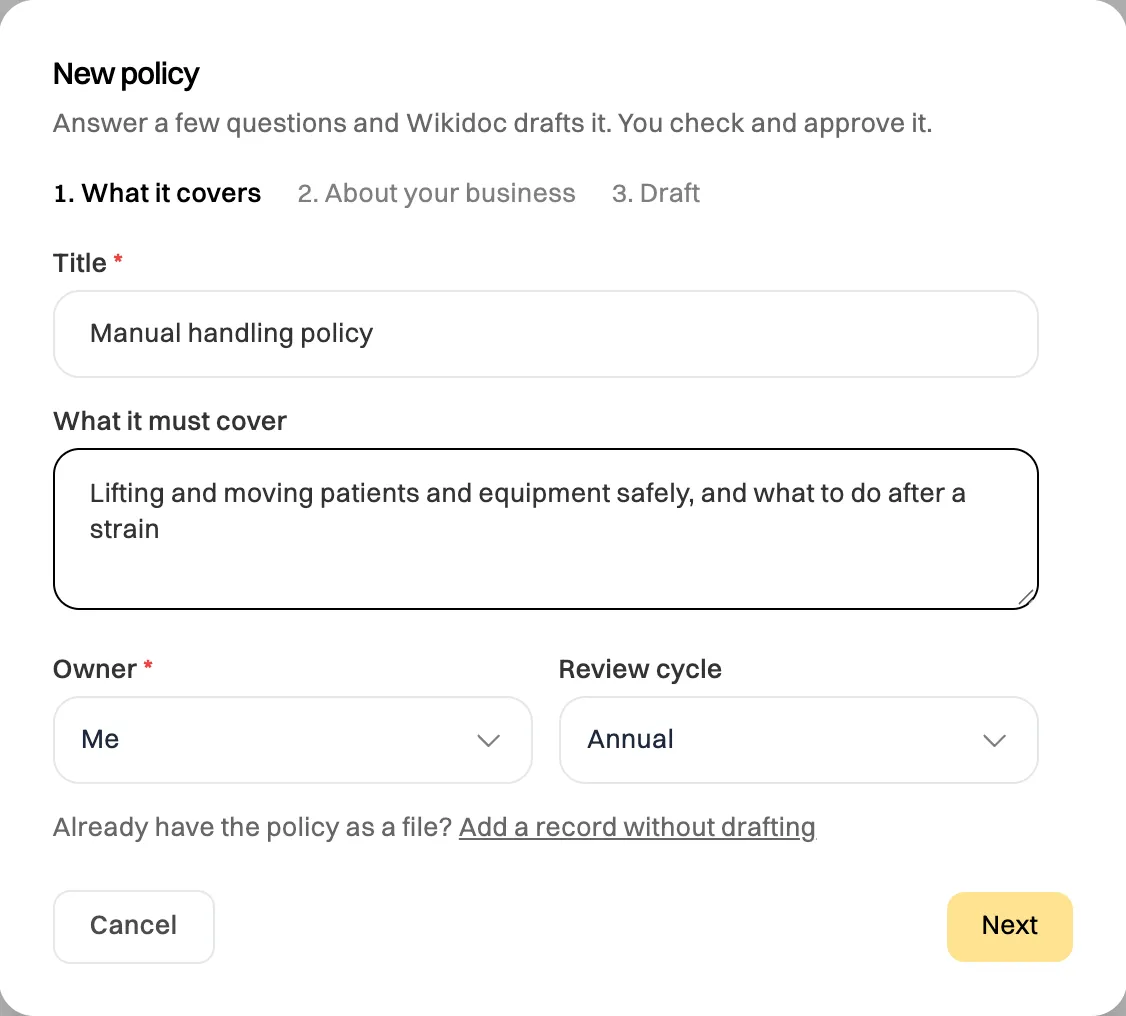
Step 1: what the policy is about, who owns it and its review cycle. Already have the policy as a file? Click Add a record without drafting to add it to the register as it is.
-
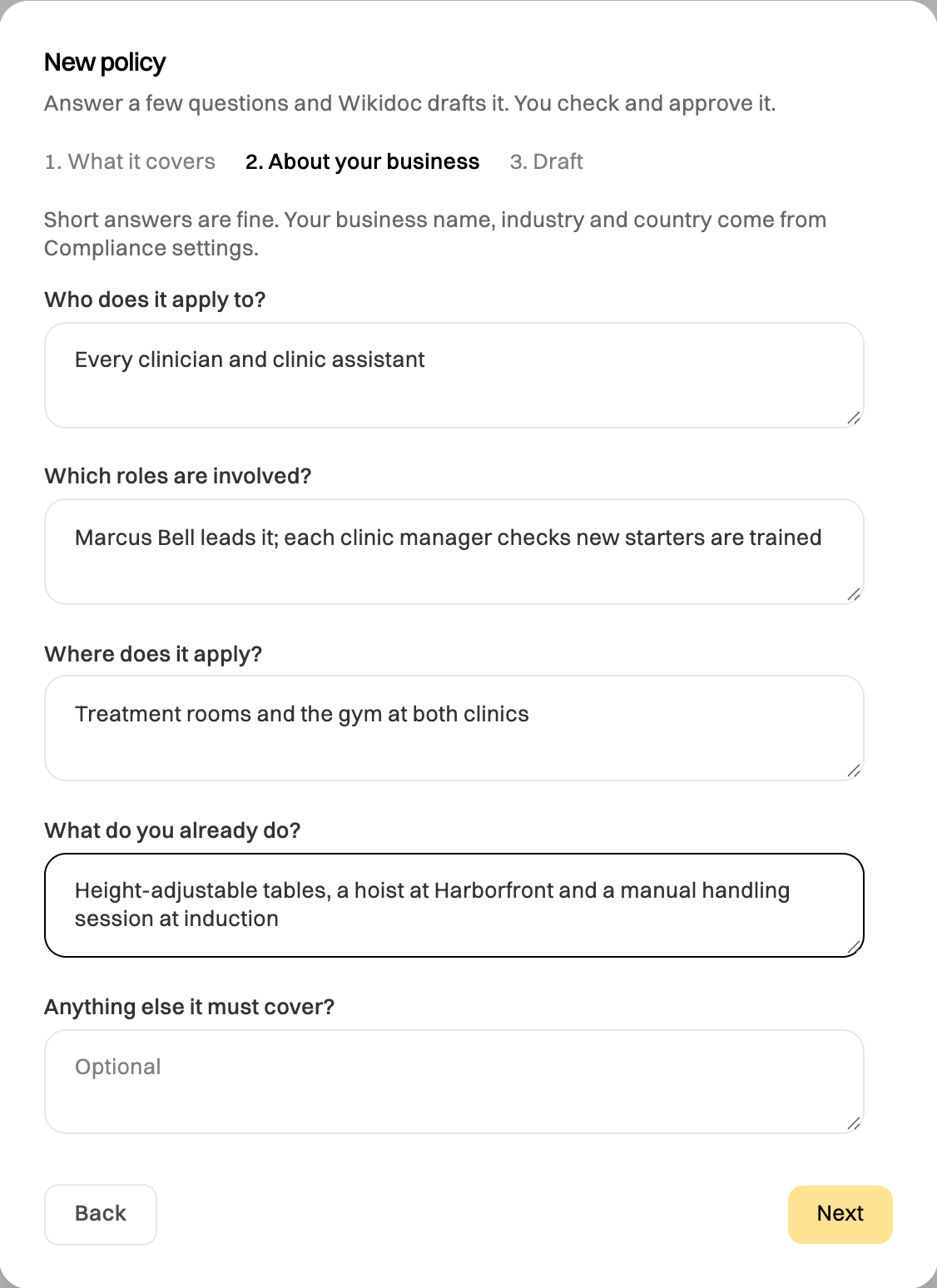
About your business: answer the five questions in a sentence or two each: who it applies to, which roles are involved, where it applies, what you already do, and anything else it must cover. Your business name, industry and country come from Compliance settings.
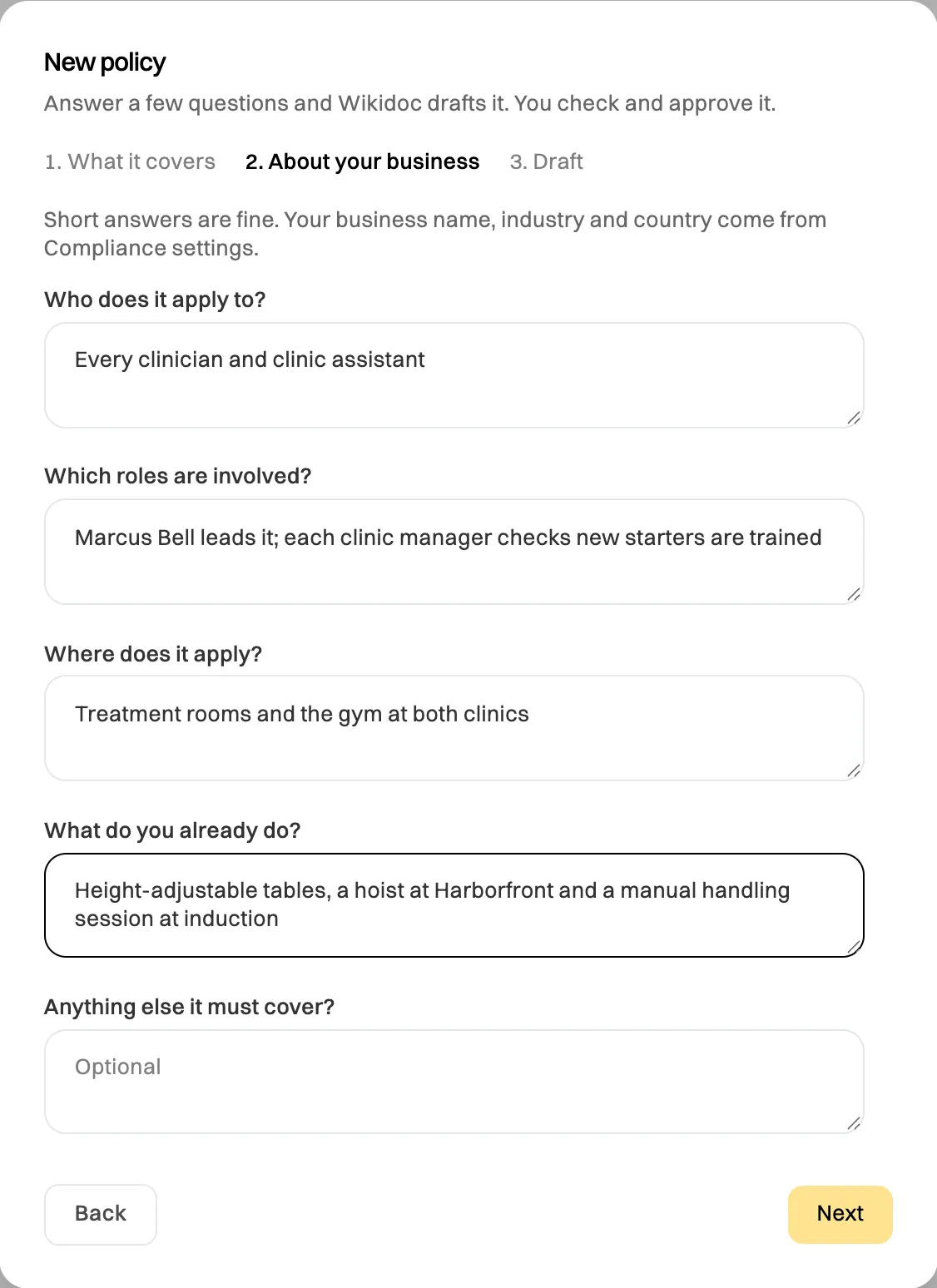
Step 2: short answers are enough. -
Draft: choose who approves it, an Admin or Manager other than you, or Choose later. Click Write the draft.
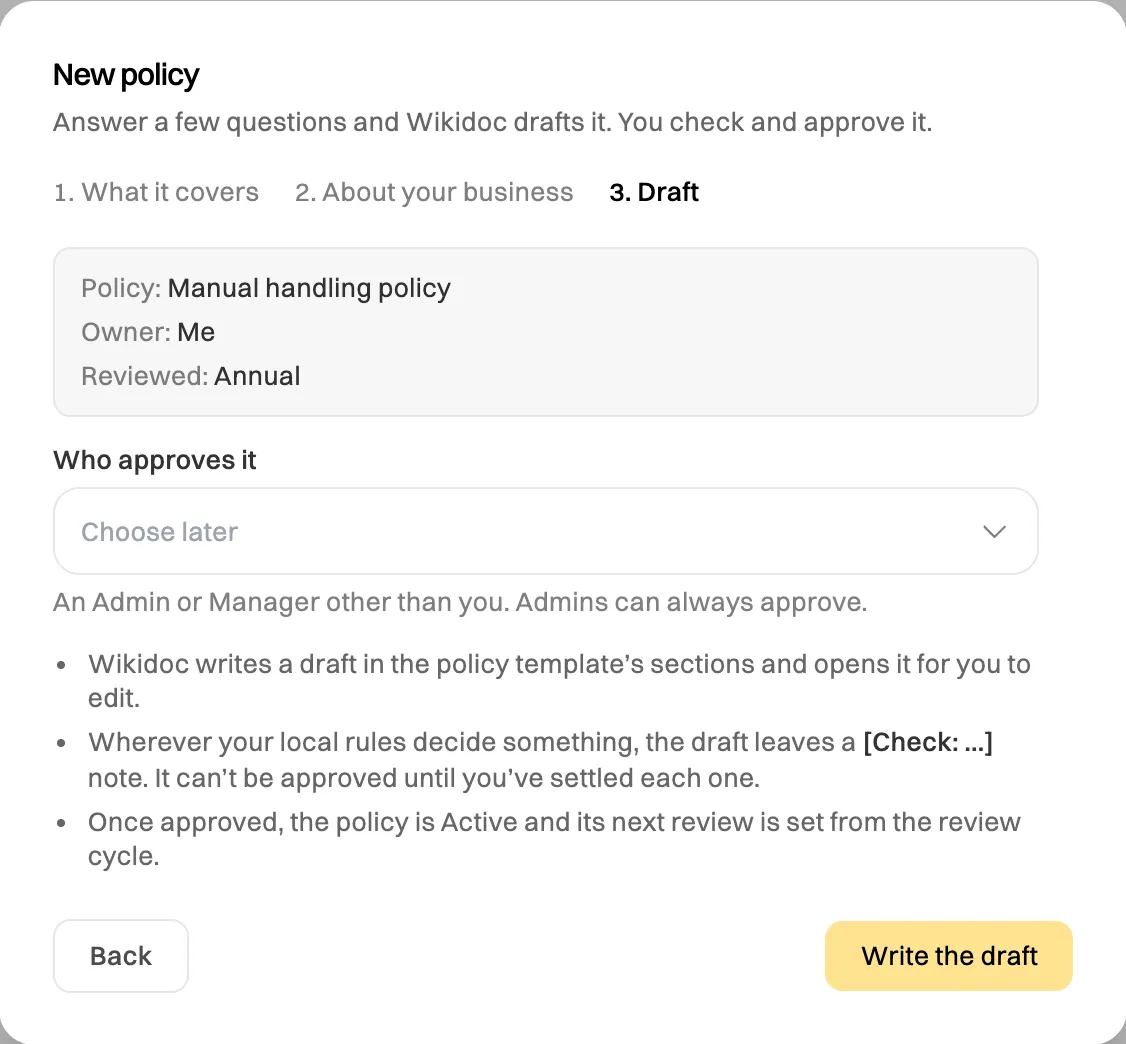
Step 3: who approves it.
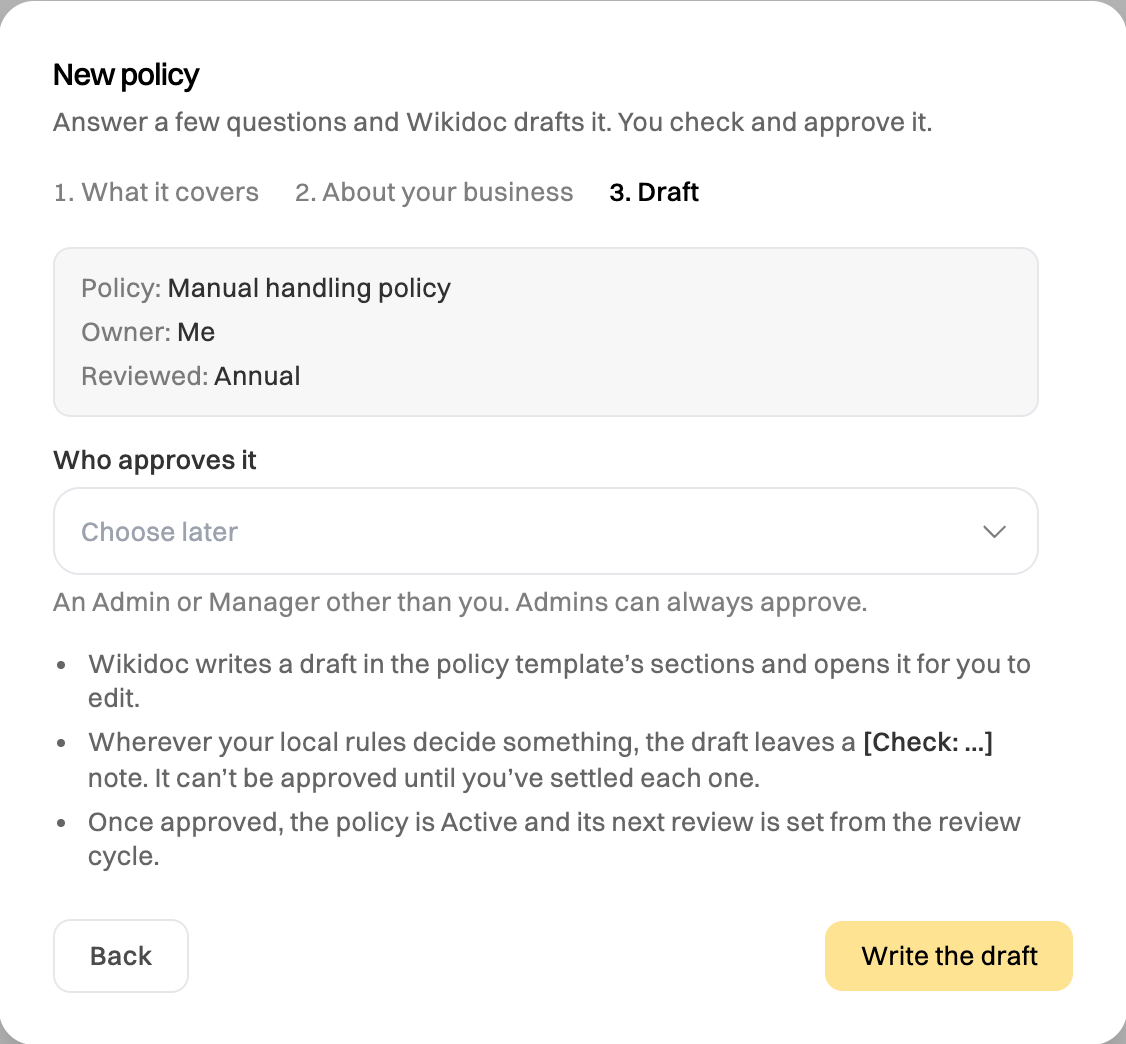
The draft opens in the document editor, with a note at the top that it was written with AI, and the policy is added to the register as a Draft.
Settle the [Check: …] notes
Section titled “Settle the [Check: …] notes”Wherever something depends on your own rules, such as who must be told about a serious incident or how long records are kept, the draft leaves a note like [Check: who must be notified when a serious incident occurs] instead of guessing. Replace each one with what you actually do. A policy can’t be sent for approval, or approved, while any note is left: the policy’s Document tab lists the ones that remain.

Approve it
Section titled “Approve it”Send the document for approval from its approval panel, as for any document (see Approvals). When it’s approved:
- The policy becomes Active as Rev 1, from today.
- Its next review is set one review cycle on.
- Wikidoc keeps a copy of the approved text as a version labelled Rev 1.
To change an approved policy, edit its document as usual. Rev 1 stays in force while you do: staff keep reading Rev 1 until the changes are approved, which makes them Rev 2.
Review it on time
Section titled “Review it on time”As the review date comes up, the policy’s owner sees it on Home. On the policy’s Document tab, click Mark reviewed:
- No changes moves the next review one cycle on.
- Changes needed records the review and opens the document, so the edit becomes the next revision.
Ask staff to acknowledge it
Section titled “Ask staff to acknowledge it”- On the policy’s Document tab, click Ask staff to acknowledge.
- Choose who: everyone, some departments, or named people, and the date to acknowledge by (14 days from today unless you change it).
- Click Ask them. Each person is asked on Home and in their daily Compliance email, reads the approved revision and confirms by typing their name. See Acknowledge a policy.
The Acknowledgement section shows who has and who hasn’t, with the date each person confirmed. Download it as a CSV or PDF for your records. A linked obligation shows N not acknowledged until everyone asked has confirmed.
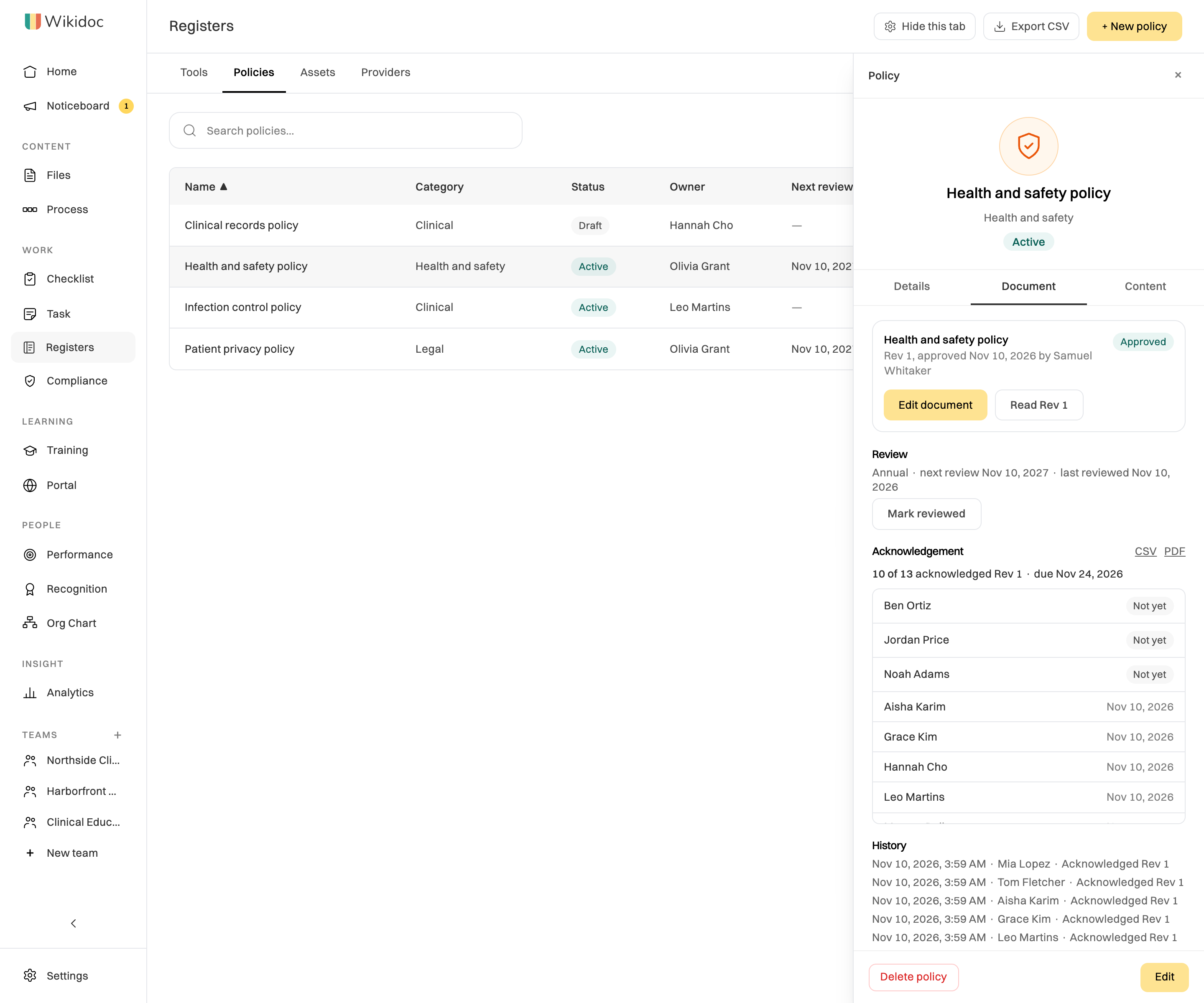
When a new revision is approved, the earlier request no longer counts: click Ask everyone again to ask staff to read the new one.
Turn an older policy into a document
Section titled “Turn an older policy into a document”A policy added to the register before the builder keeps its text in boxes on the policy. Open it, and on its Document tab click Make a Wikidoc document to turn the text into a document with the policy’s sections, ready to approve and to ask staff to acknowledge.