
Fix an issue: actions, approval and check
Take an issue from reported to closed: find the root cause, plan the actions, get the plan approved, do the work and check the fix worked.
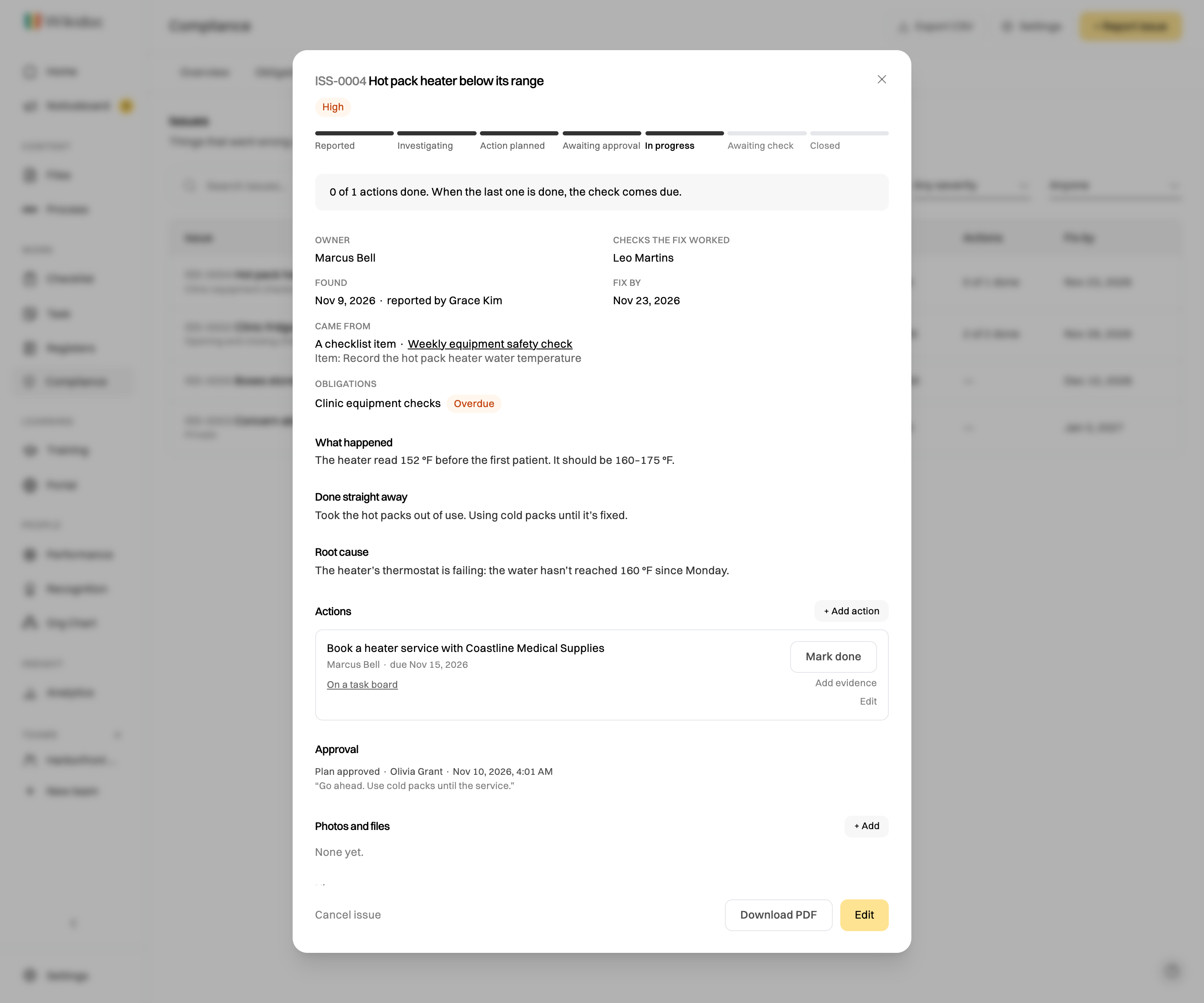
Every issue goes through the same steps, so nothing is closed just because someone said it was fixed: Reported, Investigating, Action planned, Awaiting approval when the plan needs one, In progress, Awaiting check and Closed. The issue’s panel shows where it is, and the box at the top says what happens next and who it’s waiting for.
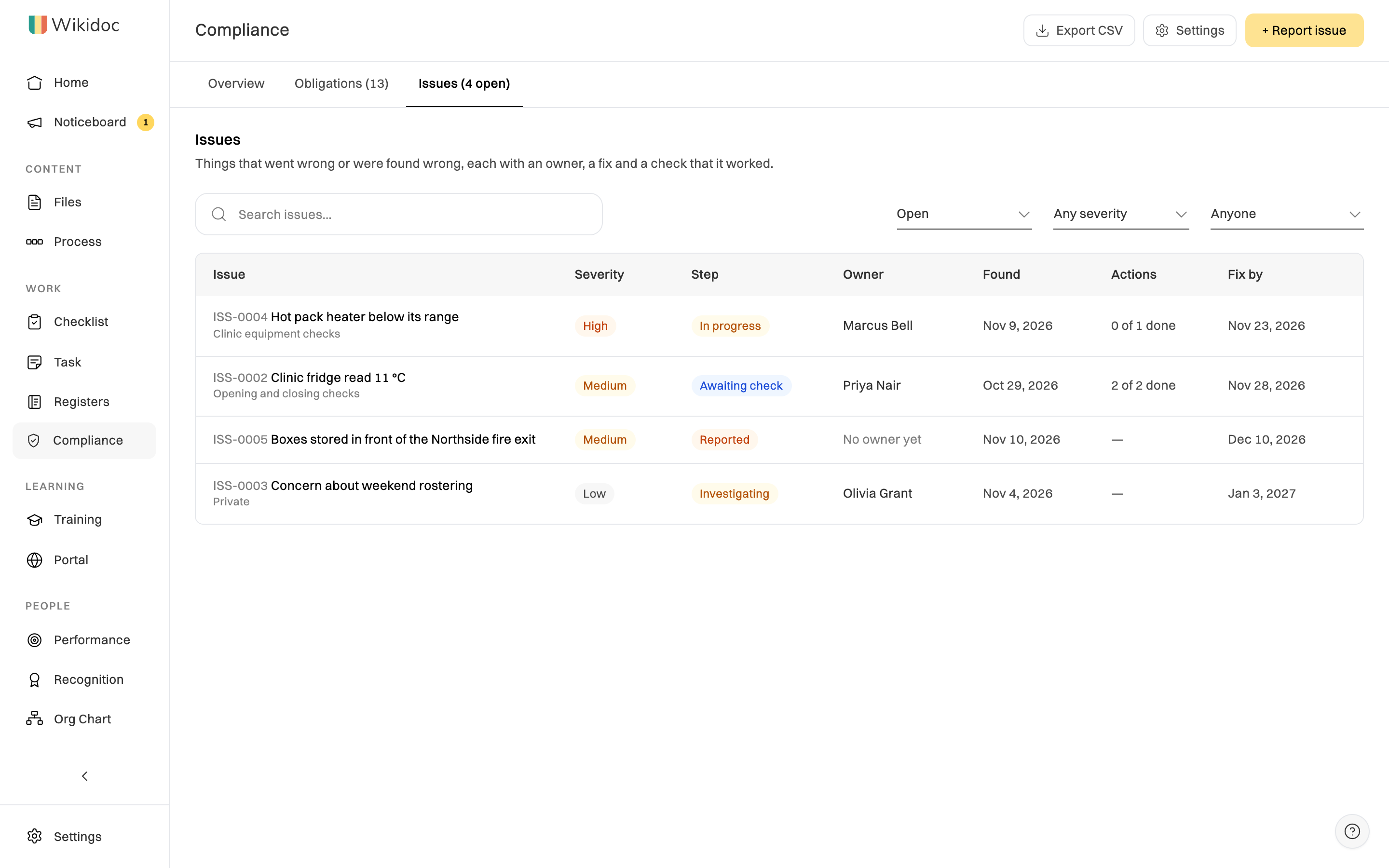
To find an issue, type in Search issues. It matches the reference (such as ISS-0002), the title, the owner and the obligations it’s reported against. It searches within the issues the filters show, so set the first filter to All issues to include closed ones.
Plan the fix
Section titled “Plan the fix”-
An Admin or Manager opens a reported issue, clicks Edit, and chooses its Owner and who Checks the fix worked. The checker can’t be the owner.
-
The owner clicks Start investigating, then writes the Root cause: why it happened, not only what happened. Ask why until you reach something you can fix.
-
Under Actions, click + Add action for each thing that needs doing, with who does it and by when.
-
Click Plan ready. If the plan needs approval, click Send for approval instead and choose an Admin or Manager to approve it. Which issues need an approved plan is set in Compliance settings: High and Critical issues, or all of them.
The approver clicks Approve the plan, or Send it back with what to change. The owner can’t approve their own plan.
Do the work
Section titled “Do the work”The owner clicks Start the work (an approved plan starts by itself). Each action’s owner then clicks Mark done with a note of what was done, and can Add evidence: a dated note, a photo or a file.
To work on an action alongside your other tasks, click Track on a task board and choose a board. The card links back to the issue, and moving it to a done column marks the action done.
Check the fix worked
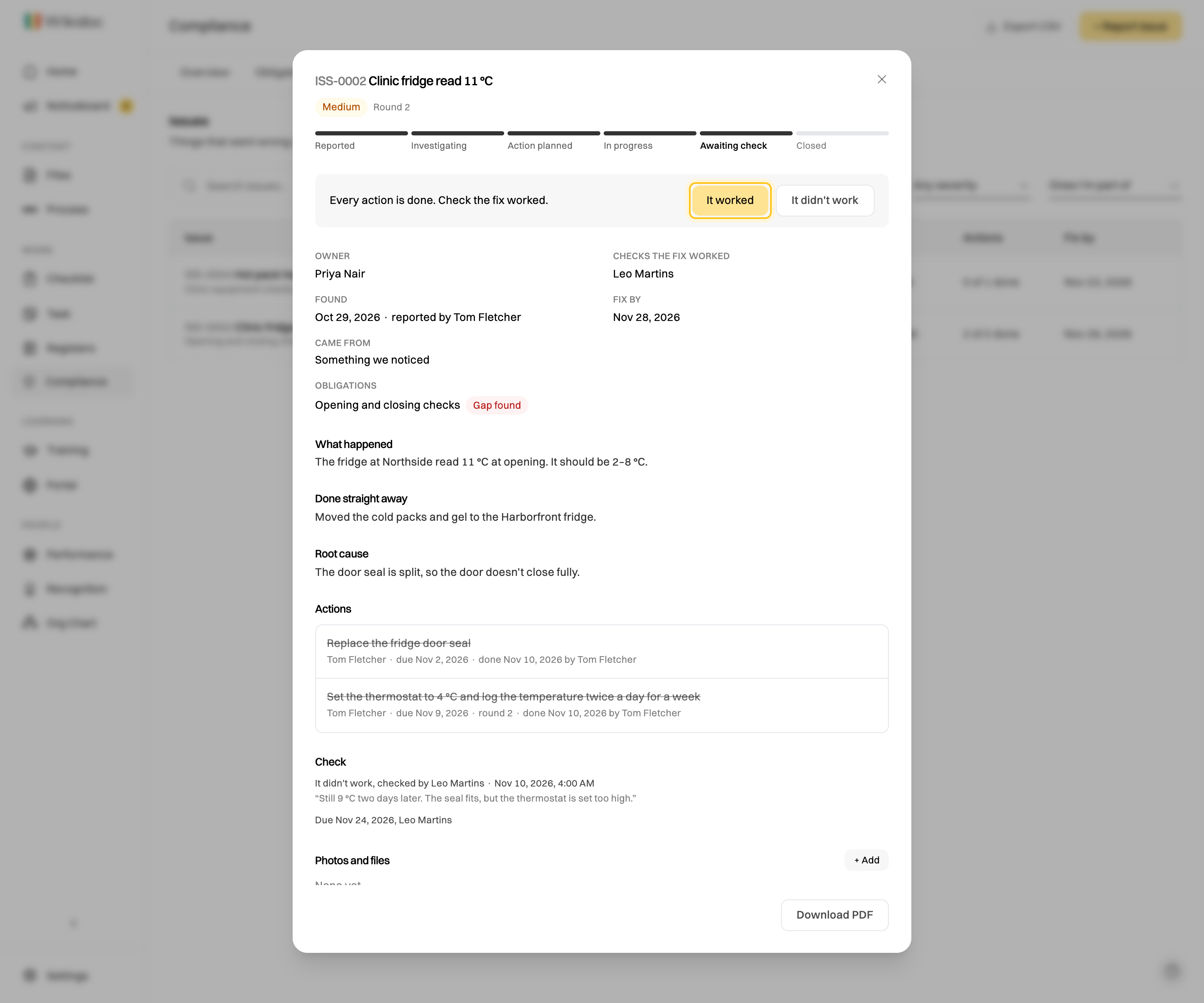
Section titled “Check the fix worked”When the last action is done, the check comes due: in 14 days, or 7 for a Critical issue. The checker, or an Admin or Manager who didn’t own the issue or any of its actions, records the result:
- It worked closes the issue.
- It didn’t work, with what still isn’t right, sends it back to Action planned for another round. Every round, approval and check stays on the record.
Cancel, delete and export
Section titled “Cancel, delete and export”- Cancel issue: an Admin or Manager cancels an issue that turns out not to be one, with the reason. It stays on the record.
- Delete: only an Admin deletes an issue. It’s hidden at once and removed for good after 90 days.
- Download PDF on an issue gives its full record: what happened, the root cause, actions, approvals, checks and history. Export CSV on the Issues tab lists them all.