
Review a form submission
Approve, ask for changes to or reject a form someone has sent you, and find what you've decided.
When someone sends a form, they choose who reviews it. If they chose you, you decide it.
Review a submission
Section titled “Review a submission”-
Open it from your email, from Home, or from People›Form under To review › Sent to you.
-
Read the answers and open any files.
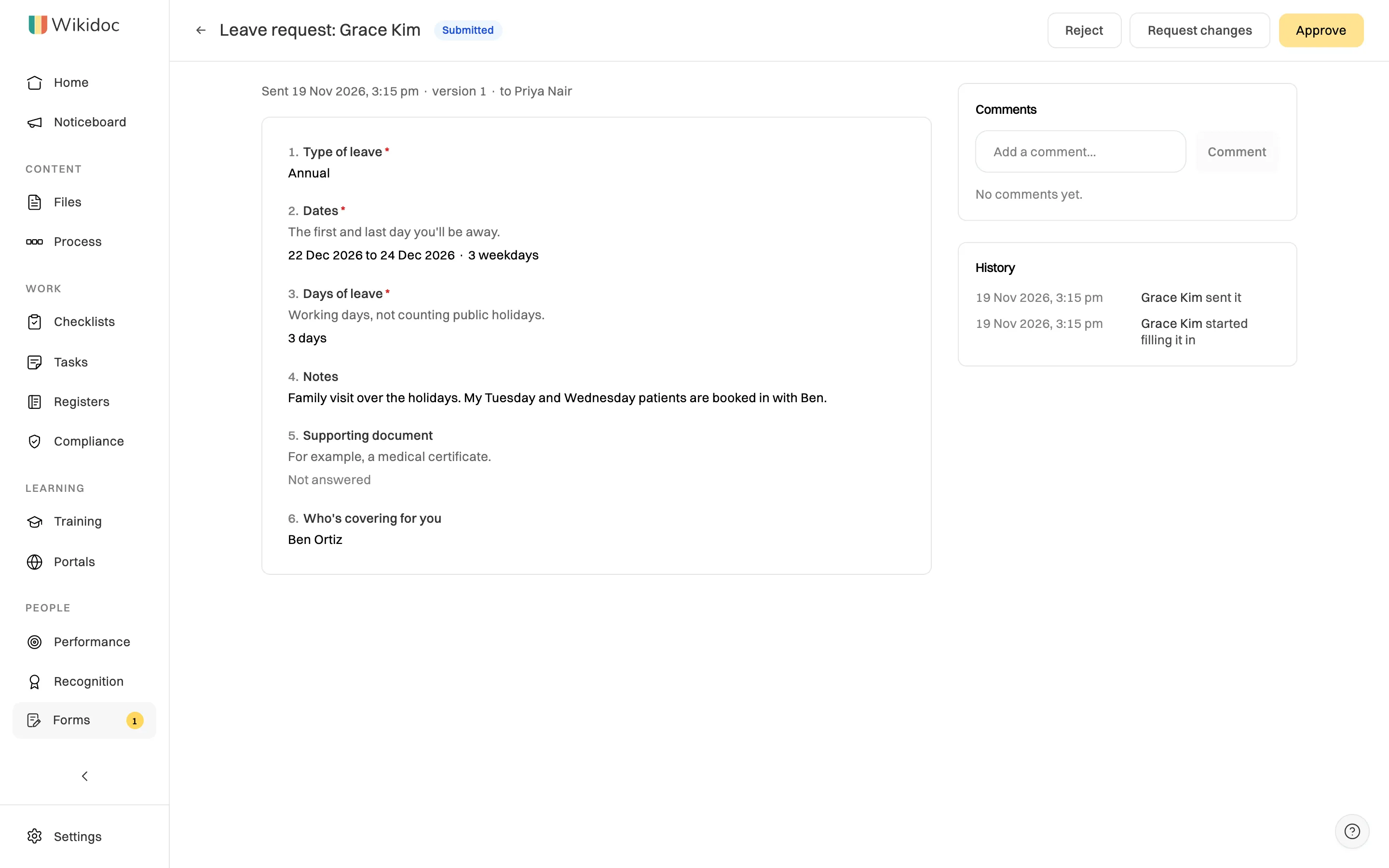
Any one of the chosen reviewers can decide. -
Choose what to do:
- Approve: add an optional note.
- Request changes: say what needs to change. The form goes back to the person to fix and send again.
- Reject: say why.
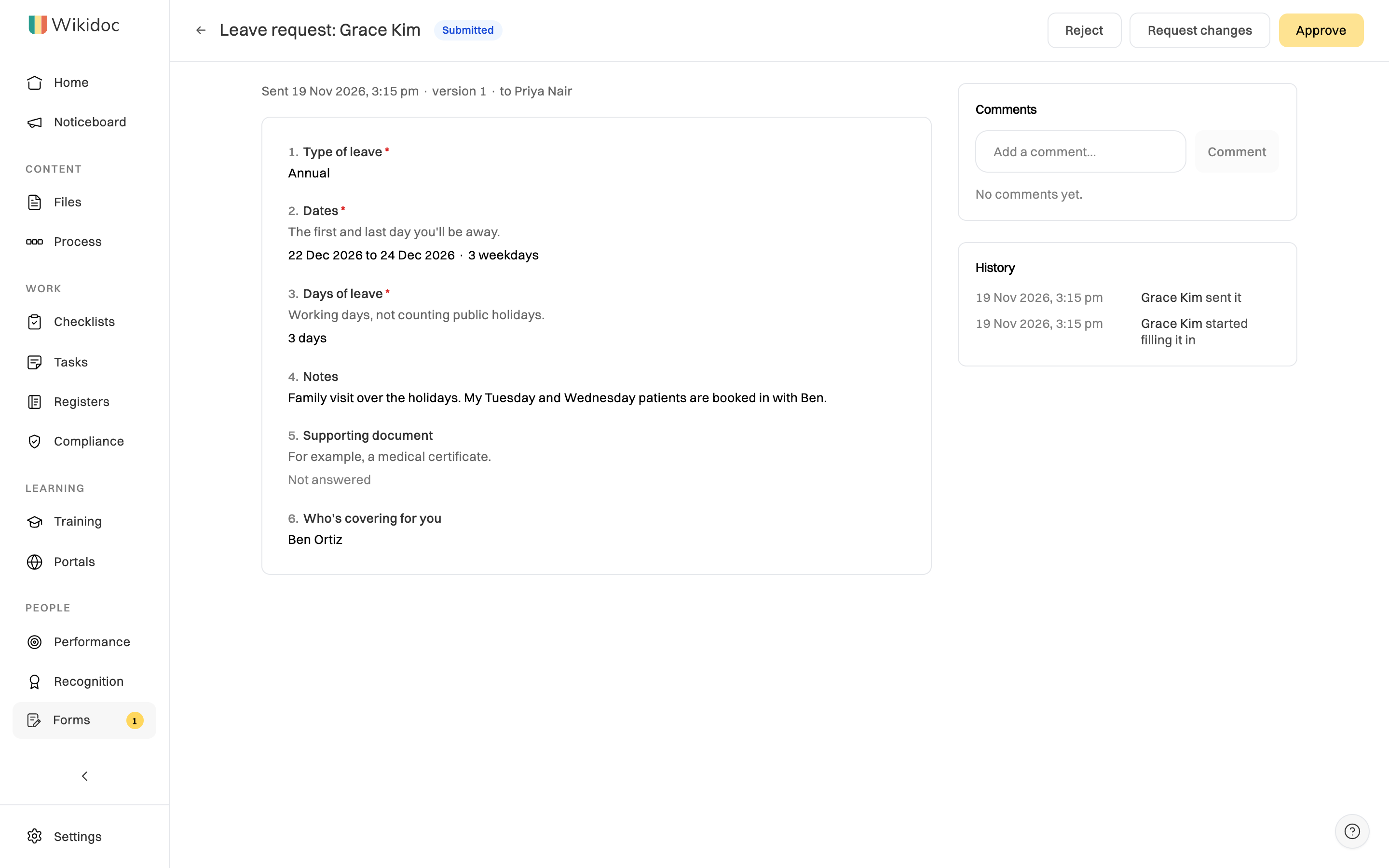
The person gets an email with your decision. Any one of the chosen reviewers can decide; once one has, it closes for the others.
You and the person can also talk it through in Comments on the submission.
Find what you’ve decided
Section titled “Find what you’ve decided”Go to People›Form, open History and choose Approved by me. It lists the submissions you’ve decided and the forms you’ve approved to go live.
Why Admins can see but not decide
Section titled “Why Admins can see but not decide”Admins and the form’s owner can open any submission to the form, for example from a person’s card on the org chart or from the form’s Results. They can’t decide it unless the person chose them. This keeps the decision with the people the person asked, for example their own manager for a leave request.
If a reviewer is away or has left, the person who sent it can change reviewers.