
Fill in and submit a form
Fill in a form, upload files, choose who reviews it and send it. Change reviewers, withdraw it, or fix it when changes are requested.
Fill in a form
Section titled “Fill in a form”-
Find the form:
- Someone asked you: open it from your email, from Home, or from People›Form under To fill.
- You need it: go to People›Form, find it in the Library and click Fill in.
-
Answer the questions. Required questions are marked. Your answers save as you type, so you can stop and come back later: the form waits under To fill › Started.
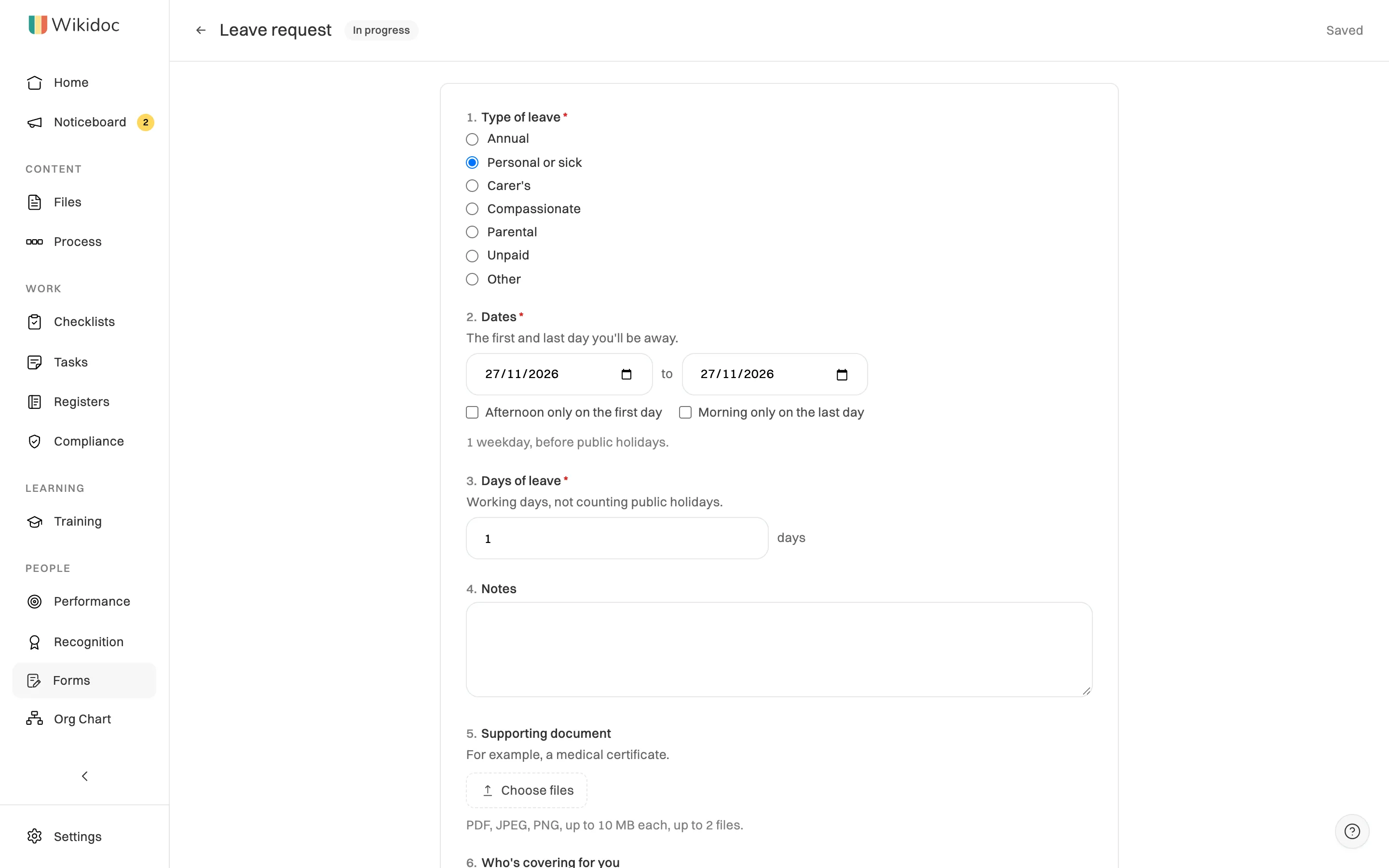
Your answers save as you type: Saved shows at the top right. -
Upload any files asked for. Each question says which file types it takes. Each file can be up to 10 MB.
-
If the form has a document for you, click Open to read it, or Download. If it asks you to confirm you’ve read it, tick the statement and type your full legal name. If the name doesn’t match the legal name you gave, you’ll see a warning: check it before you submit.
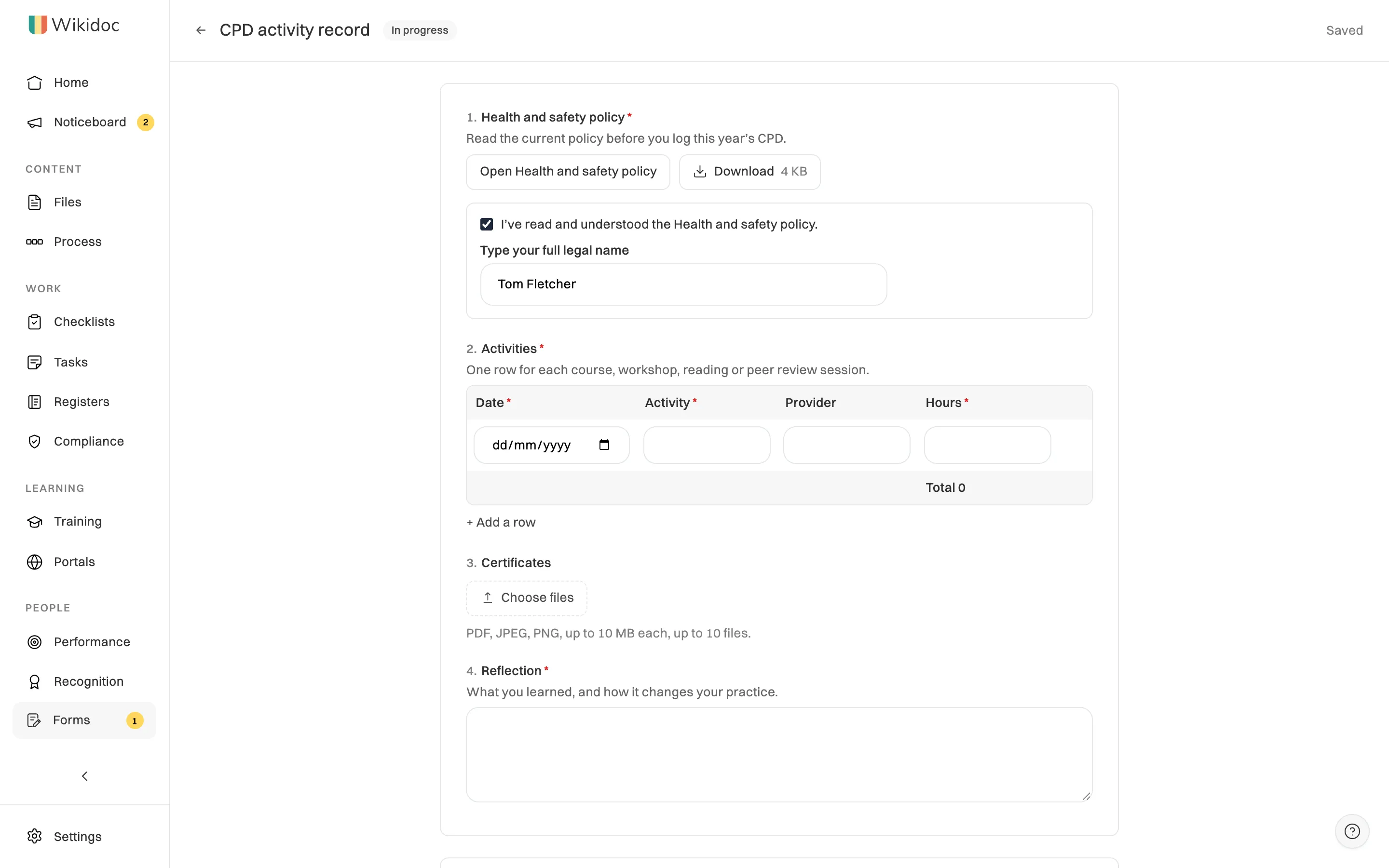
Open the document, tick the statement and type your legal name. -
If the form asks for a signature, type your full name. The date is added when you send it.
-
Under Send to, choose who reviews it. You can choose any Admin or Manager except yourself, and the form may suggest some. You must choose at least one.
-
Click Submit, and confirm. The confirmation names who will be able to see your answers.
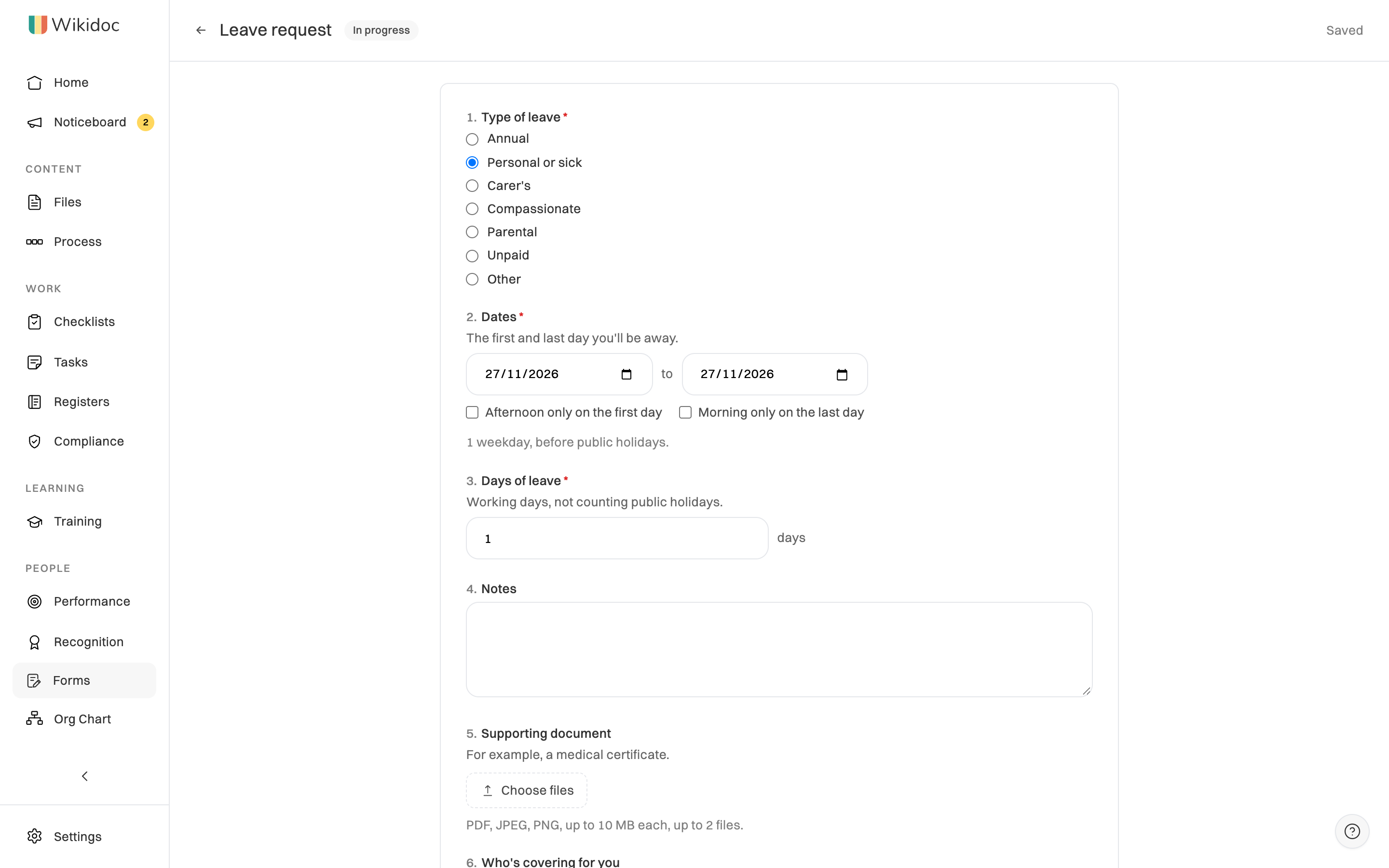
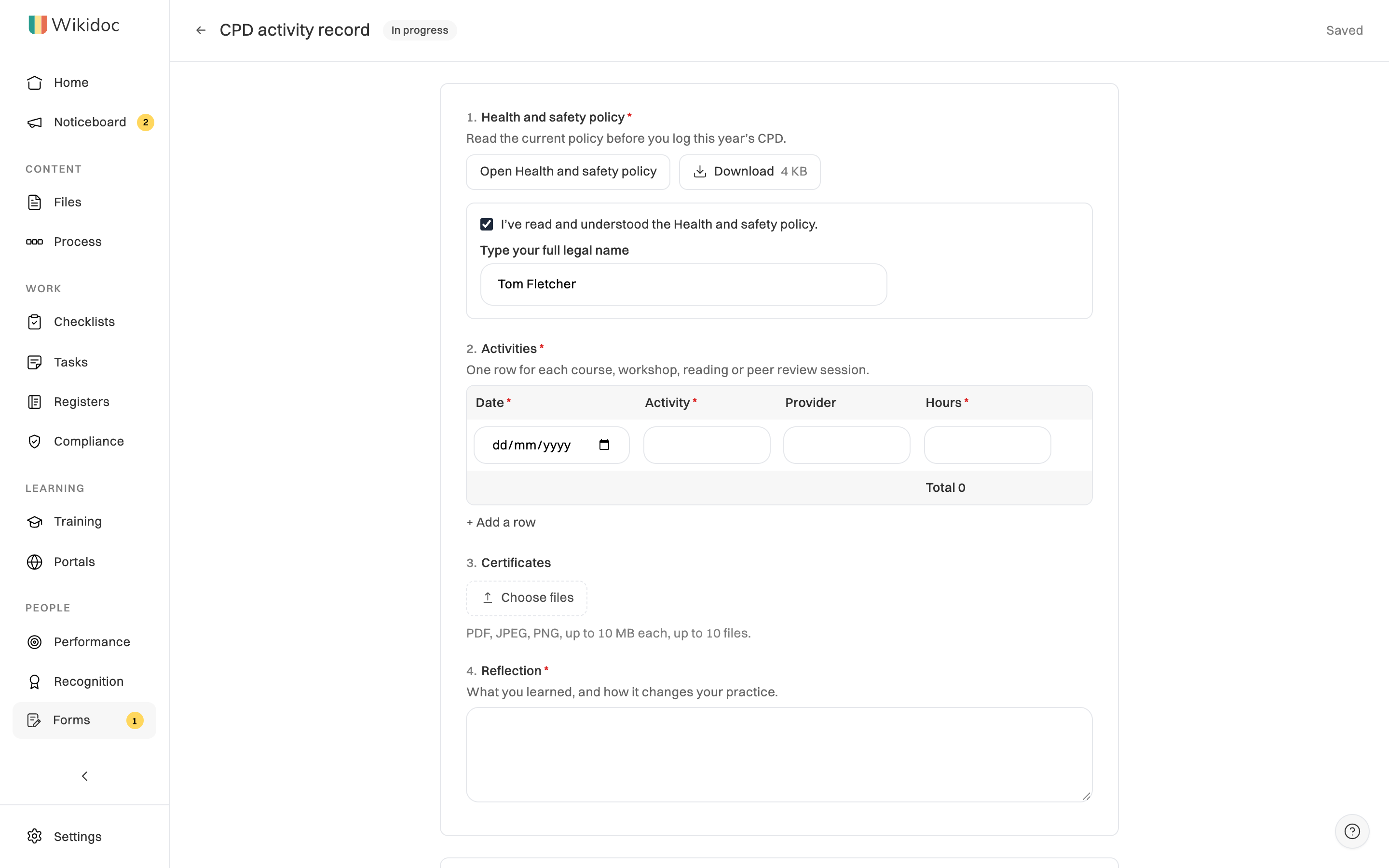
Only the people you choose can approve your form or ask for changes. Each one gets an email and a row on Home.
After you’ve sent it
Section titled “After you’ve sent it”Find your forms under History › Submitted by me. Open one to see where it’s up to, read comments, or:
- Change reviewers: if the person you chose is away or has left, add someone else. Anyone you add gets an email. You can change reviewers until it’s decided.
- Withdraw: take it back before it’s decided. You can then fill the form in again if you need to.
If none of your reviewers can still decide it, for example because they’ve left, Home shows Choose another reviewer.
When changes are requested
Section titled “When changes are requested”You’ll get an email, and Home shows Update your form. Open it, read what needs to change, click Edit and resubmit, make the changes, and click Send again.
If the form changes or is archived
Section titled “If the form changes or is archived”If the form’s owner changes it while you’re filling it in, you can finish the version you started or start again on the new one. If the form is archived, it can’t be sent any more, but your answers stay there for you to read.