
Organise files: folders and team files
Group your files in folders, and keep a team's files in its own workspace.
Files lives in two kinds of place:
- My Files: the files you create. Group them in folders to find them faster.
- Team files: a Files page for each team you belong to, holding files only that team (and Admins) can open.
Folders
Section titled “Folders”Folders keep your own workspace tidy. They’re yours: nobody else sees your folders.
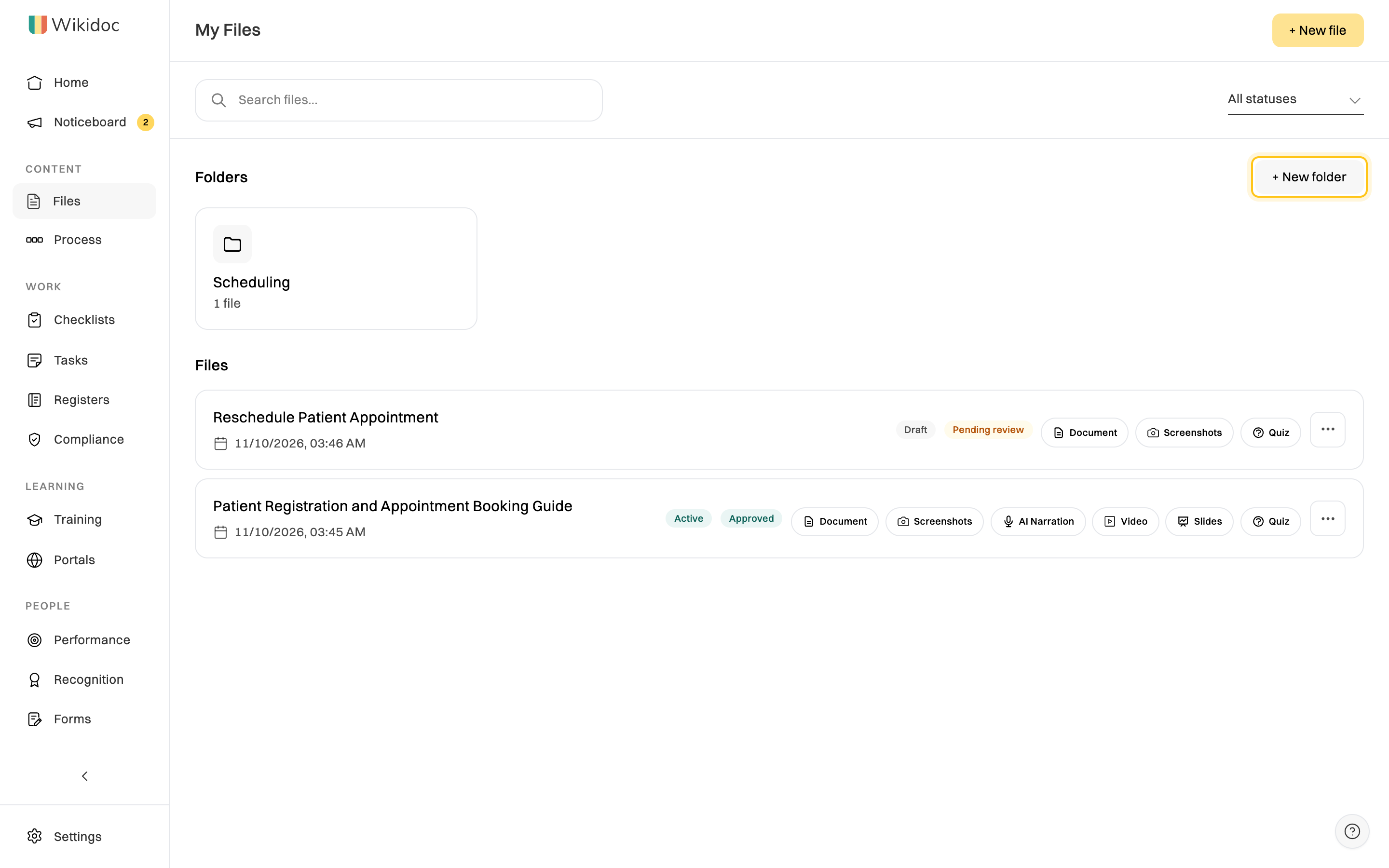
Create a folder
Section titled “Create a folder”-
In Files, click + New folder.
-
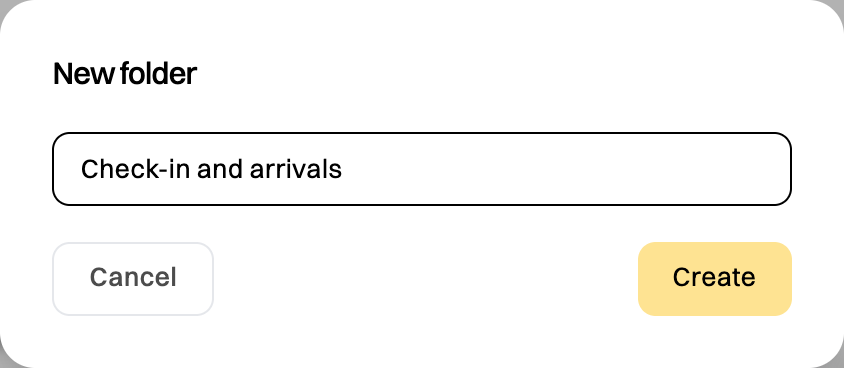
Type a name of up to 60 characters, then click Create.
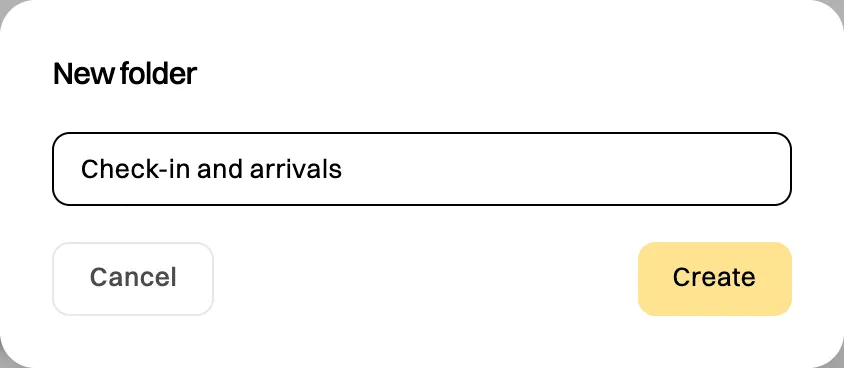
Name the folder, then click Create.
Put a file in a folder
Section titled “Put a file in a folder”In Files, click ⋯ next to the file. Under Move to folder, click the folder.
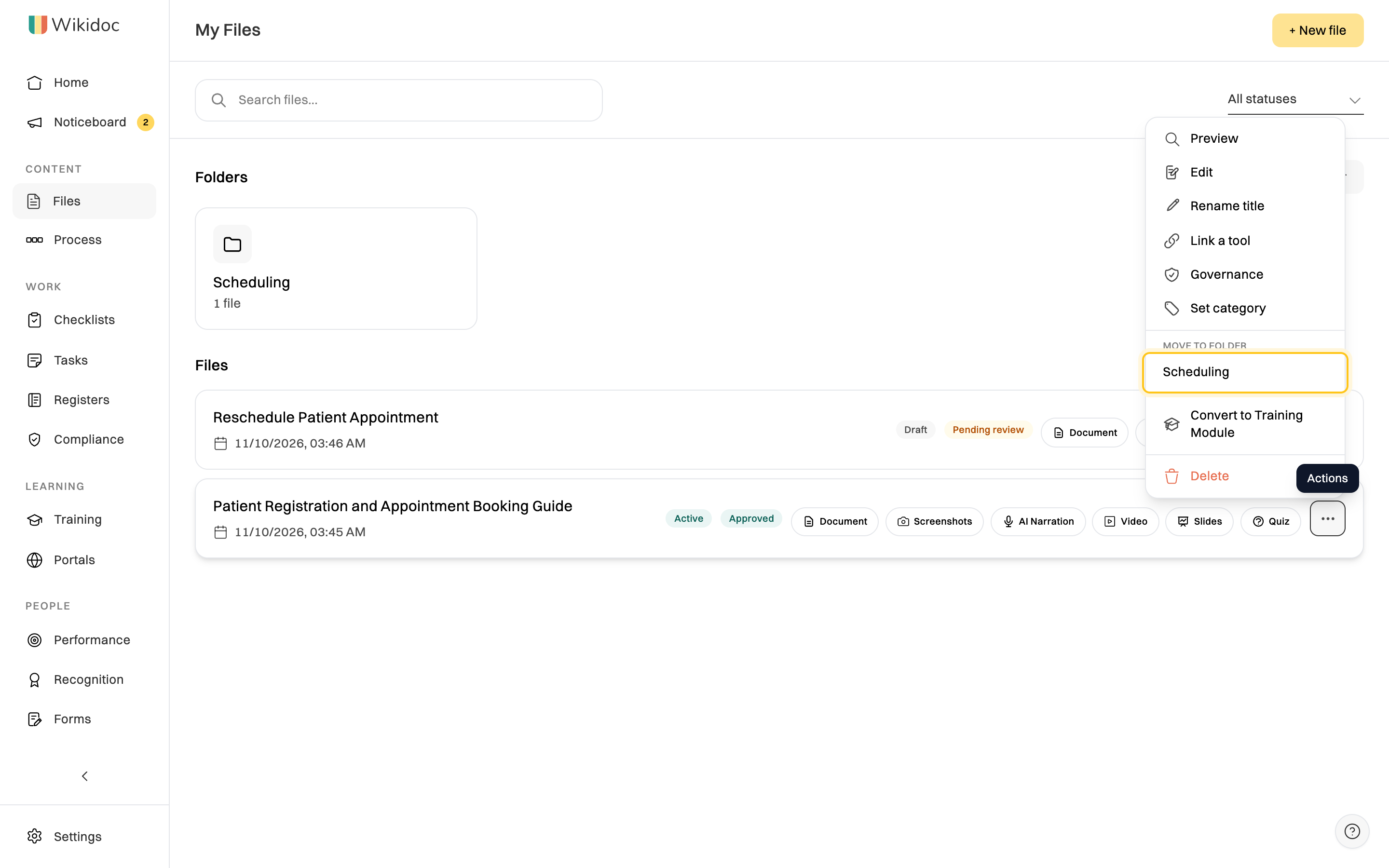
To see what’s in a folder, click it. Everything is also listed under Files below your folders, so you can always search all your files at once.
To take a file out of a folder, click ⋯ next to it, then Remove from folder.
Rename or delete a folder
Section titled “Rename or delete a folder”Click ⋯ on the folder, then Rename or Delete. Deleting a folder doesn’t delete the files in it: they stay in My Files.
Team files
Section titled “Team files”A team’s Files page is where it keeps its shared procedures, such as each clinic’s front-desk guides. Its files open only for the team’s members and for Admins.
Your teams are listed at the bottom of the sidebar, under Teams. Click one to open its Files page.
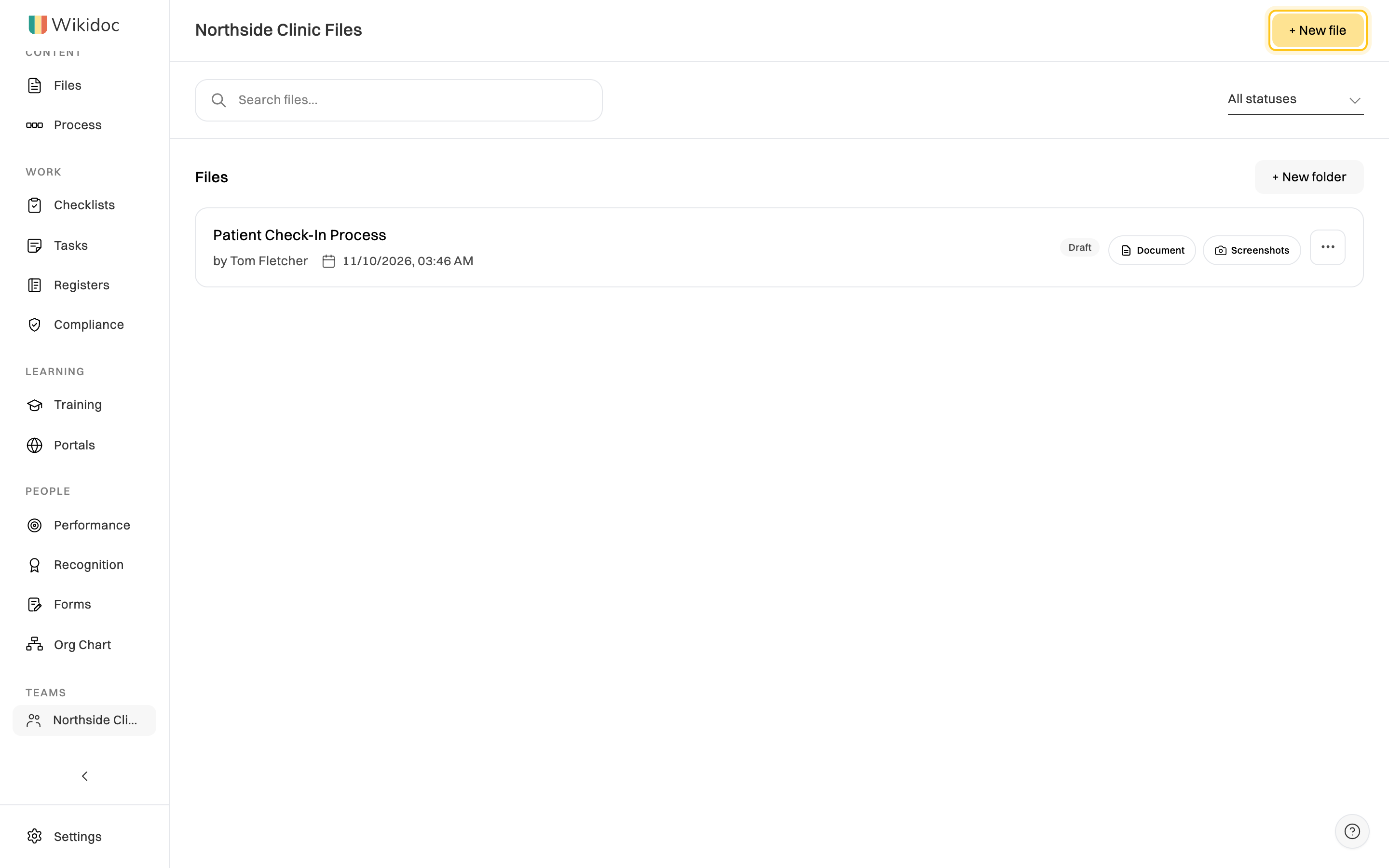
Add a file to a team’s Files page
Section titled “Add a file to a team’s Files page”Open the team’s Files page, then click + New file there. The file you create belongs to that team instead of you. See Create a document from files or a recording.
Who can do what
Section titled “Who can do what”- Team members and Admins can open every file in the team’s Files.
- The person who created a file is the only one who can edit it. Other members open it Read-only.
- Team members who aren’t Viewers, and Admins, can create folders in the team’s Files. Unlike your own folders, the whole team sees them.
Managers and Admins create teams and choose who’s in them. See Teams and team files.