How to Create Company Training Videos with AI: A Step-by-Step Guide
Wikidoc Team
4 November 2026
Introduction
Training videos work. People watch them at their own pace, rewatch the hard parts, and get the same message whoever they are and wherever they work. Yet most small businesses don’t make them, because a single five-minute video has traditionally meant a script, a presenter or a voiceover artist, a recording session and hours of editing.
AI removes almost all of that. In Wikidoc you start from the material you already have (the policy, the procedure, a recording of someone doing the task) and the video is written, narrated and captioned for you. This guide walks through every step, from adding your sources to assigning the finished video as tracked training.
What is a company training video?
A company training video is a short video that teaches employees how to do part of their job: a procedure, a policy, a piece of software, or the right way to handle a situation. Unlike a marketing video, its goal isn’t to impress. Its goal is that, after watching, someone can do the task correctly without asking.
Training videos come in a few common forms:
Explainer or narrated slides: a voice walks through the key points of a policy or procedure, with on-screen text and visuals.
Software tutorials: a recording of the screen, showing each click.
Scenario videos: characters act out a situation, such as a difficult customer or a safety near miss, so viewers see what good and bad look like.
Microlearning: two- to five-minute videos on a single topic, watched on a phone between jobs.
What makes a good training video
The videos people remember and act on have a few things in common:
One topic, one outcome. Each video teaches one thing. If the title needs “and”, split it.
Short. Most training videos work best at 2 to 6 minutes. Attention drops sharply after that.
Accurate to your process. A generic video about “handling complaints” teaches less than one that uses your refund limits, your systems and your escalation contacts.
Show, don’t just tell. Screens for software, scenes for behaviour, and on-screen text for the rules people must remember.
The “why” as well as the “how”. People follow a step when they know what goes wrong if they skip it.
Interaction. Questions during the video keep people watching and show whether they understood. Passive watching is easy to fake.
Captions. Many people watch with the sound off, and captions help non-native speakers.
Easy to update. A process changes; the video has to change with it, or people learn the wrong thing.
Use cases for small businesses
You don’t need a learning and development team to get value from training videos. Common uses in small businesses:
Onboarding and induction: company values, who’s who, how to book leave, health and safety basics. Record it once instead of repeating it for every new starter.
Standard procedures: opening and closing a store, processing a refund, cleaning a treatment room, packing an order.
Software and systems: how to raise an invoice in Xero, book an appointment in your practice software, or update a job in your CRM.
Compliance: privacy, anti-harassment, food safety, manual handling and other training you must prove people have completed.
Customer service: greetings, handling complaints and escalations, with scenarios showing good and bad examples.
Change updates: a new price list, a new supplier, a changed policy, sent to everyone in a two-minute video instead of a meeting.
Multi-site consistency: every location learns the same way, whoever trains them locally.
Why most training videos never get made
Nobody has the time to script them. The person who knows the process is the one who’s busiest.
Recording a voiceover is awkward. Few people like hearing their own voice, and a re-take for every slip adds up.
Videos go out of date. When the policy changes, the video is wrong, and re-shooting it is a project of its own.
Generic AI videos aren’t accurate enough. A tool that writes from a one-line prompt invents details. For compliance and safety training, an invented rule is worse than no video at all.
Wikidoc is built around the last point: every scene is written from your own files, and you can check each one against them before anyone watches it.
Choose the right video style
Wikidoc makes three kinds of training video. Pick the one that suits what you’re teaching.
Conduct training (harassment, customer care, safety), where people need to see the right and wrong way
Documents, especially conduct policies
Pro and Team
Tutorial
Software tasks: how to book an appointment, raise an invoice, update a record
A screen recording
All plans
Narrated slides and Scenario videos pause after each section to ask a question, so viewers check their understanding as they go.
Create a training video with AI in 7 steps
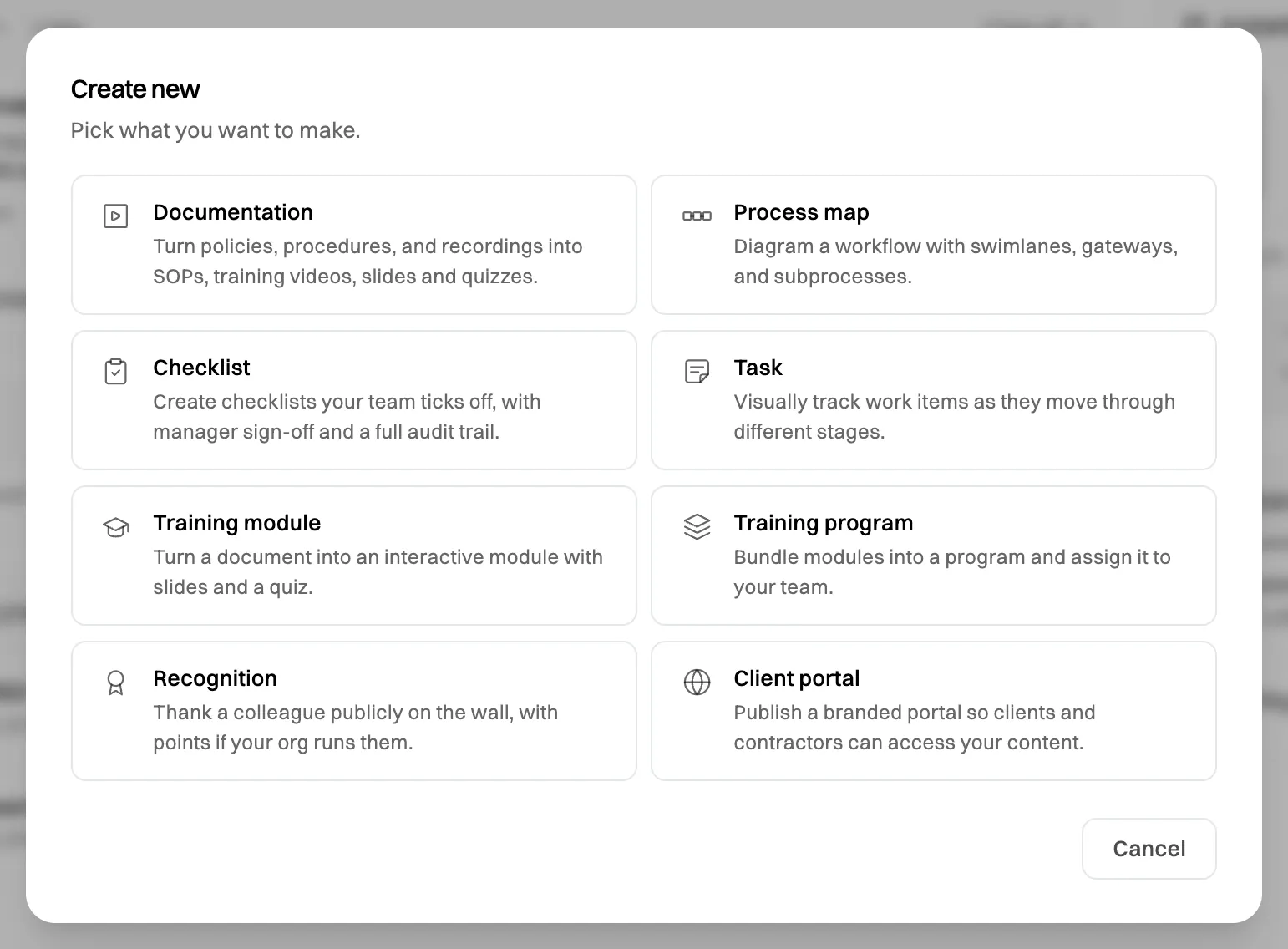
Step 1: Start a new document
From Home, click + Create new and choose Documentation. You can also click Files in the sidebar, then + New file. The training video lives inside a document, alongside the written SOP, slides and quiz made from the same sources.
Documentation turns your files or a recording into training content.
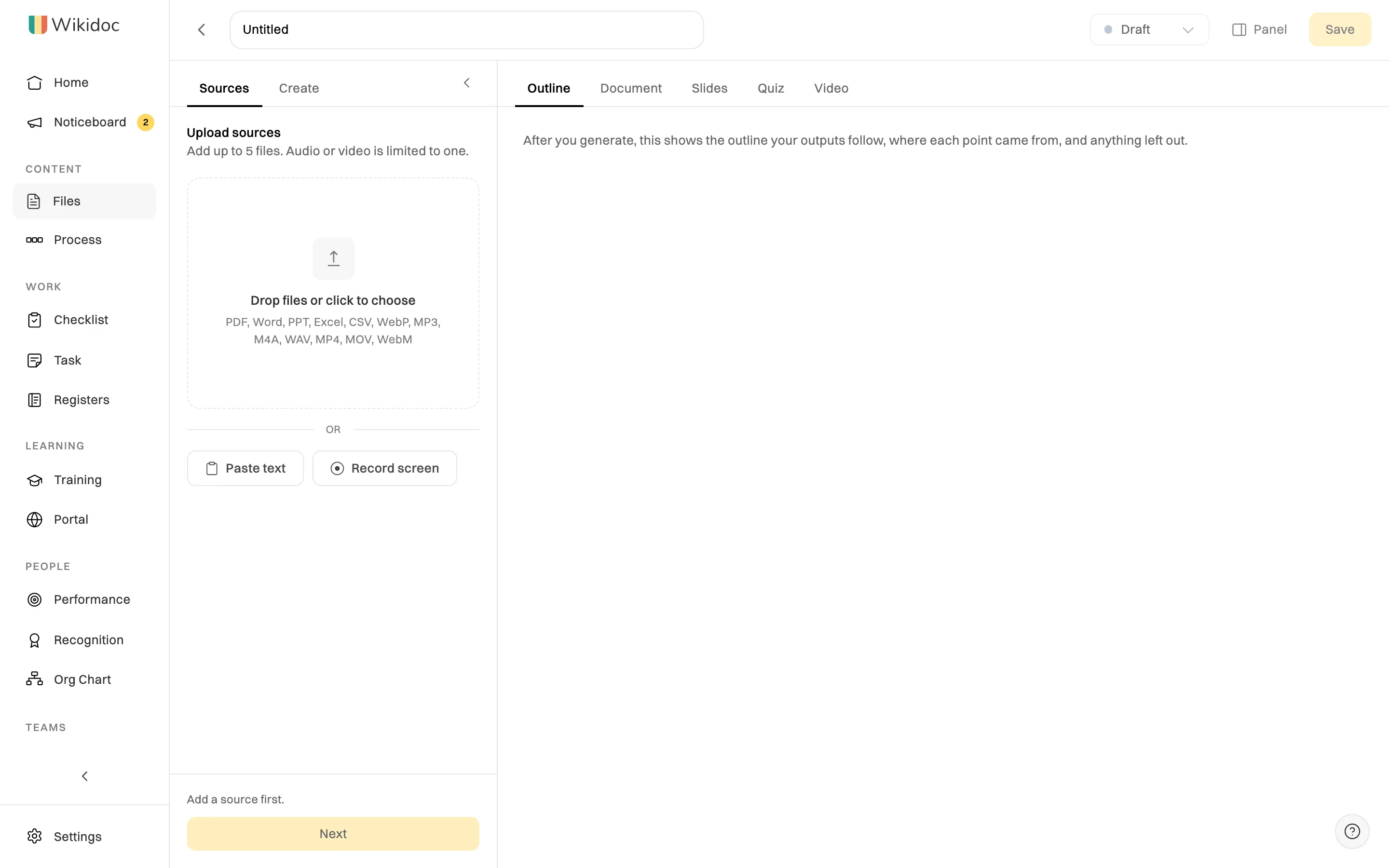
Step 2: Add your sources
On the Sources tab, add what the training should be based on:
Upload sources: a Word or PDF policy, a PowerPoint deck, an Excel sheet, or an audio or video recording of a briefing or toolbox talk.
Paste text: a procedure from an email or the intranet.
Record screen: do the task on screen while talking through it. This is the source for a Tutorial video.
Upload files, paste text or record your screen.
You can add up to 5 files per document on Pro and Team (1 on Free). Click a file after it’s added to see what Wikidoc read from it. Then click Next.
Step 3: Choose Narrated video and set it up
On the Create tab, tick Narrated video and choose:
Style: Wikidoc suggests one from your sources. Change it if you like.
Voice: click it to hear each voice. Free accounts have three voices; Pro and Team have ten.
Language: the language of the narration and captions. For English you can pick a US, UK or Australian accent.
Template (Narrated slides only): the look of the slides, which can match your organisation’s default.
Length: keep Suggested, or choose a length. A short policy makes a short video.
Add Instructions if you want to steer the tone, for example “For new front-of-house staff. Friendly and practical.” Instructions change the emphasis, never the facts: those always come from your files. Tick Document, Slides and Quiz too if you want them; they’re written from the same outline.
Click Generate. A short video takes a few minutes. Stay on the page until it’s finished.
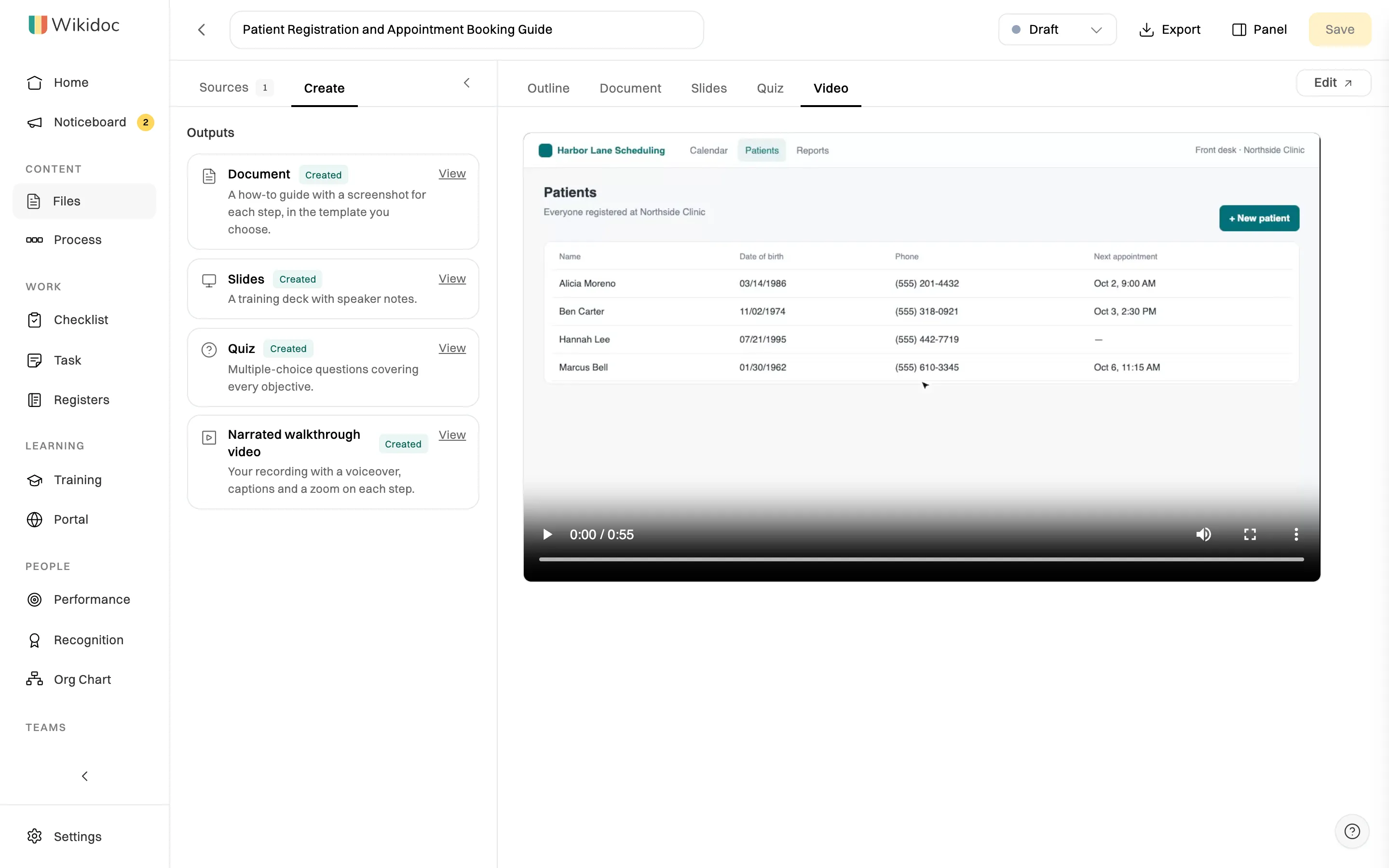
Step 4: Watch it, and answer the questions
The finished video appears on the Video tab. Play it through as a learner would. When a Narrated slides or Scenario video reaches a question, it stops: pick an answer to see whether it’s right and why, then click Continue.
The video plays on the Video tab, with captions.
Interactive quizzes inside the video
The questions are what turn a video into training. Wikidoc writes them from the same outline as the script, so they test what the video actually taught:
Knowledge checks in the video. In Narrated slides and Scenario videos, the video pauses at the end of each section and asks a multiple-choice question. The viewer picks an answer, sees straight away whether it’s right, and reads a short explanation of why, before clicking Continue. A wrong answer is a teaching moment, not a dead end.
Scenario questions. In a Scenario video, the questions ask what the character should do next, such as “The customer has no receipt. What should Sam do?”, so people practise the decision, not just recall a rule.
A full quiz at the end. Tick Quiz on the Create tab and Wikidoc writes a separate multiple-choice quiz covering every learning objective. On the Quiz tab, click Edit to change questions, answers and explanations, add your own questions, or set the passing score (80% to start).
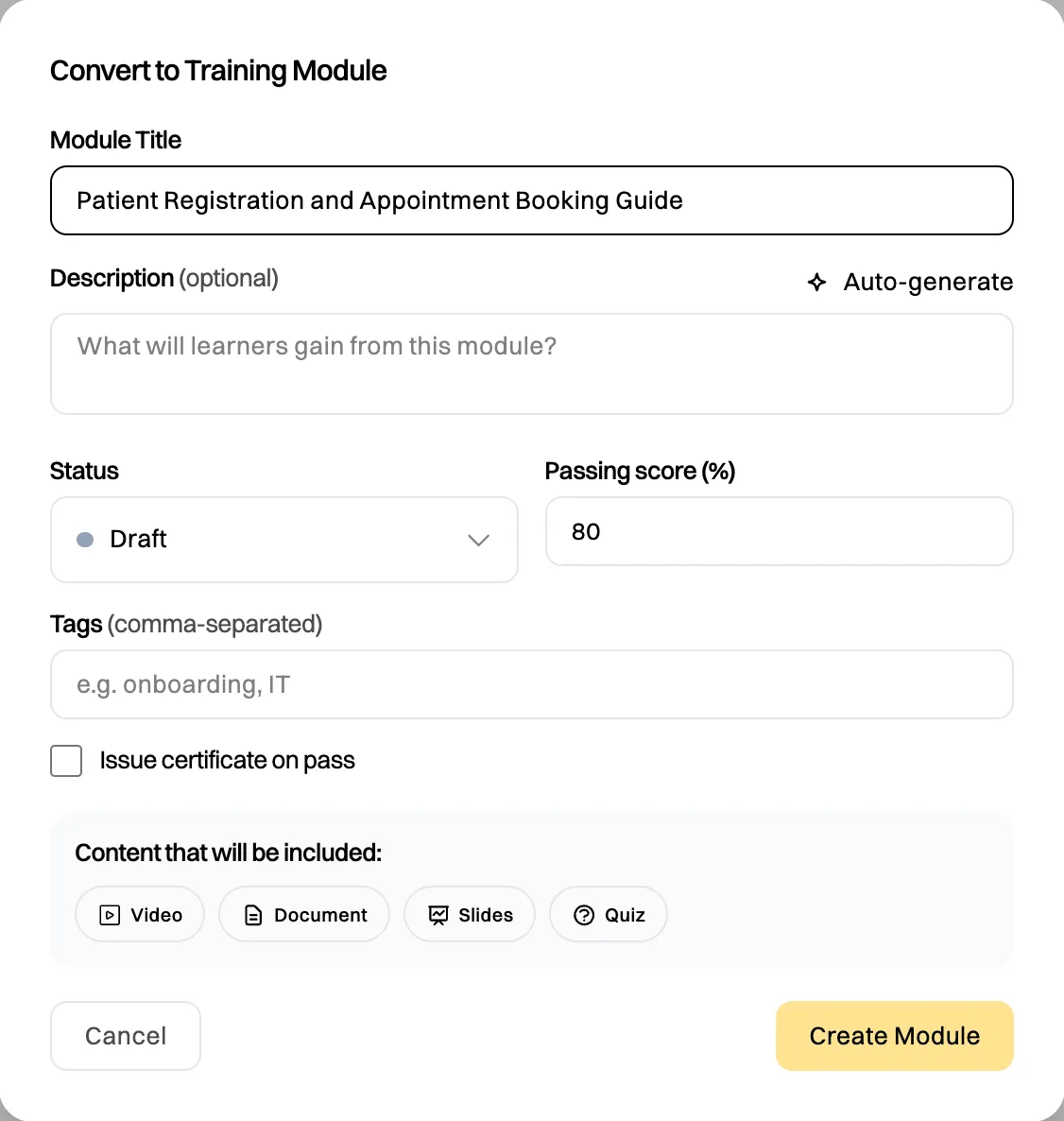
Scored and recorded. When the video and quiz are part of a training module, each person’s quiz score is recorded. They pass when they reach the passing score, and, if you tick Issue certificate on pass, receive a certificate automatically.
This is what you can’t get from a video file on a shared drive: proof that each person watched and understood.
A Scenario video is checked against your sources before it’s made. If a scene says something your sources don’t support, Wikidoc waits for you to review it first.
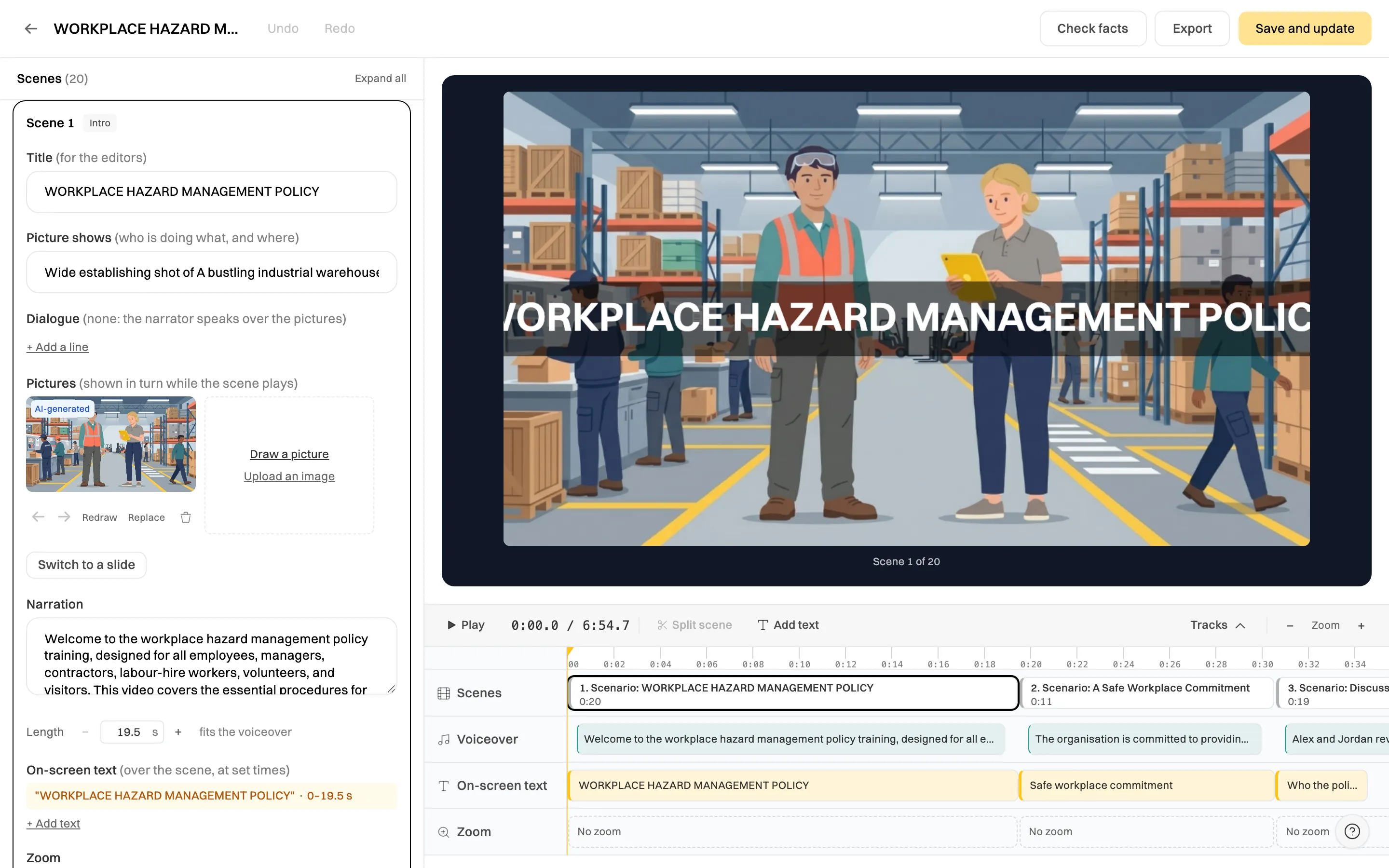
Step 5: Edit the scenes, narration and on-screen text
Click Edit on the Video tab to open the scenes editor. Scenes are listed on the left; the preview and a timeline with Scenes, Voiceover, On-screen text and Zoom tracks are on the right.
Edit any scene's narration, length, text and zoom.
In any scene you can:
Rewrite the narration and click Re-narrate to hear it. There’s nothing to re-record.
Add on-screen text, such as a key rule or a phone number, and set when it shows.
Zoom in on part of the screen, which is useful in a Tutorial.
Reorder, split or delete scenes.
In a Scenario video you can also edit the characters, their dialogue and the pictures.
Step 6: Check the facts, then save
Click Check facts. Wikidoc compares the script with your sources and marks anything they don’t support: obligation for a rule or answer that isn’t in your sources, detail for smaller points. Fix the scene, or mark it as fine if your sources do cover it.
This is the step that makes AI video safe for compliance training. Then click Save and update. The video is rebuilt in your browser in a minute or two.
Step 7: Turn it into tracked training
A video is only useful if the right people watch it. In Files, click ⋯ next to the document, then Convert to Training Module. The module includes the video, plus the document, slides and quiz if you made them, with a passing score and an optional certificate.
Convert the document, with its video, into a training module.
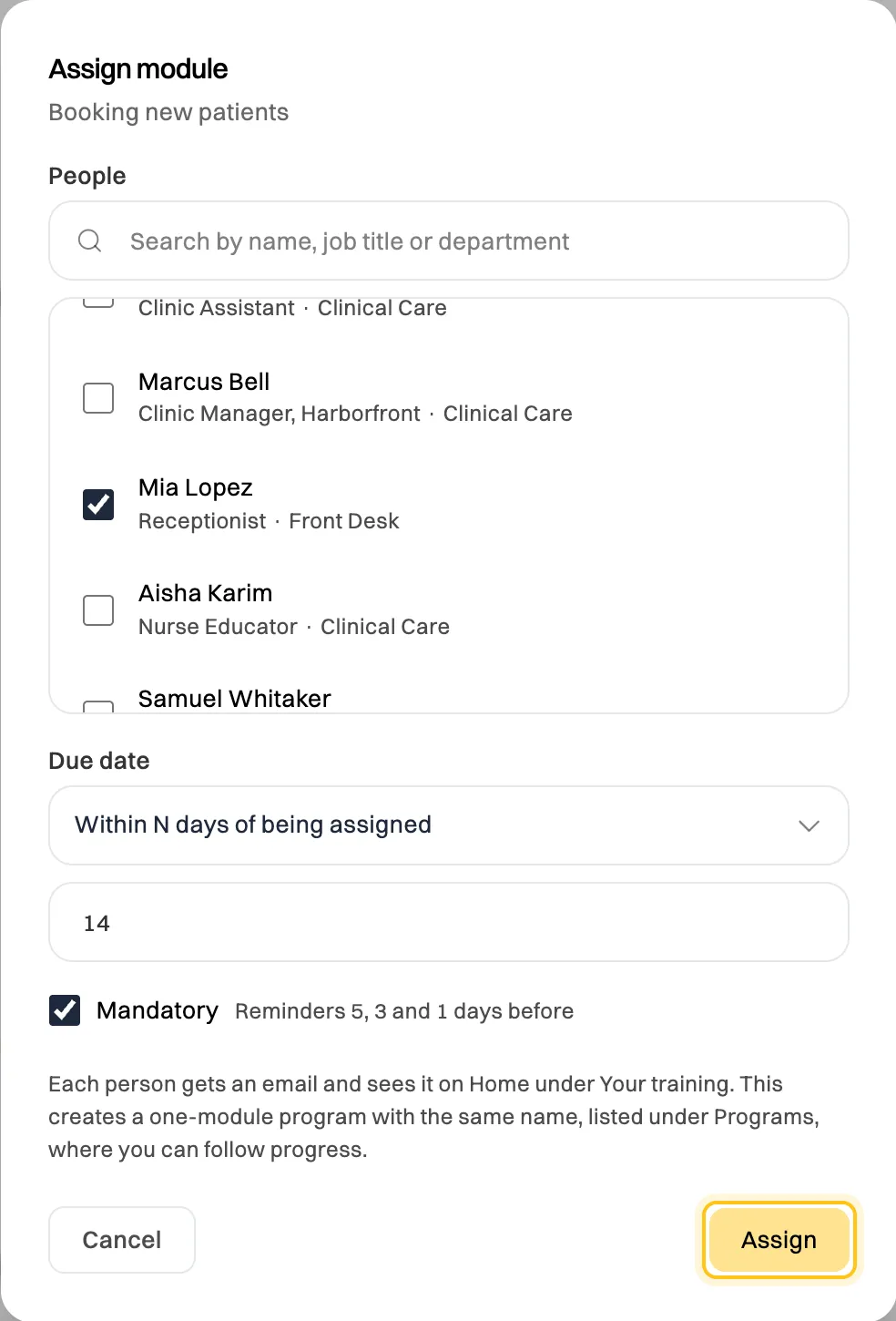
On the Team plan, set the module to Active and click Assign to give people a due date and see who has finished. Wikidoc reminds them before it’s due.
Assign the module with a due date and track completion.
If you use another learning platform, click Export and download a SCORM 1.2 package, or an MP4 video at up to 4K on Pro and Team.
Tips for training videos people actually watch
Keep each video to one topic. Three 4-minute videos beat one 12-minute video. Group them into a training program for onboarding.
Use Scenario for behaviour, Tutorial for software. Seeing a situation played out sticks better than a list of rules.
Put the “why” in your instructions.“Explain why each step matters for patient safety” gives the narration a reason people remember.
Match the accent to your team. Choose UK or Australian English if that’s how your team speaks.
Re-generate when the policy changes. Update the source file, generate again, and re-assign. No re-shoot needed.
Yes. Upload the PDF, choose Narrated video, and Wikidoc plans an outline from it, writes the script, narrates it in an AI voice and adds captions and knowledge-check questions. Word, PowerPoint, Excel, audio and video files work the same way.
Do I need to record my own voice or appear on camera?
No. The narration is read by an AI voice you choose, and the visuals are slides, illustrated scenes or your own screen recording. Nobody has to be filmed.
How accurate are AI training videos?
As accurate as your sources. Wikidoc writes every scene from your files, and Check facts marks anything the script says that your sources don’t support, so you can fix it before anyone watches it.
How long does it take to make a training video with AI?
A few minutes to generate, and usually 10 to 20 minutes to review and edit. Compare that with days for a scripted, filmed and edited video.
Can I track who has watched the training video?
Yes. Convert the document into a training module, then assign it on the Team plan. You’ll see who has started, passed and finished, and you can export the results. You can also export SCORM 1.2 for your existing LMS.
Can I add a quiz to an AI training video?
Yes. Narrated slides and Scenario videos pause after each section to ask a multiple-choice question with instant feedback. You can also generate a full end-of-training quiz from the same sources, edit it, and set a passing score that’s recorded when the video is assigned as training.
Is there a free AI training video generator?
Yes. The Free plan includes three narrated videos of up to 3 minutes each, with three voices and 720p export. Try it from the free AI training video generator.