
Employment details
Collect new and existing staff's tax, bank, super or pension, ID and emergency contact details in one form, and send contracts for signing.
Employment details replace the paper or emailed new-starter forms. Each person fills in one form, in Wikidoc, with what your payroll needs: their legal name, address, emergency contact, tax number, bank account, super or pension, work rights and ID. Admins see it all in one place, and can send a contract for them to sign.
Turn on employment details (Admins)
Section titled “Turn on employment details (Admins)”-
Go to Settings›Access and click + Employment details above the member list.
-
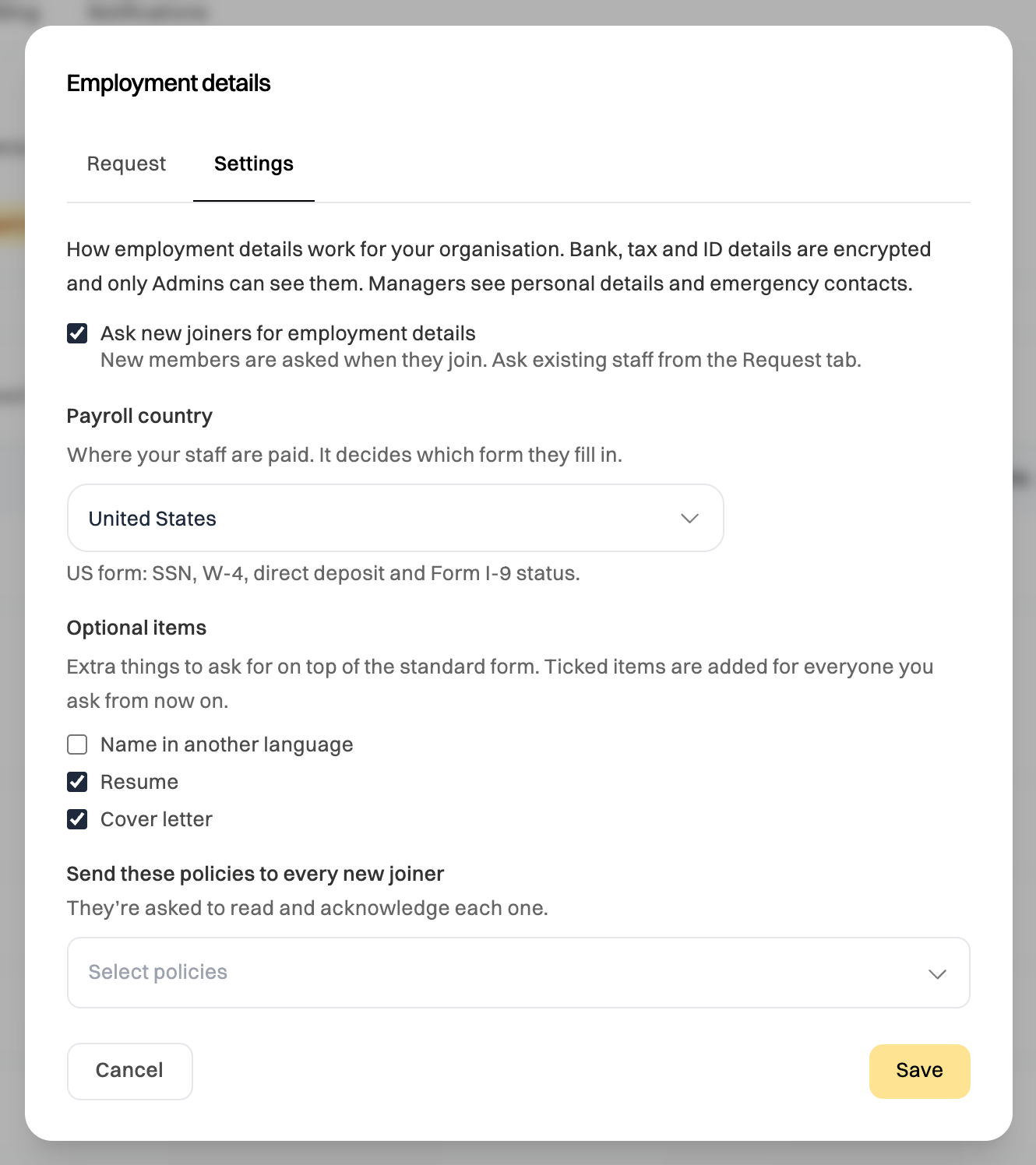
Open the Settings tab. Tick Ask new joiners for employment details if new members should be asked when they join.
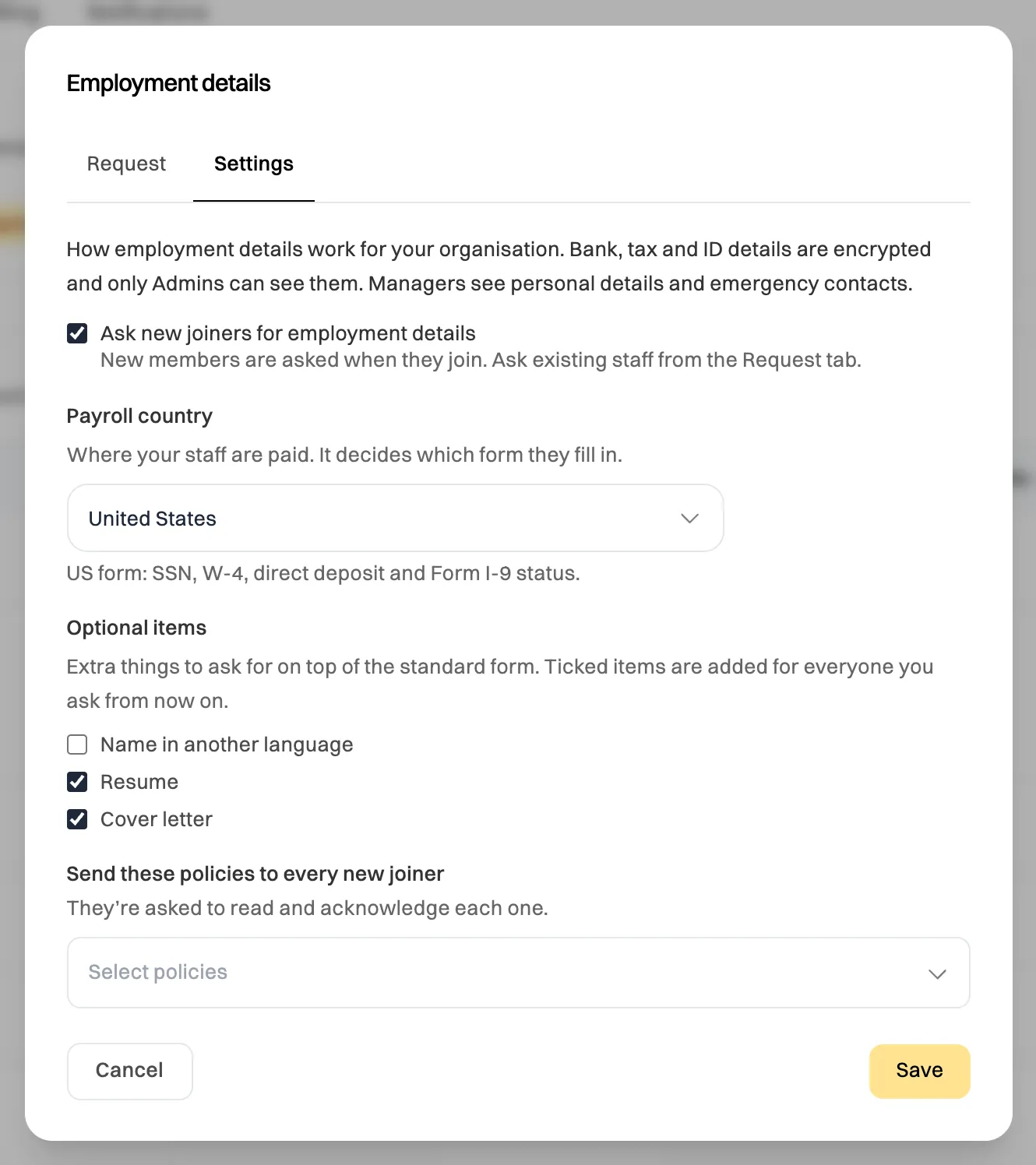
The payroll country decides which form people fill in. -
Choose your Payroll country. The form follows its rules: Australia, Canada, New Zealand, Singapore, the United Kingdom and the United States each have their own form. Any other country gets a basic form (personal details, emergency contact, ID and resume), with no tax or bank details.
-
Choose the optional fields to ask for, such as Name in another language, Resume and Cover letter, and any policies a new joiner should read. Then click Save.
Ask people to fill them in
Section titled “Ask people to fill them in”- Existing staff: in Settings›Access, click + Employment details and pick the people to ask. You can ask up to 200 at once.
- One person: open their card on the org chart and click Request employment details.
- New joiners: when you invite a member, leave Ask for their employment details ticked.
Each request can use a different country from your organisation’s, for someone who works abroad. Wikidoc emails the person, shows them a row under Needs your attention on Home, and reminds them 2 days before the due date and again the day after.
Fill in your employment details
Section titled “Fill in your employment details”-
Open the request from your email or from Home. You can also get there from Settings›Account, under Employment details.
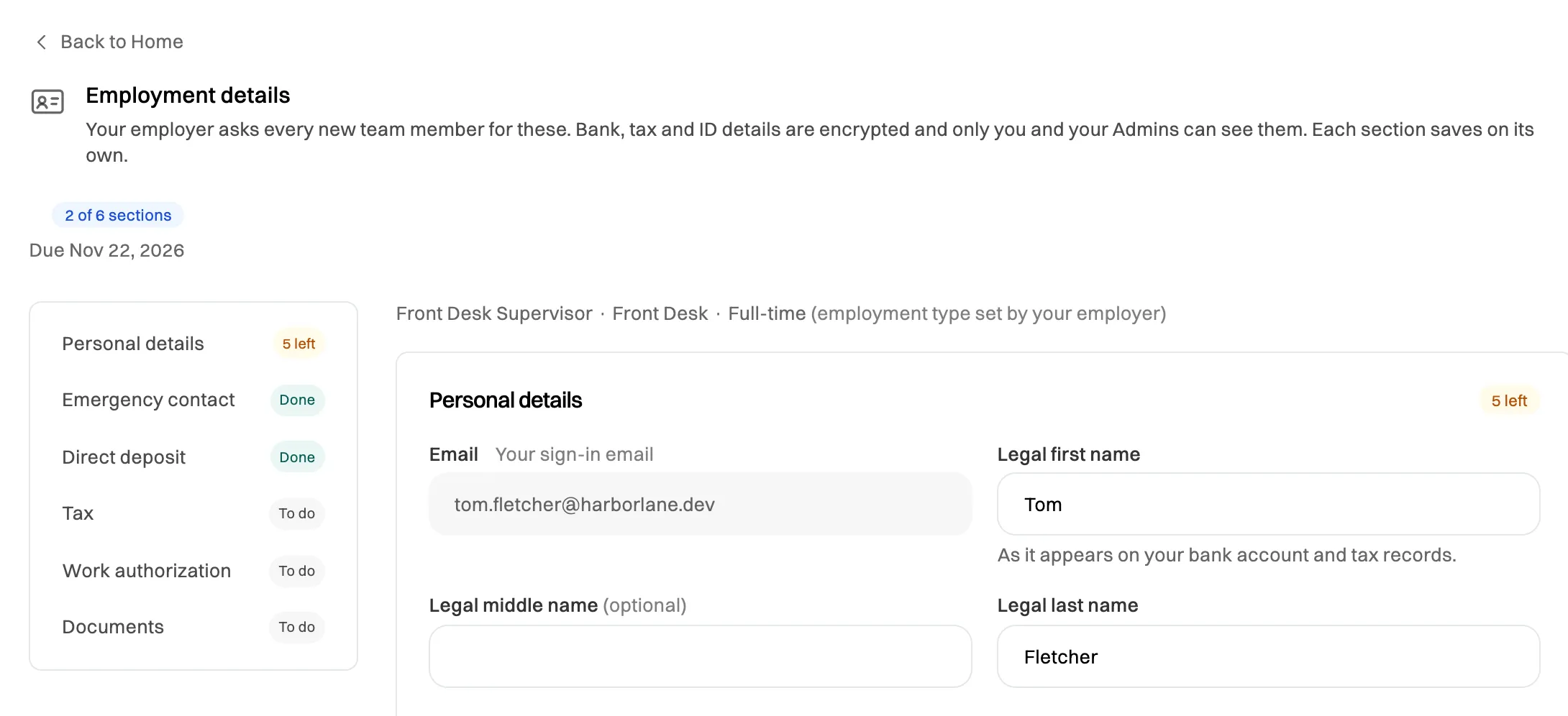
The list on the left shows what's done and what's left. -
Fill in each section and click Save section. Save section turns on once every required field in the section has an answer. Fields marked (optional) can stay empty. You can stop and come back later; what you’ve saved is kept.
-
Upload the documents asked for, such as your ID, tax forms or a void cheque. Each file saves as soon as it’s uploaded.
-
If your employer has sent a contract to sign, download it, sign it, upload the signed copy and type your name to confirm.
-
Click Submit to Admin when every section is done.
You can still update your details after you submit, for example when your bank account or address changes. Your Admin sees each change.
Your Employment type (such as full-time, part-time or casual) is set by an Admin and shows at the top of the form. Ask an Admin if it’s wrong.
Who can see what
Section titled “Who can see what”| You | Managers | Admins | |
|---|---|---|---|
| Name, address, date of birth, emergency contact | ✓ | ✓ | ✓ |
| Contracts and other documents | ✓ | ✓ | ✓ |
| Tax number, bank details, ID documents | ✓ | – | ✓, hidden until revealed |
Colleagues never see your employment details. Your birthday (day and month only) shows to them only if you choose to show it.
Tax numbers, bank details and ID documents are encrypted before they’re stored. Admins see them hidden, and each time an Admin reveals one, it’s logged.
Review, contracts and leavers (Admins)
Section titled “Review, contracts and leavers (Admins)”Open the person’s card on the org chart and click Employment details in their profile.
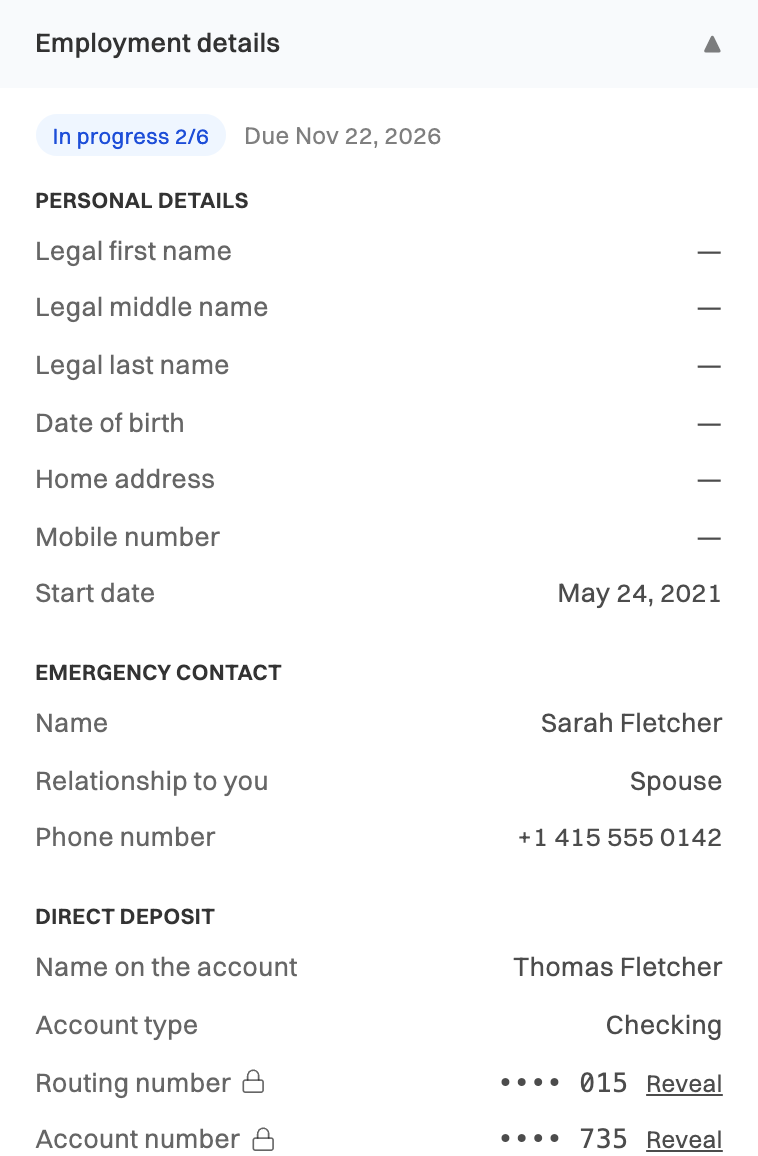
The section shows:
- Mark as reviewed, once you’ve checked what they gave. If they change something later, it goes back to Submitted, and you get a Review row on Home.
- Documents to sign: click Add for signing to send a contract or confidentiality agreement. It shows Waiting for signature until they sign and confirm. The signed copy stays here, and the Employment contract slot under their Documents points to it.
- Delete employment details removes the record and its files for good.
When someone leaves your organisation, their record is kept as a Former employee, which only Admins can see, until an Admin deletes it. Check how long your country’s law requires you to keep employee records first.