
Build your org chart
Add people to your org chart, draw who reports to whom, and set each person's manager.
The org chart shows who’s who in your organisation and who reports to whom. Everyone in your organisation can view it. Managers and Admins build it.
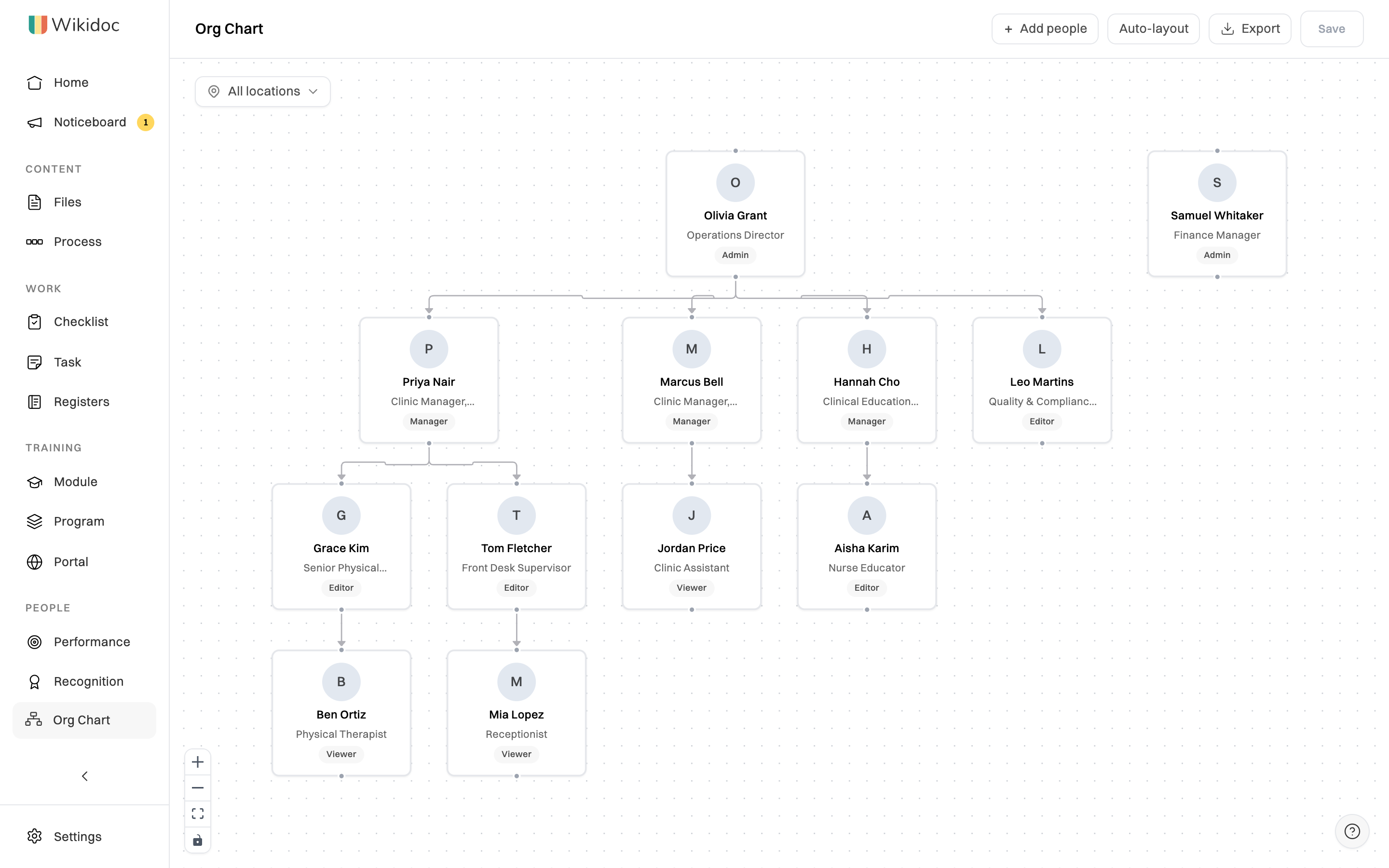
Add people
Section titled “Add people”-
Click Org Chart in the sidebar.
-
Click + Add people at the top right.

+ Add people is at the top right of the map. -
Search for colleagues by name or email, select everyone you want on the map, and click Add members. Anyone already on the map is left out of the list.

Each person appears as a card with their name, job title and role. Their name and job title come from their profile, so people can keep them up to date themselves. See Set up your organisation.
Draw reporting lines
Section titled “Draw reporting lines”Drag from the dot at the bottom of a manager’s card to the top of the card of someone who reports to them. Then click Save at the top right.
To remove a line, click it, then click Delete connection on it.
Click Auto-layout to arrange everyone into a tree that follows your lines.
Set who someone reports to
Section titled “Set who someone reports to”The lines on the map are how the chart is drawn. Separately, each person’s profile has a Reports to field, which decides who can see their performance reviews. Admins set it:
-
Click the person’s card. Their Member profile opens on the right.
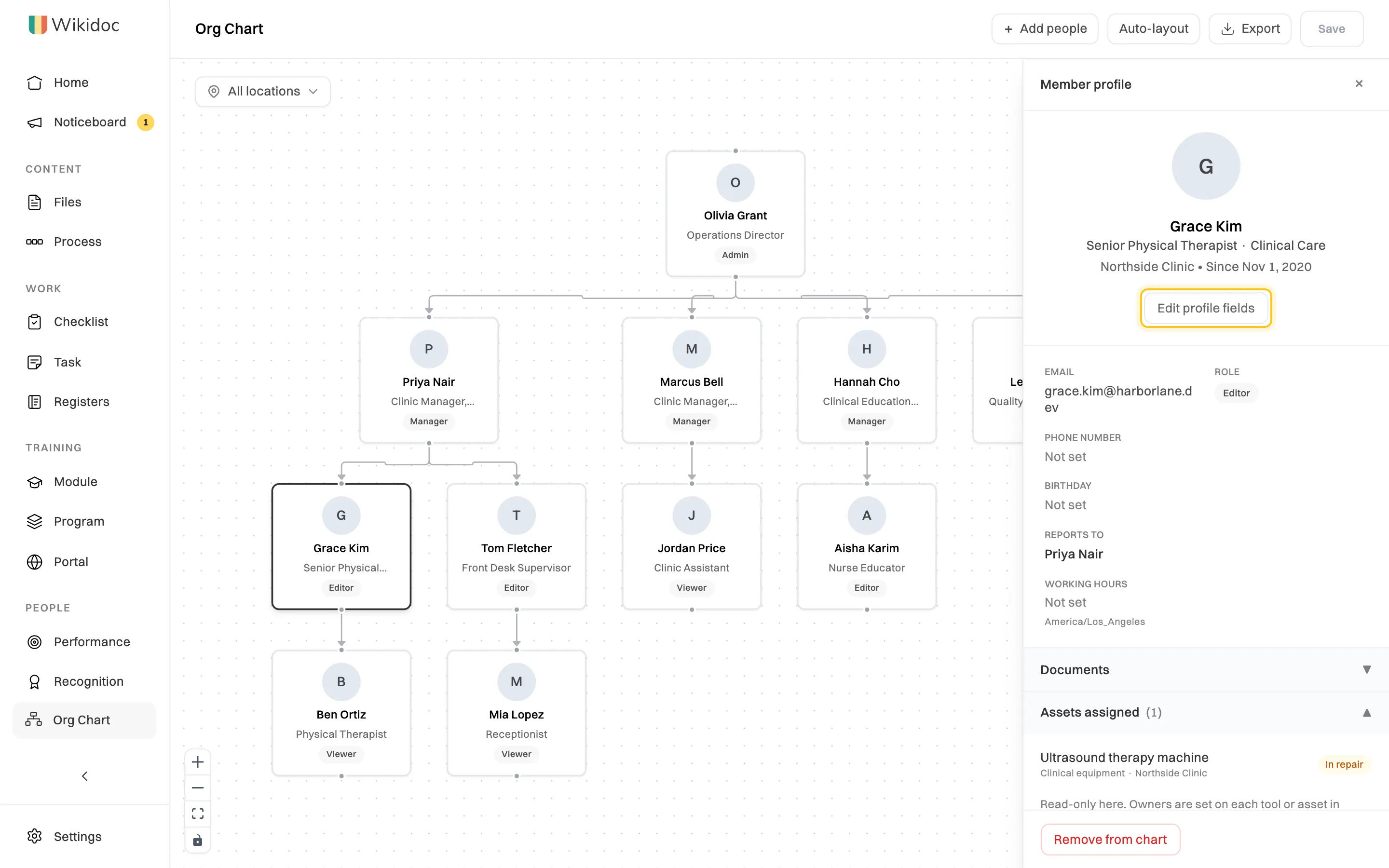
Click anyone on the map to see their profile. -
Click Edit profile fields.
-
Choose their manager under Reports to, then click Save.
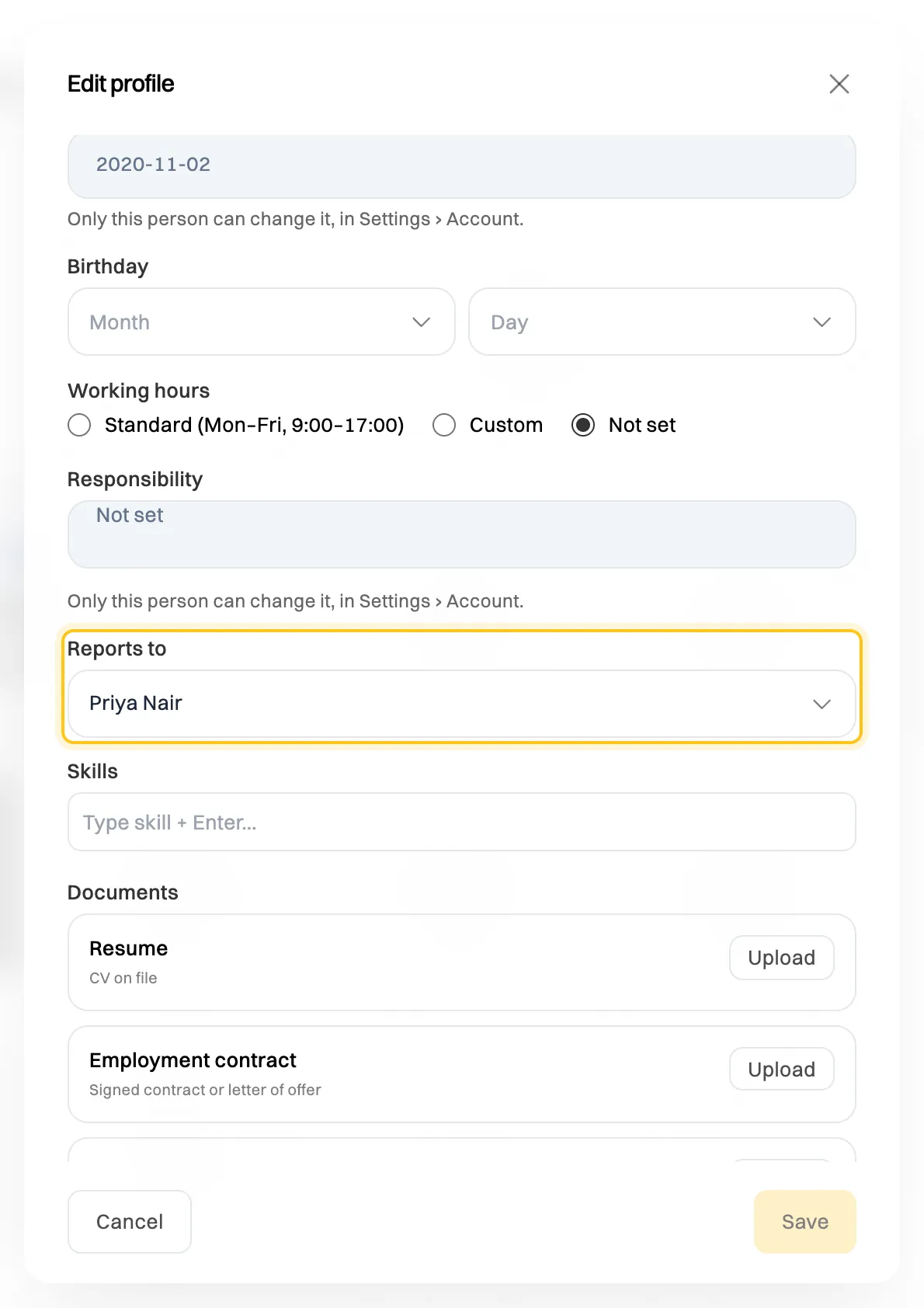
Only Admins can change Reports to and Department.
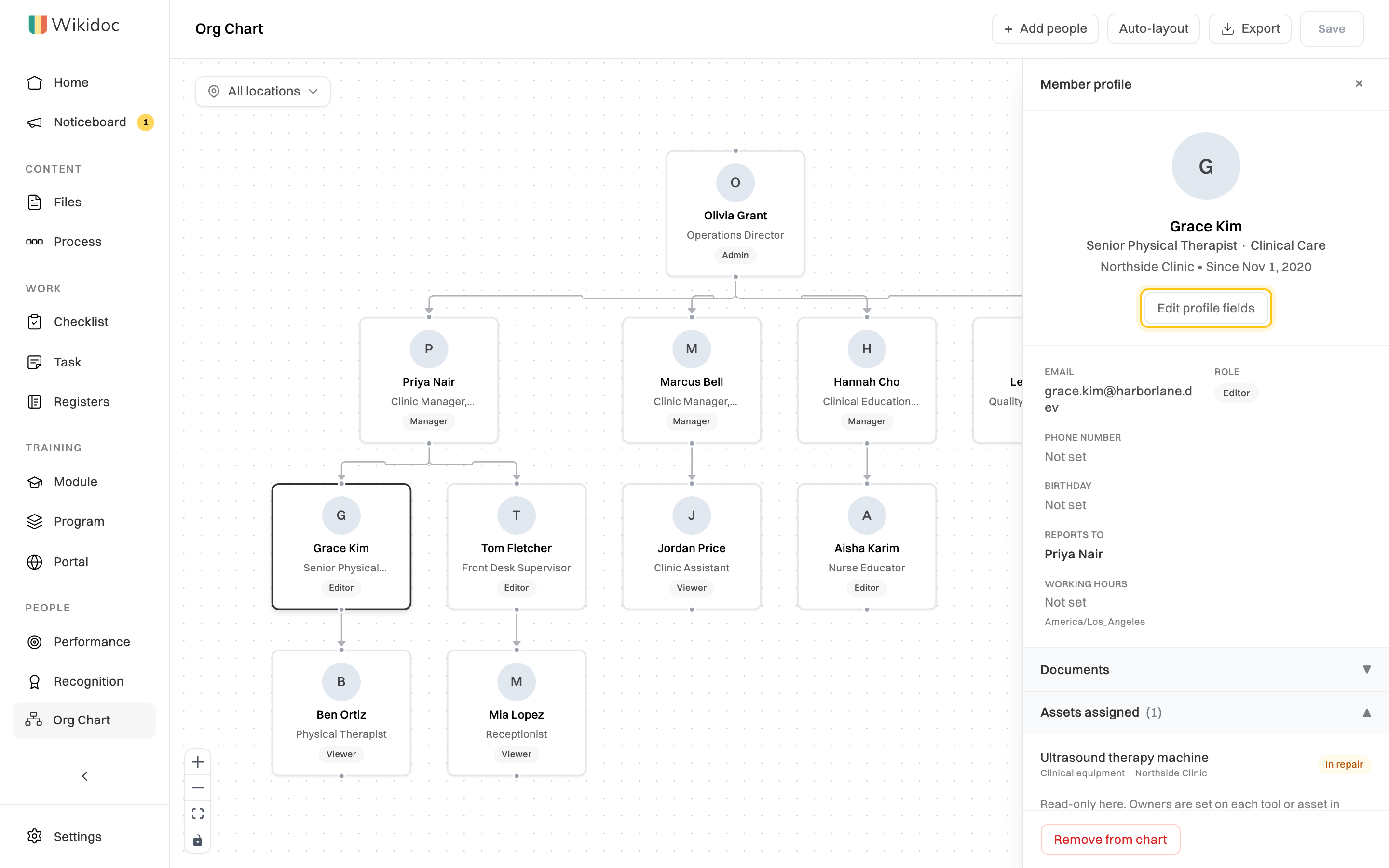
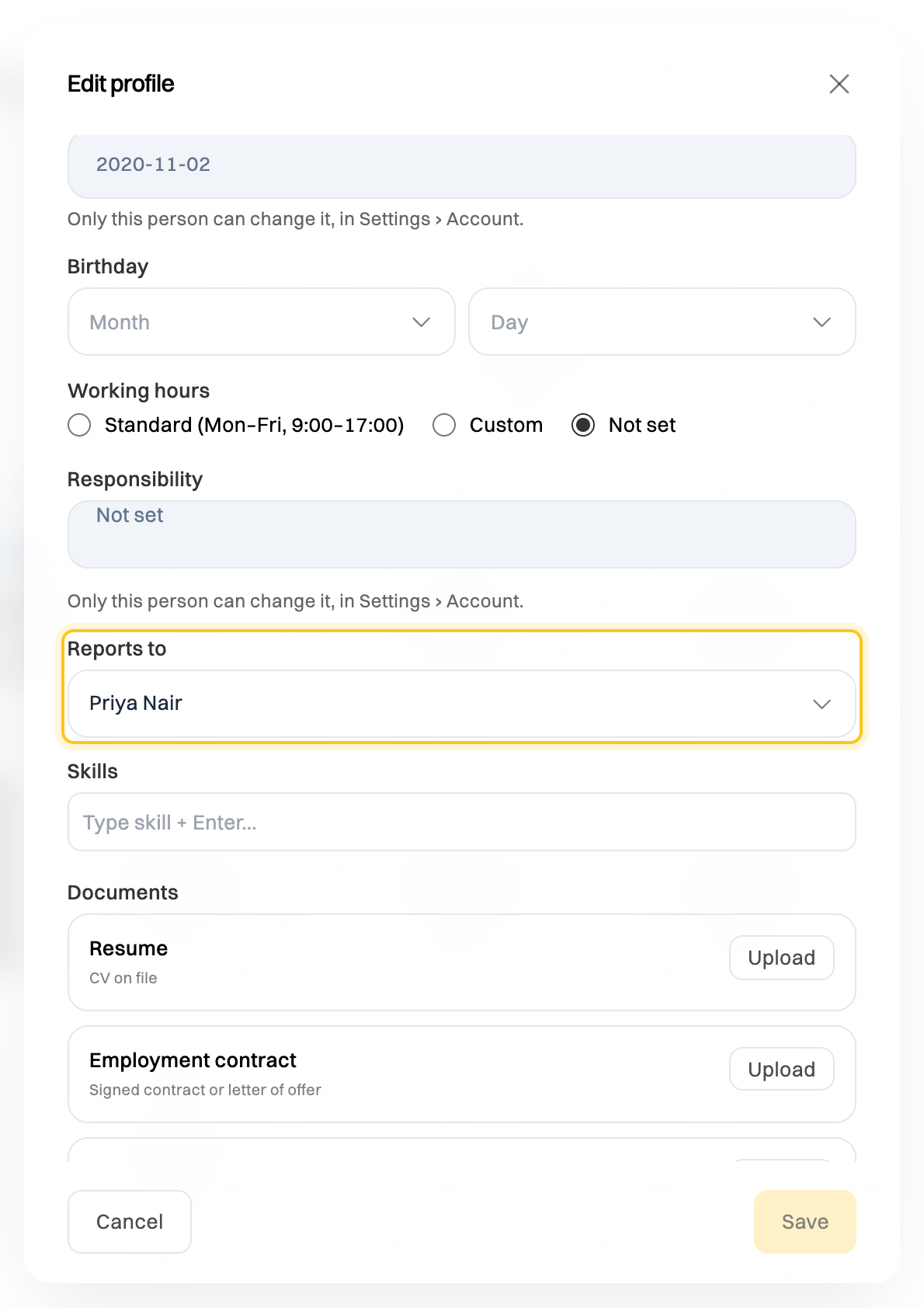
Managers can edit the other profile fields, such as location, phone and working hours. A person’s job title, start date and responsibility are theirs to change, in Settings›Account.
Tools, policies, assets and providers
Section titled “Tools, policies, assets and providers”These used to be tabs on the org chart. They’re now in Registers, in the sidebar under Work. A person’s profile lists the tools and assets they own, under Tools owned and Assets assigned. See Keep registers of tools, policies, assets and providers.
Find people and share the map
Section titled “Find people and share the map”- By location: when your people work in more than one place, use All locations at the top left of the map to show one location.
- Send someone a profile: while a profile is open, the address in your browser points to it. Copy it to send someone straight to that person. In Registers, an owner’s name opens their profile the same way.
- Export: click Export, then Export as PNG or Export as PDF. Anyone who can see the map can export it.
Saving
Section titled “Saving”Adding someone, moving a card, or removing a line saves straight away. Drawing a new line doesn’t: click Save when you’ve finished. A dot on the Save button means you have unsaved changes.
Remove someone from the map
Section titled “Remove someone from the map”Click their card, then Remove from chart at the bottom of their profile, and confirm. This only takes them off the map. To remove someone from your organisation, see Remove a member.
If your plan changes
Section titled “If your plan changes”If your organisation leaves the Team plan, the org chart stays and everyone can still view it, but nobody can change it. See What happens when a plan or trial ends.