How to customise and share reports in Google Analytics
Wikidoc Team
March 17, 2026
Introduction
This guide (created using Wikidoc) provides a technical walkthrough for navigating Google Analytics 4 to analyse specific user acquisition channels, modify data dimensions, and share filtered reports with stakeholders.
Accessing the User Acquisition Report
To begin your analysis, you must navigate to the specific reporting section that tracks how users find your property.
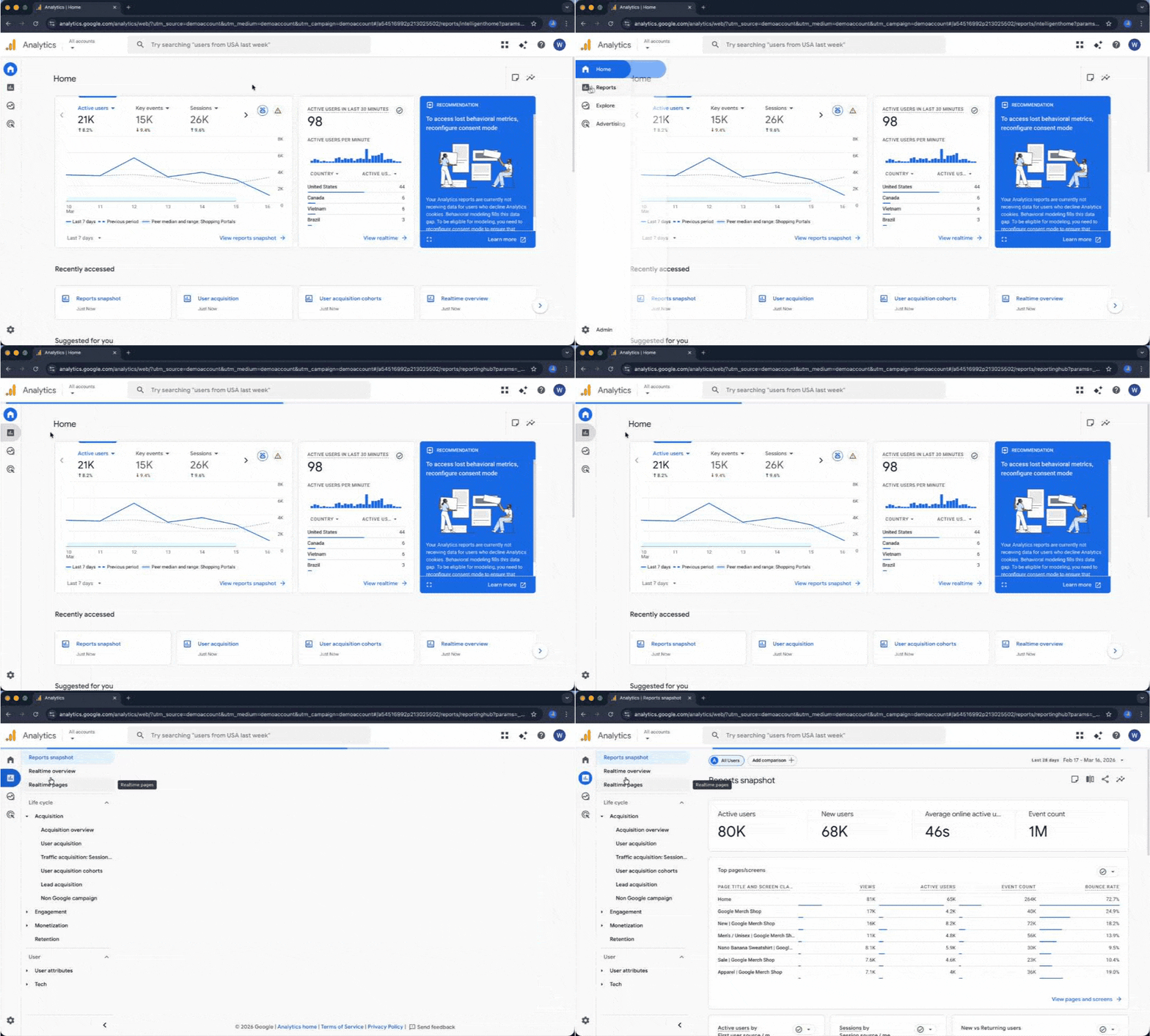
Click the Reporting icon in the left-hand navigation bar to expand the menu.
Select Reporting snapshot to view the overview dashboard.
Applying Traffic Comparisons
To focus on specific traffic segments, use the comparison tool to isolate different acquisition channels.
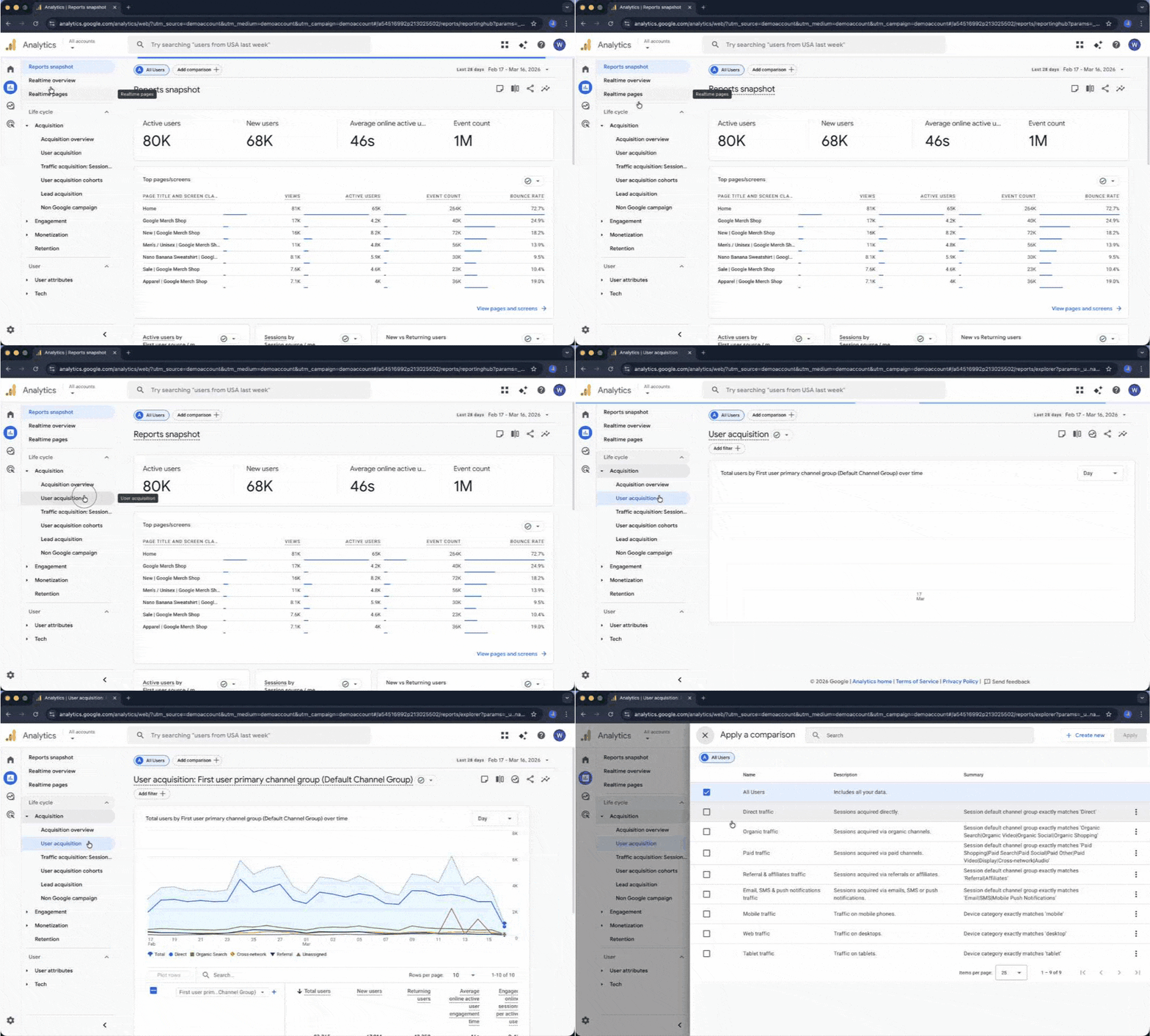
In the sidebar, expand the Acquisition menu and select User acquisition. This report provides a detailed breakdown of your traffic sources.
Click the Add comparison button located at the top of the report.
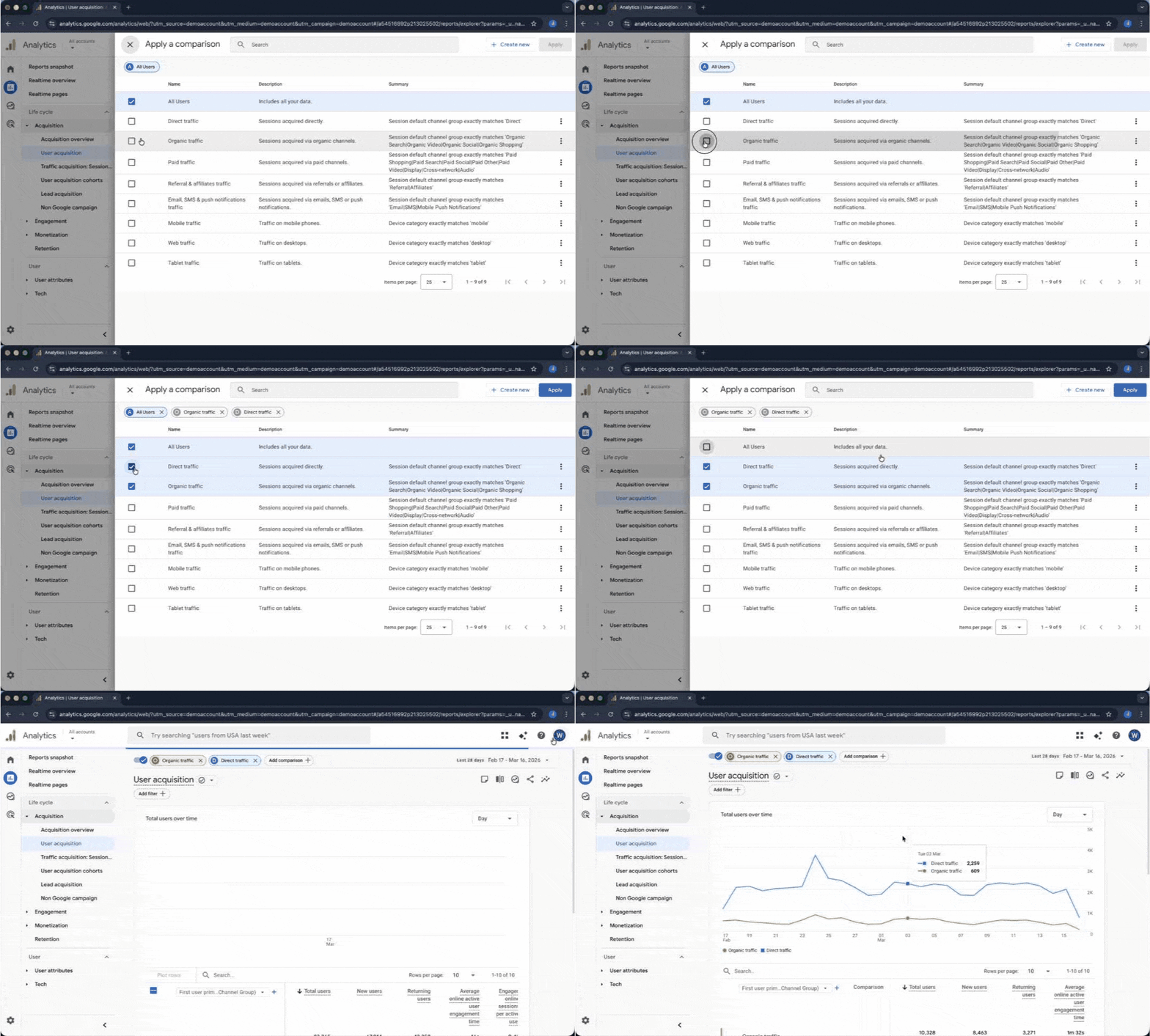
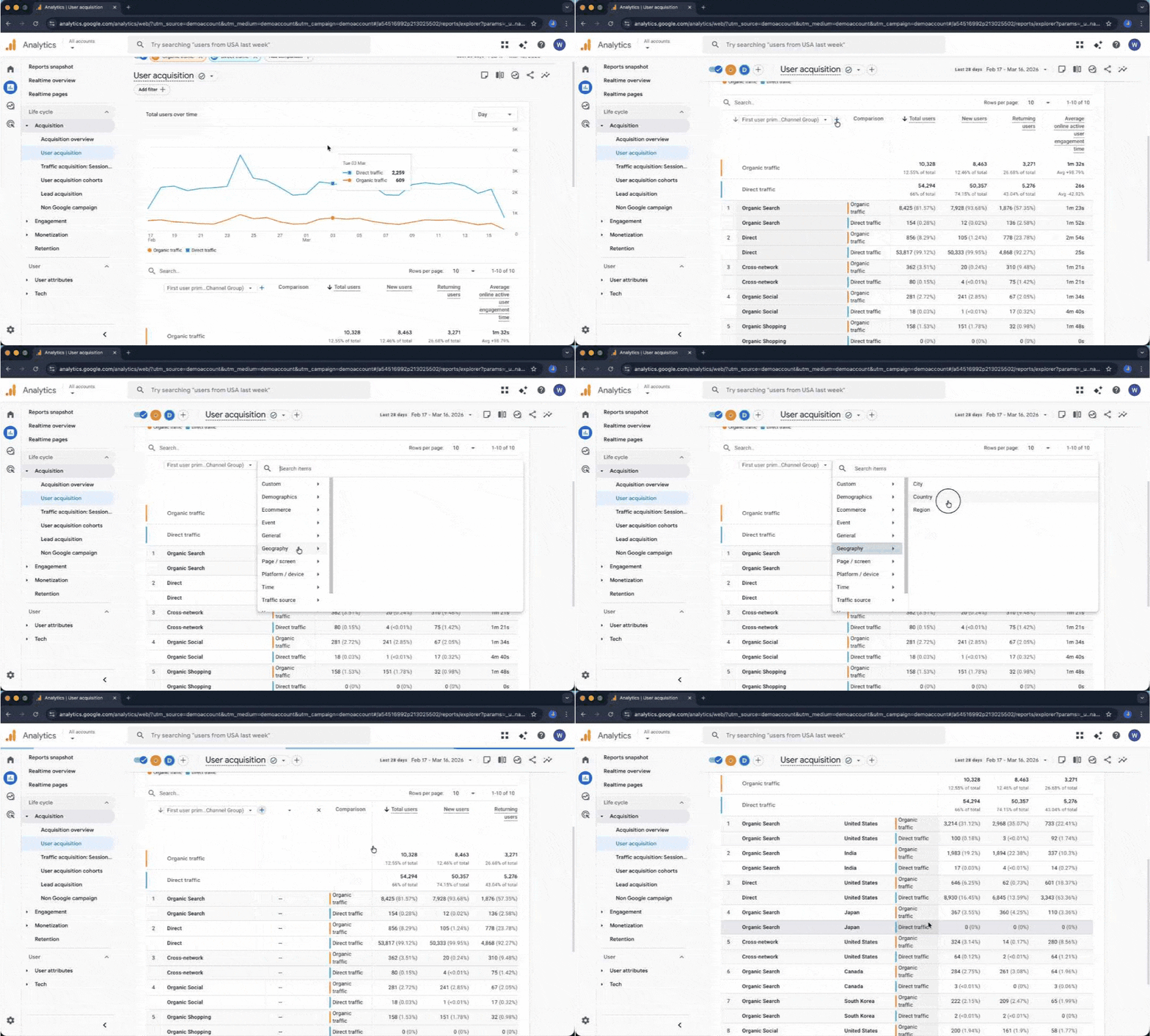
In the comparison selection panel, select the specific segments you wish to analyse, such as Organic traffic and Direct traffic.
Deselect the All users segment to ensure the report only displays the selected channels.
Click Apply to refresh the report with the new parameters.
Customising Report Dimensions
Dimensions can be adjusted to view the data through different lenses, such as geographic location.
Locate the primary dimension dropdown menu (typically set to "First user default channel group").
Select Geography from the list of available categories.
Choose Country to update the report table. The data will now display acquisition metrics organised by the users' country of origin.
Sharing the Filtered Report
Once the report is configured with the necessary filters and dimensions, you can generate a shareable link for collaborative review.
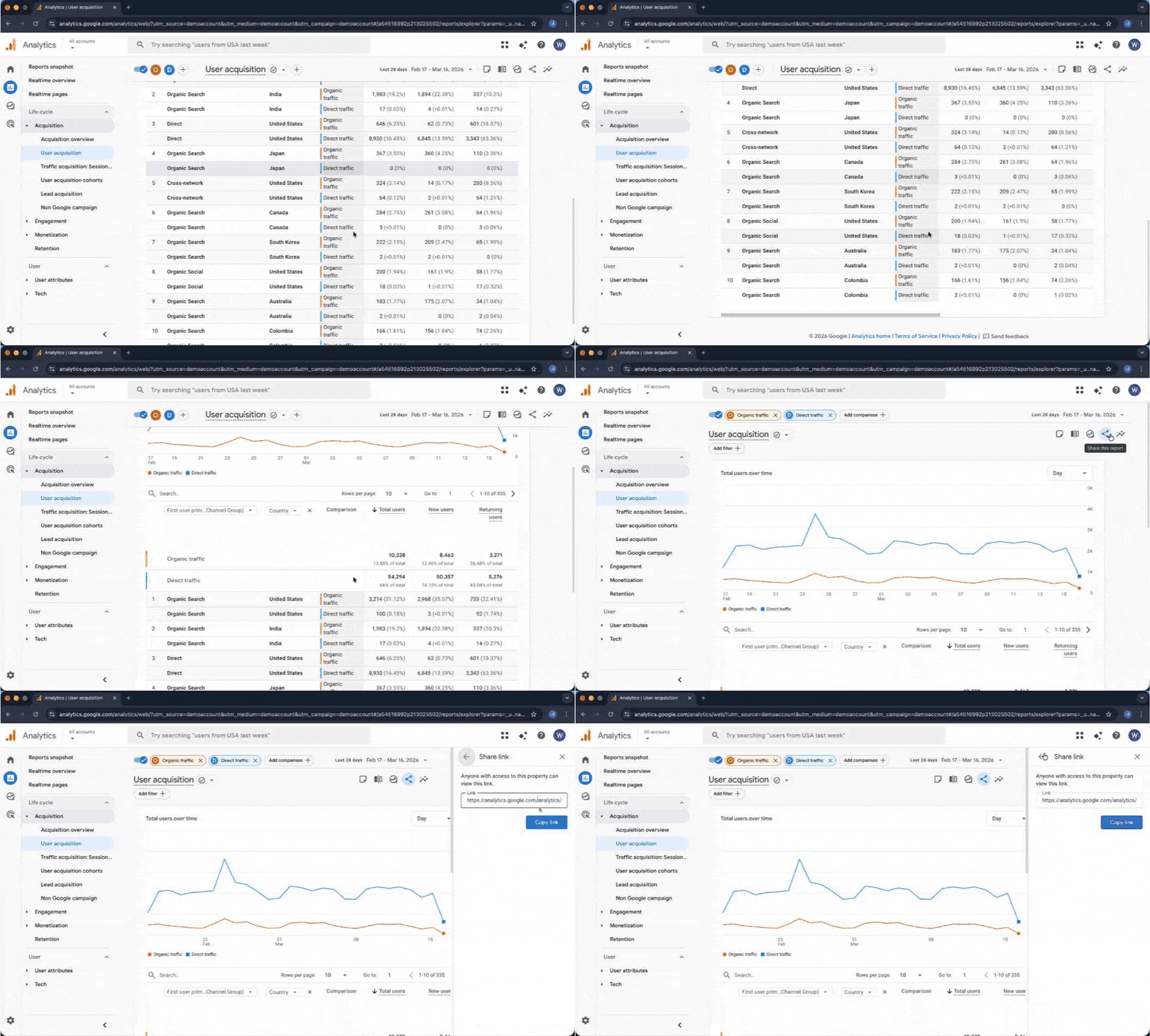
Review your data to ensure the filters (e.g., Organic and Direct traffic) and date ranges are correct.
Click the Share this report icon in the top right corner of the interface.
In the sidebar that appears, expand the Share link section.
Click Copy link to save the unique URL to your clipboard. This link will preserve the current configuration for anyone who accesses it.
Table of contents:
Listen to AI narration
Subscribe to our newsletter
Thanks for subscribing to our newsletter!
Oops! Something went wrong while submitting the form.
Find out how Wikidoc can supercharge documentation
.avif)




.avif)