How to add Google Analytics tracking code to Webflow
Wikidoc Team
March 15, 2026
Introduction
This guide (created using Wikidoc) provides a step-by-step walkthrough for integrating Google Analytics 4 (GA4) with a Webflow project. By following these instructions, you can ensure your website traffic is accurately tracked and analysed.
Retrieving the Measurement ID from Google Analytics
To begin the integration, you must first locate and copy your specific Measurement ID from the Google Analytics dashboard.
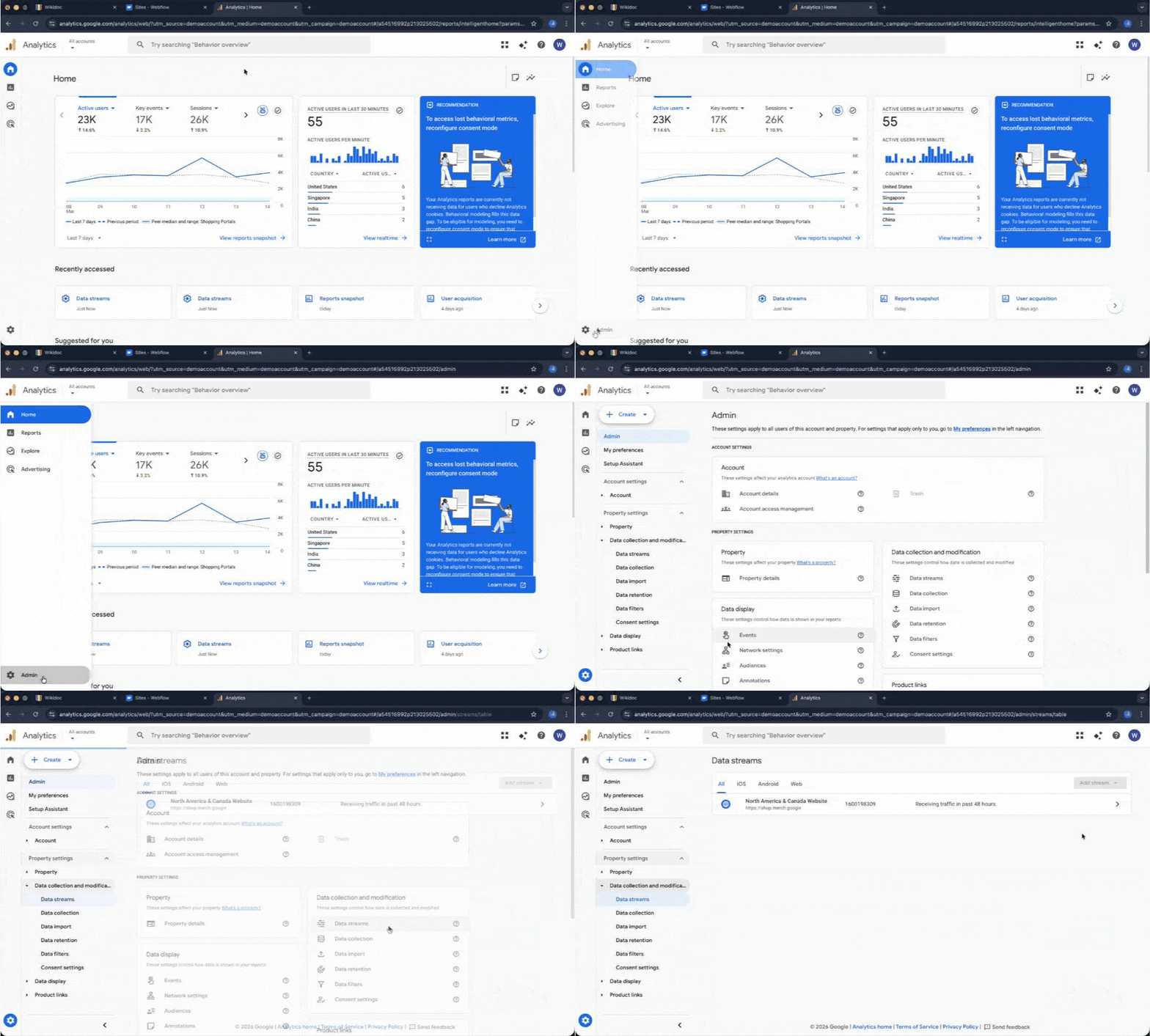
Navigate to the Admin panel by clicking the gear icon in the lower-left corner of the Google Analytics interface.
Within the Data collection and modification section, select Data streams.
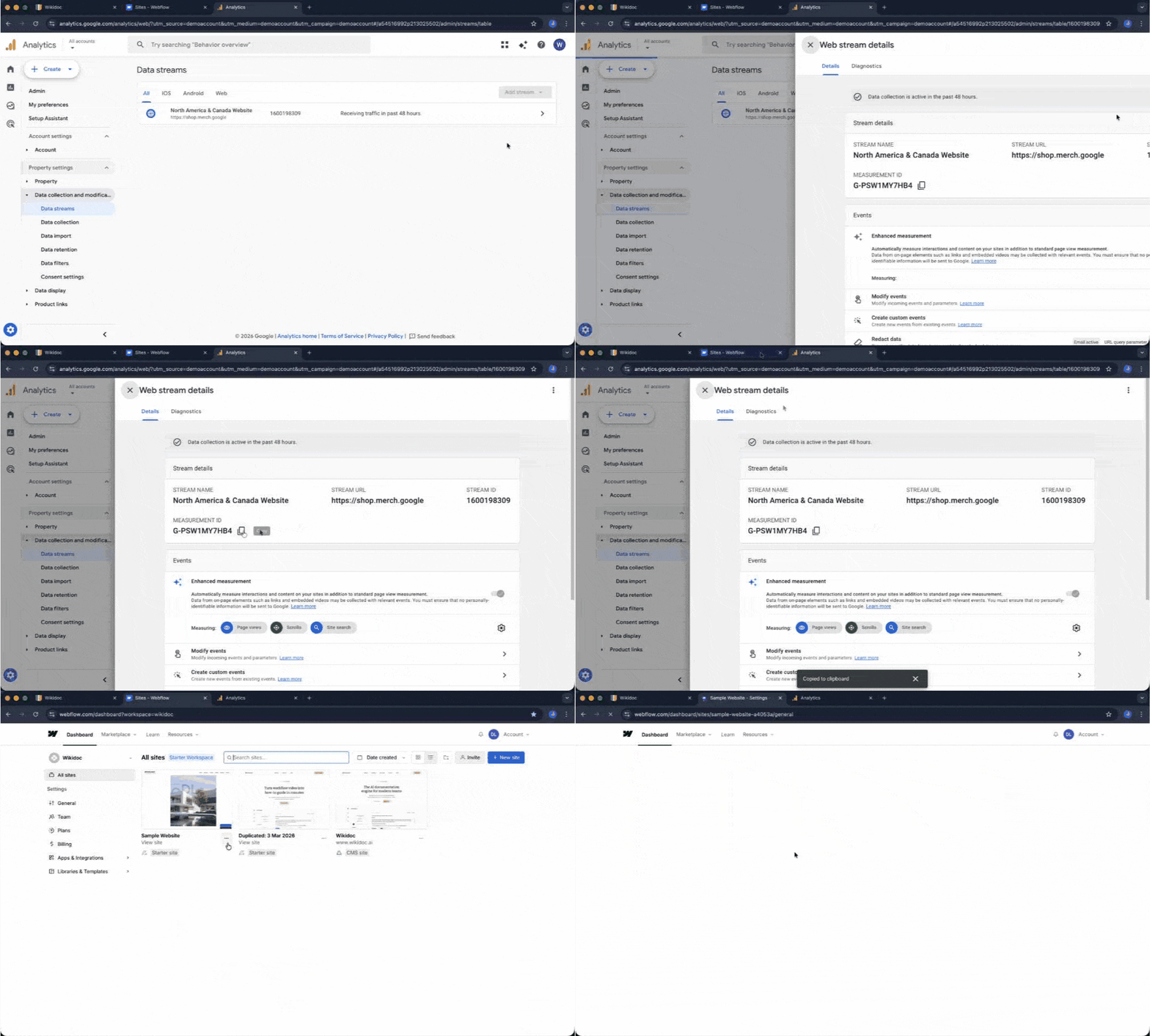
Select the desired data stream (e.g., "North America & Canada Website") to view its details.
Locate the Measurement ID and copy it to your clipboard.
Configuring the Integration in Webflow
Once you have the Measurement ID, you need to apply it to your Webflow site settings to activate the tracking.
Open your Webflow dashboard and access the Settings of the website you wish to track.
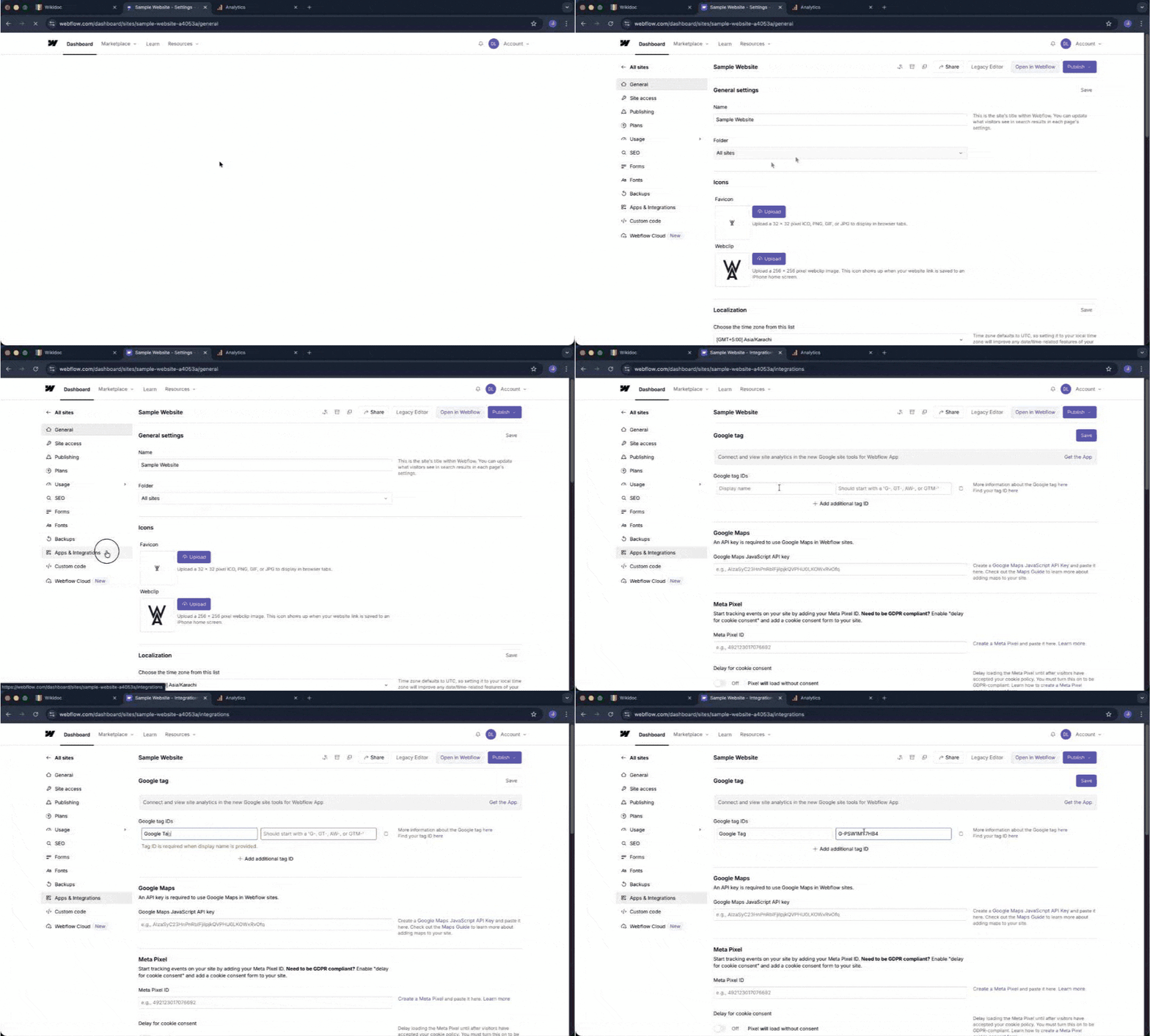
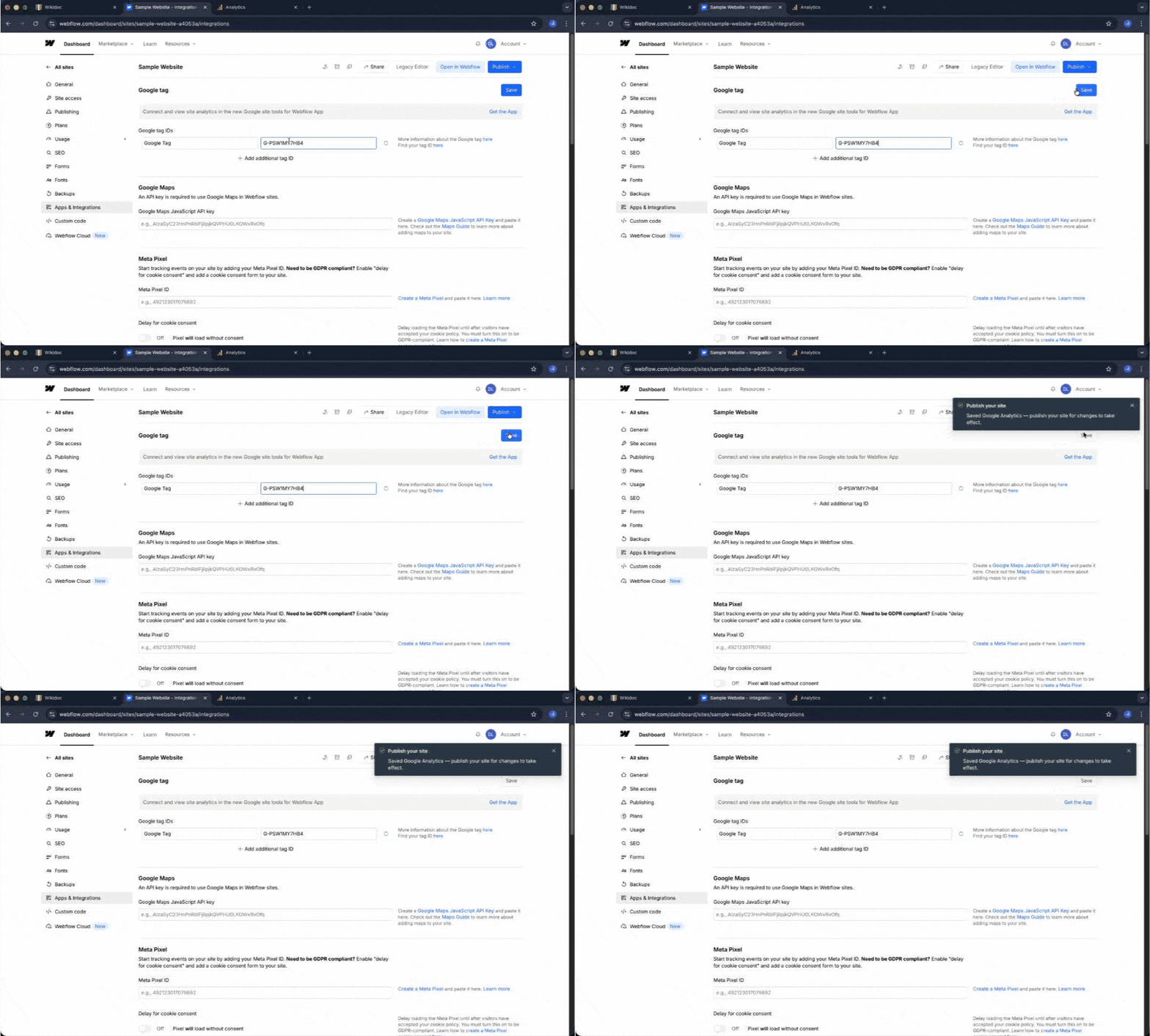
From the sidebar menu, select Apps & Integrations.
Locate the Google Tag ID field under the Google Analytics section and paste your Measurement ID into the input box.
To finalise the changes and make the tracking live, click the Publish button at the top of the interface.
Select your preferred domain and click Publish to selected domains from the dropdown menu.
Table of contents:
Listen to AI narration
Subscribe to our newsletter
Thanks for subscribing to our newsletter!
Oops! Something went wrong while submitting the form.
Find out how Wikidoc can supercharge documentation
.avif)




.avif)